


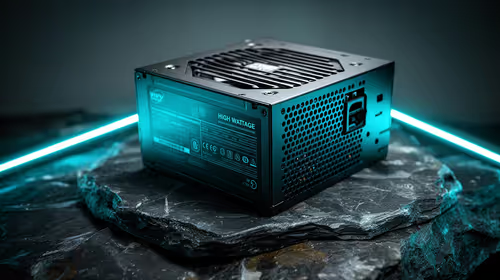
550W PSU Planning for RTX 5080 Super Builds in SA
550W for RTX 5080 Super needs a full-build check, not a simple yes. Review GPU guidance, CPU draw, transient load, connectors, PSU quality, and upgrade plans before deciding.
Read moreTest touch and pen input separately because working touch does not prove digital-pen compatibility. The Prestige has a convertible 16-inch 2.8K 120Hz OLED touchscreen; start with finger input, then check the exact pen before troubleshooting stylus behaviour.

Touchscreen and pen symptoms can share a screen while coming from different input paths. Fixing touchscreen and pen issues on Windows starts by identifying whether finger touch, a verified stylus, one application or the whole operating system is affected. The screen on the R37,999 MSI Prestige 16 Flip AI+ accepts finger touch; no particular pen follows from that capability.
Restart Windows, test finger touch in system settings, then check the intended pen's compatibility, battery or pairing requirements and application behaviour. The R37,999 Prestige has a 16-inch 2.8K OLED touchscreen. Do not troubleshoot an unverified stylus as though the laptop guarantees its protocol.
Test simple finger taps, scrolling and multi-touch gestures in more than one Windows interface. If touch works but the pen does not, focus on stylus compatibility, its own power state and application support. If neither works, use system diagnostics and updates appropriate to the device.
Record the first change that restores input. Several simultaneous driver or setting changes make the cause difficult to identify.
The Prestige screen is 2.8K, so Windows scaling may affect interface size. Compare system controls with the creative application at the same scaling and zoom. A mark landing in the wrong place can reflect application coordinates or calibration rather than panel sharpness.
The 120Hz refresh rate concerns display updates, not stylus protocol. Use the MSI professional notebook selection for model-specific alternatives if verified pen input is mandatory.
Fold the 2-in-1 on a secure desk and repeat the input test. Confirm that the orientation is correct and that the application follows the display rotation. Avoid diagnosing while the laptop rocks or the hand unintentionally activates controls.
Pen pressure, palm behaviour and buttons should be tested only after the compatible device and software path are known.
Once input passes, record Windows version, application version, scaling, orientation and pen model. Test again after any update that changes the symptom.
Creative alternatives can be explored in Evetech's creator laptop range. Thunderbolt devices are a separate connection chain and should be disconnected during input diagnosis only when they appear related.
Save work, disconnect the unverified pen and restart the laptop. Test finger touch in a Windows interface, then in the problem application. Reconnect only a protocol-compatible stylus and test its basic contact before enabling buttons, pressure options or application-specific tools.
Document the first stage that fails. If system touch passes but one canvas fails, focus on that software. If a pen fails before an application opens, revisit compatibility and its own power or pairing path. A staged recovery is slower than random changes once, but much faster than repeating an unknown fix after the next update.
Begin with finger touch in a Windows interface, then the intended pen in its setup utility, followed by a simple drawing tool and finally the production application. This ladder shows where the behaviour first changes. Test near panel edges and after rotating the convertible, because coordinate issues can be position-specific.
Save screenshots of the working configuration before applying an update. Recovery becomes far clearer when the buyer can restore a known input path instead of relying on memory.
Where the intended application needs more than pointer movement, draw controlled lines at different angles and rest the hand naturally on the panel. Record missed strokes, unintended marks and behaviour near interface controls. Those observations belong to the exact pen protocol and software combination. A successful finger-touch test cannot stand in for this precision check.
No specific stylus path should be assumed. Verify protocol and pen model before troubleshooting compatibility.
Finger touch and active stylus input use different requirements. The pen may need a supported protocol, power, pairing or application support.
It can affect application coordinates and interface behaviour. Compare system input with the exact application before changing hardware assumptions.
No. Apply one supported change, restart where required and retest the same action so the result remains attributable.
Ready to isolate touch and pen input without mixing their causes? Compare Evetech creator and MSI laptops after verifying the stylus protocol, Windows settings and application path your workflow needs.
No specific stylus path should be assumed. Verify protocol and pen model before troubleshooting compatibility.
Finger touch and active stylus input use different requirements. The pen may need a supported protocol, power, pairing or application support.
It can affect application coordinates and interface behaviour. Compare system input with the exact application before changing hardware assumptions.
No. Apply one supported change, restart where required and retest the same action so the result remains attributable.
550W for RTX 5080 Super needs a full-build check, not a simple yes. Review GPU guidance, CPU draw, transient load, connectors, PSU quality, and upgrade plans before deciding.
Read more
8000Hz polling is overrated for most SA gamers because gains can be tiny next to battery drain and monitor limits. Mbombela players should weigh mouse feel, game support, and system stability before chasing the number.
Read more
Magnetic switches are taking over SA gaming keyboards because actuation can be tuned. For Sandton gamers, rapid trigger, reset control, and profile depth can help, but layout, key feel, and software quality still matter.
Read more
Polokwane oled monitor value questions need cautious SA context because pricing can move with availability, exchange rates, specs, and warranty support. Treat the trend as a planning signal, not a fixed price promise.
Read more
Arc B580 budget builds for Midrand gamers can shift with exchange rates, supply, specs, and model tier. Treat the title as a buying prompt, then compare SA warranty, timing, and build priorities.
Read more
ROG Ally X may beat the LCD Steam Deck for SA gamers who value stronger handheld performance, more memory, and Windows flexibility. Compare battery life, controls, game libraries, and Polokwane support needs before deciding.
Read more
Minisforum's M2 Pro pairs Core Ultra X7, Arc B390 graphics and 32GB onboard memory in 1.8 litres. SA buyers should weigh its fixed memory and $1,439 launch offer against local mini PCs.

Lenovo says Legion Go failures linked to BIOS N3CN42WW are not user error. Affected SA owners should stop retrying the update, preserve proof and open a support case.

Smart monitors can add apps and convenience, but they also add privacy settings and unwanted-software risk. SA buyers should audit the operating system before paying for extras.

A fake 113GB GTA VI ISO reportedly used empty padding around a small malware payload. SA gamers should delete unofficial builds, keep Windows security active and wait for official channels.

ASUS calls the ROG GT-BN98 the first Wi-Fi 8 gaming router. SA buyers should fix coverage and client limits before paying for a future wireless standard.

Apple's M6 Mac mini adds faster AI, graphics and networking in the same compact format. SA buyers should wait for a rand listing before comparing value.

The Vulcan II XP adds hot-swappable switches, sound damping and gaming controls to a full-size wired board. SA buyers should compare feel before features.

Microsoft says Windows on Arm now has over 7,000 verified apps and games. SA buyers should still check each driver, game and work tool before switching.

Xbox Insiders can test disc-to-digital from 31 August 2026. Supported Xbox One and Series X discs gain a digital entitlement, but older discs, regions and title coverage still need exact checks.

ViewSonic's XG2738 pairs QHD QD-OLED with 240Hz and automatic panel care. SA buyers should compare warranty, brightness, ports and burn-in protection against today's R9,999-plus OLED shelf.

NVIDIA's final Windows 10 Game Ready driver is due in October 2026. SA gamers can keep using their GPU, but new game optimisations move on while critical security fixes continue quarterly.

JBL's new Quantum 520, 520X and 120 headsets cover wireless, Xbox-certified and wired use. SA buyers should compare connection, comfort and microphone needs before paying for a new badge.