


550W PSU Planning for RTX 5080 Super Builds in SA
550W for RTX 5080 Super needs a full-build check, not a simple yes. Review GPU guidance, CPU draw, transient load, connectors, PSU quality, and upgrade plans before deciding.
Read moreSet chair height, recline and arm position before testing dynamic lumbar through movement. The AutoFull M6 Pro+ 2.0 provides dynamic lumbar at R16,599; follow its instructions for any control steps.

Lumbar adjustment makes sense only after the chair and desk establish a workable base. Adjusting dynamic lumbar support begins with seat, controls and arm position, then observes contact through movement.
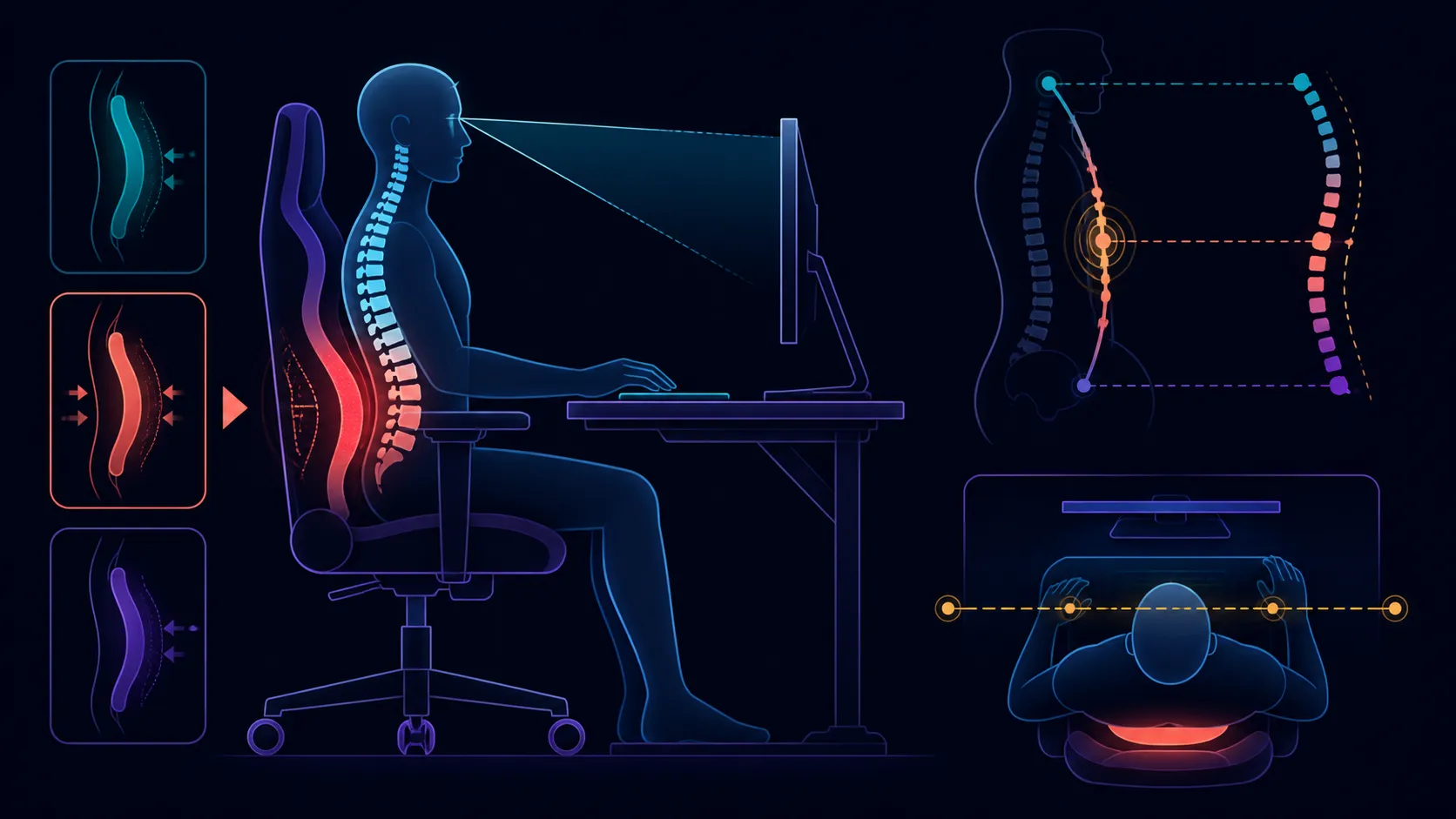
Establish chair height, backrest zone and forearm support before assessing lumbar response. The R16,599 M6 Pro+ changes lower-back contact with sitter movement. Its backrest can reach 160 degrees, and a 3D ErgoCloud pillow serves the neck area. Follow the correct procedure for any dedicated controls.
Place the feet and seat in a stable relationship with the desk. Align forearms with keyboard, mouse or controller without raising the shoulders. The lumbar feature cannot compensate for every poor surrounding position.
Review Evetech's AutoFull gaming chairs after identifying body measurements and desk clearance.
Shift between ordinary task positions and note how lower-back contact changes. The feature is dynamic because it responds to seated movement, not because it automatically guarantees ideal support.
Change one variable at a time. If the system has any user control, confirm its function in the exact chair guidance rather than applying a generic lumbar sequence.
Move the backrest gradually toward positions that the routine uses, up to its 160-degree endpoint where appropriate. Recheck lumbar contact at every practical angle.
Place the 3D ErgoCloud pillow for appropriate neck contact. Evaluate upper and lower support as a pair while browsing Evetech's local range of gaming chairs.
Dynamic lumbar can change chair fit and personal comfort, but it cannot resolve back pain or treat a condition. Seek suitable professional advice for persistent health concerns.
At R16,599, judge the system through repeated desk movements. Keep the chair within its 150kg maximum and confirm dimensions independently.
Create a neutral baseline before fine adjustment. Sit for an ordinary typing task with feet supported and inputs within easy reach, then note where the lower back meets the chair. Make a small chair-position change and repeat the same task. Dynamic response is easier to judge when desk height, screen placement and work type are not shifting at the same time.
Use a short task matrix for email, concentrated keyboard work, mouse-heavy editing and a brief reclined pause. Record whether lumbar contact remains useful as the torso moves between those activities. Also check whether the arms or neck pillow need repositioning, because an improvement at the lower back can be undermined by a poor upper-body relationship.
Shared-chair users should keep individual reference settings instead of compromising on one middle position. Photographing control positions or writing a simple reset note can make changeovers more consistent. Do not translate preferred pressure or contact into a medical conclusion. Persistent symptoms require suitable professional guidance, while this exercise is limited to furniture fit and repeatable adjustment.
Review the baseline after any workstation change. A new desk height, keyboard position or monitor arrangement may change torso movement even when the chair setting is untouched. Repeat the familiar task before altering lumbar contact. This guards against solving the wrong variable and gives the owner a consistent way to rebuild the chair relationship after moving equipment or sharing the station.
Set the chair-to-desk relationship, forearm position and a normal task recline before focusing on lumbar contact.
It follows changes in the seated position rather than remaining fixed against one backrest relationship.
Use the model instructions to identify whether a control exists and exactly how it operates.
Shift through representative typing, gaming and break positions while changing only one setting at a time.
No chair adjustment is a treatment or guarantee of pain relief.
Maximum backrest travel for the M6 Pro+ is 160 degrees.
A 3D ErgoCloud pillow addresses the neck above the chair's movement-responsive lumbar area.
Ready to evaluate lumbar movement from a stable desk setup? Browse Evetech's gaming chairs after aligning the seat, controls, arms and normal backrest position first.
Set the chair-to-desk relationship, forearm position and a normal task recline before focusing on lumbar contact.
It follows changes in the seated position rather than remaining fixed against one backrest relationship.
Use the model instructions to identify whether a control exists and exactly how it operates.
Shift through representative typing, gaming and break positions while changing only one setting at a time.
No chair adjustment is a treatment or guarantee of pain relief.
Maximum backrest travel for the M6 Pro+ is 160 degrees.
A 3D ErgoCloud pillow addresses the neck above the chair's movement-responsive lumbar area.
550W for RTX 5080 Super needs a full-build check, not a simple yes. Review GPU guidance, CPU draw, transient load, connectors, PSU quality, and upgrade plans before deciding.
Read more
8000Hz polling is overrated for most SA gamers because gains can be tiny next to battery drain and monitor limits. Mbombela players should weigh mouse feel, game support, and system stability before chasing the number.
Read more
Magnetic switches are taking over SA gaming keyboards because actuation can be tuned. For Sandton gamers, rapid trigger, reset control, and profile depth can help, but layout, key feel, and software quality still matter.
Read more
Polokwane oled monitor value questions need cautious SA context because pricing can move with availability, exchange rates, specs, and warranty support. Treat the trend as a planning signal, not a fixed price promise.
Read more
Arc B580 budget builds for Midrand gamers can shift with exchange rates, supply, specs, and model tier. Treat the title as a buying prompt, then compare SA warranty, timing, and build priorities.
Read more
ROG Ally X may beat the LCD Steam Deck for SA gamers who value stronger handheld performance, more memory, and Windows flexibility. Compare battery life, controls, game libraries, and Polokwane support needs before deciding.
Read more
Minisforum's M2 Pro pairs Core Ultra X7, Arc B390 graphics and 32GB onboard memory in 1.8 litres. SA buyers should weigh its fixed memory and $1,439 launch offer against local mini PCs.

Lenovo says Legion Go failures linked to BIOS N3CN42WW are not user error. Affected SA owners should stop retrying the update, preserve proof and open a support case.

Smart monitors can add apps and convenience, but they also add privacy settings and unwanted-software risk. SA buyers should audit the operating system before paying for extras.

A fake 113GB GTA VI ISO reportedly used empty padding around a small malware payload. SA gamers should delete unofficial builds, keep Windows security active and wait for official channels.

ASUS calls the ROG GT-BN98 the first Wi-Fi 8 gaming router. SA buyers should fix coverage and client limits before paying for a future wireless standard.

Apple's M6 Mac mini adds faster AI, graphics and networking in the same compact format. SA buyers should wait for a rand listing before comparing value.

The Vulcan II XP adds hot-swappable switches, sound damping and gaming controls to a full-size wired board. SA buyers should compare feel before features.

Microsoft says Windows on Arm now has over 7,000 verified apps and games. SA buyers should still check each driver, game and work tool before switching.

Xbox Insiders can test disc-to-digital from 31 August 2026. Supported Xbox One and Series X discs gain a digital entitlement, but older discs, regions and title coverage still need exact checks.

ViewSonic's XG2738 pairs QHD QD-OLED with 240Hz and automatic panel care. SA buyers should compare warranty, brightness, ports and burn-in protection against today's R9,999-plus OLED shelf.

NVIDIA's final Windows 10 Game Ready driver is due in October 2026. SA gamers can keep using their GPU, but new game optimisations move on while critical security fixes continue quarterly.

JBL's new Quantum 520, 520X and 120 headsets cover wireless, Xbox-certified and wired use. SA buyers should compare connection, comfort and microphone needs before paying for a new badge.