


How to Fix FPS Drops on an RTX 5090 Build
FPS drops on an RTX 5090 build often have a fixable cause. Check settings, drivers, thermals, background tasks, network conditions, and bottlenecks before assuming a part must be replaced.
Read moreDebug PC Stability Issues. Step-by-step instructions with SA-specific tips, common pitfalls to avoid & expert recommendations.
To debug PC stability issues, start with Windows Event Viewer to find hardware errors, run MemTest86 for RAM, run OCCT or Prime95 for CPU, run 3DMark stress test for GPU, and check HWiNFO sensor logs for thermal throttling. Most random crashes come from RAM instability, failing PSUs, or outdated BIOS.
Windows key + R > eventvwr.msc. Navigate to Windows Logs > System. Look for red "Error" entries around crash times. Kernel-Power errors mean PSU / power. Kernel-General errors mean memory or CPU. WHEA-Logger means hardware-level machine check. These point exactly where to look next.
Download MemTest86, boot from USB, run 4+ passes (3-4 hours). Any error means failing RAM sticks. Test one stick at a time to identify the bad module. Also try disabling EXPO and running at JEDEC speed - unstable EXPO profiles mimic true RAM failure.
Run Cinebench R23 for 30 minutes and watch CPU temps. Anything above 95°C sustained is a cooler problem. Run 3DMark Stress Test on GPU - should pass 98% or better. Below that points to GPU instability. Our cooler upgrades can fix thermal causes of crashes.
Check PSU age. PSUs over 5 years old frequently sag under load, causing random crashes that look like Windows bugs. A quality 80+ Gold PSU swap in a flaky system often fixes issues that driver reinstalls could not. Modern ATX 3.1 PSUs handle GPU transient spikes better too.{{/TipBox}}
Update motherboard BIOS via vendor tool. Update chipset drivers from AMD or Intel (not Windows Update). Update GPU drivers via DDU + fresh install. Update NVMe firmware via Samsung Magician / WD Dashboard / Crucial Storage Executive. This sequence fixes 40% of "random crash" reports on otherwise healthy hardware.
{{CALLTOACTION}}
How to Debug PC Stability Issues available at Evetech.co.za with local warranty and fast delivery.
How to Debug PC Stability Issues - check Evetech for latest stock and SA pricing.
Depends on your use case. How to Debug PC Stability Issu offers good value at current Rand pricing.
FPS drops on an RTX 5090 build often have a fixable cause. Check settings, drivers, thermals, background tasks, network conditions, and bottlenecks before assuming a part must be replaced.
Read more
How to fix low FPS on 240Hz monitor starts with refresh rate, GPU load, and game caps. In South Africa, also check power mode, thermals, and display cable quality before assuming your PC cannot keep up.
Read more
31.5-inch 4K OLED gives SA gamers sharp work space and rich contrast for play. It suits buyers who want one high-end display for study, streaming, or editing by day, then immersive gaming after hours. Check desk depth and panel care first.
Read more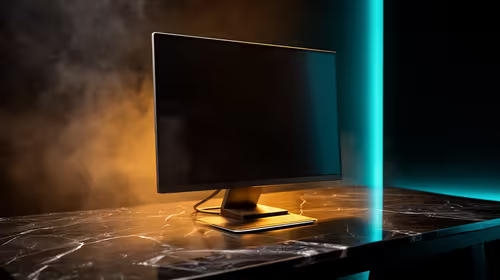
All-in-One PCs are niche in SA because they package the display and desktop into one tidy unit. That helps with space and setup, but SA buyers should weigh repair access, upgrade limits, monitor choice, and gaming expectations.
Read more
All-in-One PCs are niche in SA because the neat design comes with upgrade, repair, and performance trade-offs. They appeal to tidy desks and shared spaces, but buyers often compare them against laptops, towers, and separate monitors.
Read more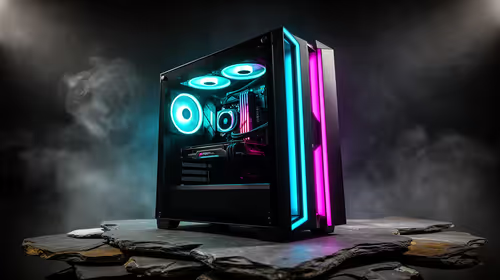
ARGB Cases In Mid-Tier SA Builds can change budget, compatibility or upgrade plans. SA PC builders should compare fit, warranty, platform needs and real workload value before committing.
Read more
Pre-Black Friday AIO cooler needs practical checks before buyers act. Build the shortlist around specs, warranty, fit, and real discount checks before campaign prices or ranges change. Keep it guide-safe for South African readers.
Used parts can lower the build cost, while buying new gives the SA warranty angle named in the title.

Choosing the right USB-C hub is essential for a clean, efficient desk setup. 🖥️ Discover exactly how many ports you need to replace your bulky desktop docking station without sacrificing performance or connectivity. ⚡
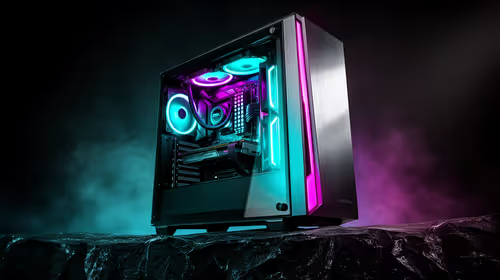
Black Friday Gaming PC Wait can help if your PC need is flexible. On a R5,000 SA budget, compare deal risk, component balance, warranty, and timing before waiting.
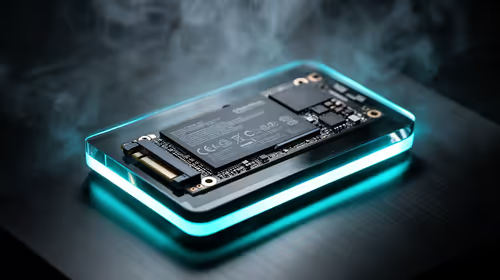
A recovery drive and system restore points turn a failed driver or BIOS update on a gaming pc from a full reinstall into a five-minute fix. Setting both up takes about 15 minutes, and Evetech recommends doing it the week you unbox a new build, before tweaking drivers.
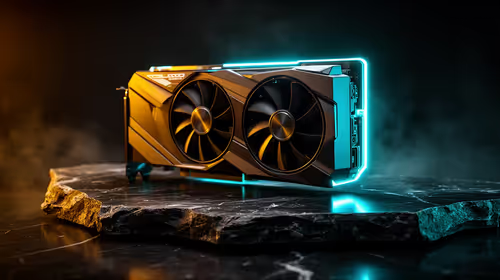
RTX 5090 with a 1000W PSU is a strong compatibility target for high-end builds. SA buyers should still match the exact PSU quality, connector support, CPU choice, case airflow, and upgrade needs to the final system.
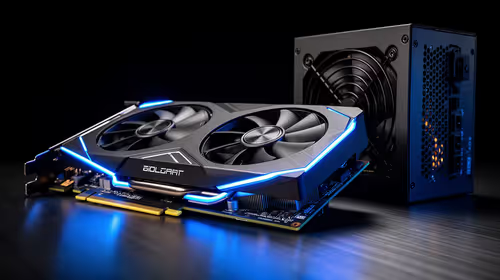
RTX 5090 on a 1000W PSU offers the best headroom in this PSU tier set. SA builders can plan more confidently for top-tier CPUs, cooling, and cautious OC, while still checking cable support and total system load.
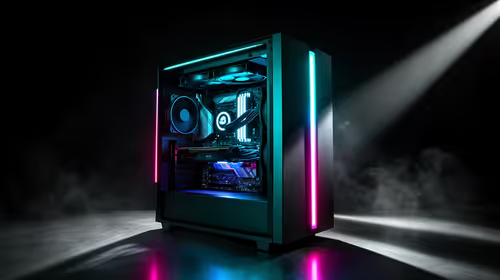
A 550W PSU is a risky fit for an RTX 5080 Super system in SA unless guidance and demand support it. Check CPU draw, cabling, PSU age, cooling, and upgrade margin before deciding whether the setup is safe enough.
FPS drops on an RTX 5090 build often have a fixable cause. Check settings, drivers, thermals, background tasks, network conditions, and bottlenecks before assuming a part must be replaced.
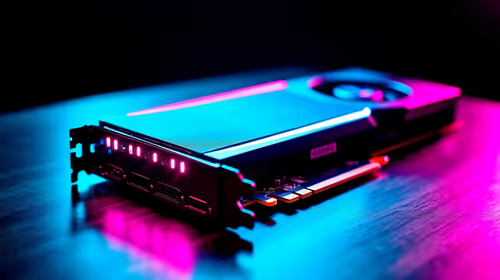
The real world difference between PCIe 5.0 and PCIe 4.0 in competitive esports is rarely raw FPS. SA esports players should compare GPU lane needs, CPU limits, latency goals, and NVMe loading before upgrading.
How to fix low FPS on 240Hz monitor starts with refresh rate, GPU load, and game caps. In South Africa, also check power mode, thermals, and display cable quality before assuming your PC cannot keep up.
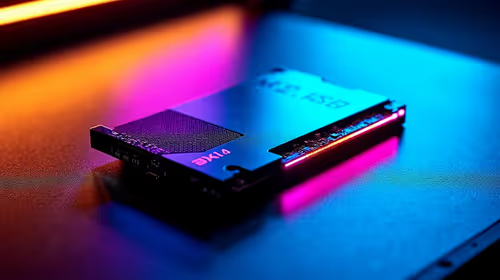
PCIe 5.0 vs PCIe 4.0 for aAA single-player gaming buyers - what changes is mostly about compatibility, budget, upgrade path, and setup fit. SA buyers should check device support and real needs before expecting a clear win from either option.