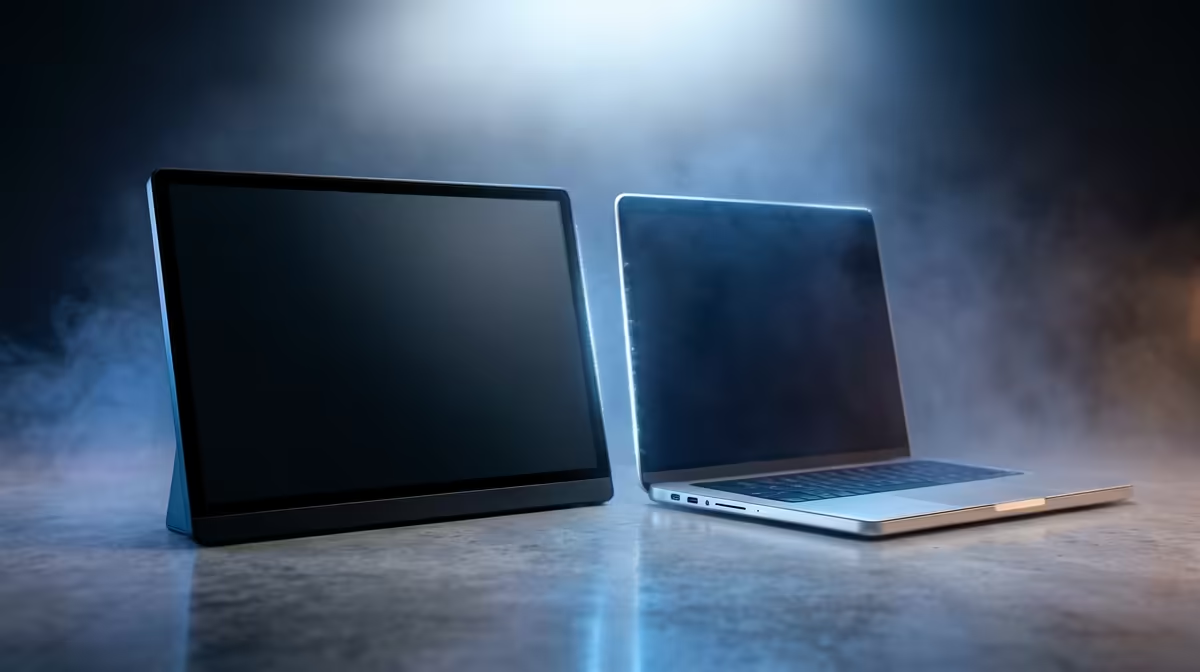
A lit power LED on a black screen is a reassuring sign, not a worrying one. It tells you the panel has power and the fault is almost certainly in the video signal path, not a dead screen. Learning to fix a portable monitor that powers on but stays black is mostly about tracing how the picture gets from your laptop to the panel: the cable, the port standard, and the display mode your operating system has chosen.
Quick Answer
A glowing LED with a black screen means the monitor has power but is receiving no video. Work the signal path in order: try a different cable, confirm the laptop port supports USB-C DP Alt Mode or use HDMI, and check your OS display settings so the screen is set to extend or duplicate rather than being switched off.
Start With the Cable
Cables are responsible for more powered-on black screens than any other single component. Many portable monitors run on one USB-C cable that must carry both power and video, and a large share of USB-C cables are charge-only. They will light the monitor and never pass a picture, which is exactly the symptom you are seeing.
Swap to a cable you know carries video - a full-featured USB-C cable rated for display use, or test the monitor's HDMI input to eliminate the cable entirely. A bad or wrong cable explains the majority of these black screens.
If you are still shopping or comparing, the portable monitor selection at Evetech lists which connection each panel uses, which makes it easier to pick one that matches your laptop's ports.
Check the Laptop Port and DP Alt Mode
A USB-C port only sends video if it supports DisplayPort Alternate Mode. Not every USB-C port does. Look for a tiny DisplayPort or Thunderbolt icon printed beside the port, and if your laptop offers several USB-C ports, test each one, because manufacturers sometimes restrict Alt Mode to a single connector.
If none of your USB-C ports carry video, use the monitor's HDMI input with an HDMI cable, or a USB-C to HDMI adapter that explicitly supports video output. Confirming the port can actually send a picture is the step most people skip.
Fix the Display Mode in Your OS
Sometimes the hardware is fine and the operating system simply has not put an image on the second screen. The monitor is detected but set to show nothing, or the laptop is outputting to a resolution the panel cannot display.
On Windows, open the display projection menu with Win + P and select Extend or Duplicate to push output to the external screen. Then open display settings, confirm the monitor is listed, and make sure it is not disabled. On a Mac, open System Settings, go to Displays and click Detect Displays, then set the arrangement. If the screen flickers but stays black, lower the resolution or refresh rate a notch and apply.
When It Is Not the Signal
If the cable, port and display mode all check out and the panel is still black, the issue may be power delivery rather than signal. Some portable monitors need more power than a single laptop USB-C port provides, especially at full brightness. Connect the monitor's dedicated power input or a separate USB-C charger, since an underpowered panel can light its LED yet fail to drive the backlight properly.
It is worth confirming the panel itself is sound by testing it against a second device. If a phone or another laptop drives it correctly, the original laptop or its cable is the culprit, not the monitor. To weigh up a replacement if needed, the best-selling monitors at Evetech cover both portable and desktop options.
Frequently Asked Questions
Why is my portable monitor's LED on but the screen black?
The lit LED confirms the monitor has power, so the fault is in the video signal. The panel is receiving no picture, usually because of a charge-only cable, a USB-C port without DP Alt Mode, or a display setting that is not outputting to the second screen.
Does my USB-C cable need to support video?
Yes. Generic USB-C cables are built for charging and data transfer only - they pass no picture. Use a cable explicitly rated for display output, otherwise the screen lights up but never shows an image.
How do I know if my laptop's USB-C port supports video?
Look for a DisplayPort or Thunderbolt icon printed next to the port. If you are unsure, cycle through each USB-C port on the machine, since some laptops restrict video output to one connector, or fall back to HDMI.
The monitor works on another device but not my laptop. Why?
That points to the laptop, its cable or its port rather than the monitor. Check the laptop's display settings, try a different cable, and use a port confirmed to support video output.
Could low power cause a black screen?
Yes. Some portable monitors need more power than a single laptop port delivers at full brightness. Connect the monitor's own power input or a separate charger to give the backlight enough to run.
If your current panel is past saving or you want a hassle-free second screen, compare connection types and power needs across the portable monitor range at Evetech and pick one that plugs straight into your laptop.