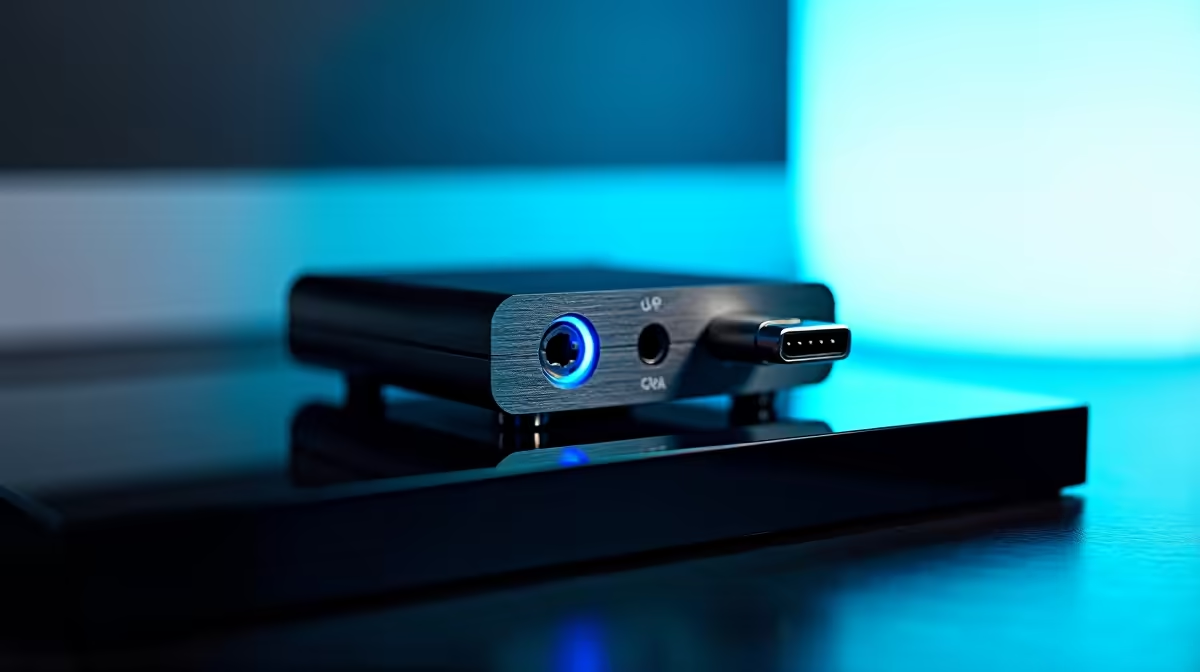
A USB DAC handles audio, not graphics, so when frame rates dip after plugging one in, the culprit is almost always a USB bus or driver conflict rather than the DAC harming GPU performance.
Quick Answer
A USB DAC does not directly cause FPS drops; the issue is usually USB bandwidth sharing, a driver conflict, or background audio processing eating CPU. Move the DAC to a dedicated USB port, update audio drivers, and frames should recover. No real-world gaming GPU is taxed by a DAC.
Diagnose the Real Cause
Check whether frames drop only with the DAC connected. If so, the DAC may share a USB controller with another high-bandwidth device. Move it to a rear USB port on a different controller. High DSP or sample rates set very high can also raise CPU load slightly; set the DAC output to 24-bit 48kHz unless you need more.
Driver and Background Checks
Outdated or generic USB audio drivers can cause stutters that feel like FPS drops. Install the DAC's proper driver, and disable audio enhancements in Windows sound settings. Close background audio software that may be resampling constantly.
When It Is Not the DAC
If frames still drop with the DAC unplugged, the cause is elsewhere: check GPU thermals (above 80C throttles), background downloads, or a power-saving plan capping clocks. Set Windows to a high-performance power plan and verify your GPU holds its boost clock.
FAQ
Can a USB DAC cause FPS drops?
Not directly. A DAC handles audio, not graphics. Apparent FPS drops come from USB bandwidth sharing, driver conflicts, or background processing, not the DAC taxing your GPU.
How do I stop stutters after adding a DAC?
Move the DAC to a rear USB port on a separate controller, install its proper driver, set output to 24-bit 48kHz, and disable Windows audio enhancements to reduce CPU load.
What if frames still drop without the DAC?
Then the cause is elsewhere. Check GPU temps above 80C for throttling, close background downloads, and set Windows to a high-performance power plan to hold boost clocks.
DAC into a rear USB port on its own controller, set output to 24-bit 48kHz, install the proper driver, and disable Windows audio enhancements.