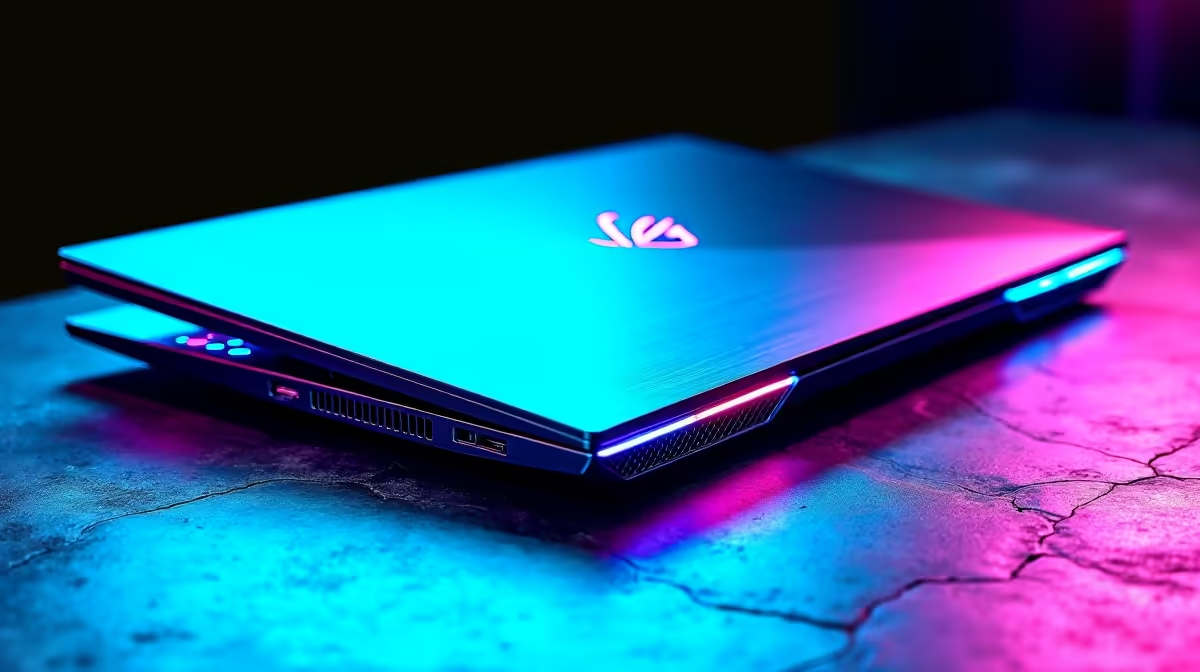
An MSI Katana making unusual noise is almost always a fixable problem once you identify the source - fan noise, coil whine, and hard drive clicks all have different causes and different solutions. The Katana series runs a slim thermal profile that pushes its cooling system hard under load, so some noise is expected, but excessive or sudden noise changes are worth investigating.
Quick Answer
Why is my MSI Katana making noise? Most noise comes from the cooling fans running at high speed under load, coil whine from the GPU or power delivery, or a failing hard drive. Clean the vents, update drivers, and check storage health to address the most common causes.
🔧 Diagnosing the Noise Type
First, identify what kind of noise you're hearing:
- Whirring/rushing sound that increases with load: This is fan noise. Normal under gaming load but abnormal at idle or with loud grinding.
- High-pitched electrical whine: Coil whine from the GPU, VRM, or charger. More common at high frame rates or specific power states.
- Clicking or scratching from inside the chassis: Potential hard drive issue or a fan blade catching on something.
- Rattling: Loose chassis screws or a fan bearing starting to fail.
Fan noise on the Katana is the most common complaint. MSI's Cooler Boost mode spins fans to maximum to clear heat, but Katana's slim chassis makes this noticeably loud. In MSI Center, switch from Extreme Performance to Balanced or Silent mode when not gaming - this dramatically reduces idle and light-load fan noise.
📊 Cleaning and Maintenance
Dust accumulation in the Katana's slim vents is a significant factor in noisy operation. When vents clog, fans spin faster to compensate, and thermal throttling can introduce system instability. Every 3–6 months, use a can of compressed air to clear the exhaust vents on the bottom and rear of the laptop. Do not insert anything into the vent slots.
If clicking noise is present, open Device Manager and check under Disk Drives. Right-click your drive and run a health check. Free tools like CrystalDiskInfo can show SMART data - any reallocated sectors or spin-up errors on an HDD indicate hardware that needs replacing. SSDs don't click mechanically, so clicking from an SSD-only Katana points to a fan issue rather than storage.
💡 Software and Driver Fixes
Outdated GPU drivers can cause coil whine by mismanaging power states. Update to the latest NVIDIA driver via GeForce Experience or the NVIDIA website. In NVIDIA Control Panel, set Power Management Mode to Balanced rather than Maximum Performance - this stops the GPU from drawing peak power at light loads, which is when coil whine is worst.
In MSI Center, ensure your firmware is updated. MSI has released fan curve optimisations through firmware updates for the Katana line that reduce unnecessary high-RPM operation.
❓ Frequently Asked Questions
Is it normal for my MSI Katana to be loud while gaming? Yes, the Katana's slim design means its fans work hard to cool a full-performance GPU and CPU. Loud fan noise during extended gaming sessions is normal. If the noise is new, sudden, or sounds mechanical rather than airflow-based, investigate further.
Can I replace the fans in an MSI Katana myself? Fan replacement is possible but requires careful disassembly. MSI Katana teardowns are well-documented online. If the laptop is still under warranty, contact MSI's South African service centre rather than attempting self-repair, which voids the warranty.
My Katana makes noise only when plugged into the charger - why? Coil whine from the power adapter or the laptop's power delivery circuitry is common when switching between battery and AC power states. Try a different wall socket and check whether the noise changes. If the charger itself buzzes, this can indicate the adapter is developing a fault.
Evetech stocks Graphics Card Deals and Evetech Best Sellers — shop online with fast delivery across South Africa.
Ready to Find Your Perfect Match? Shop at Evetech