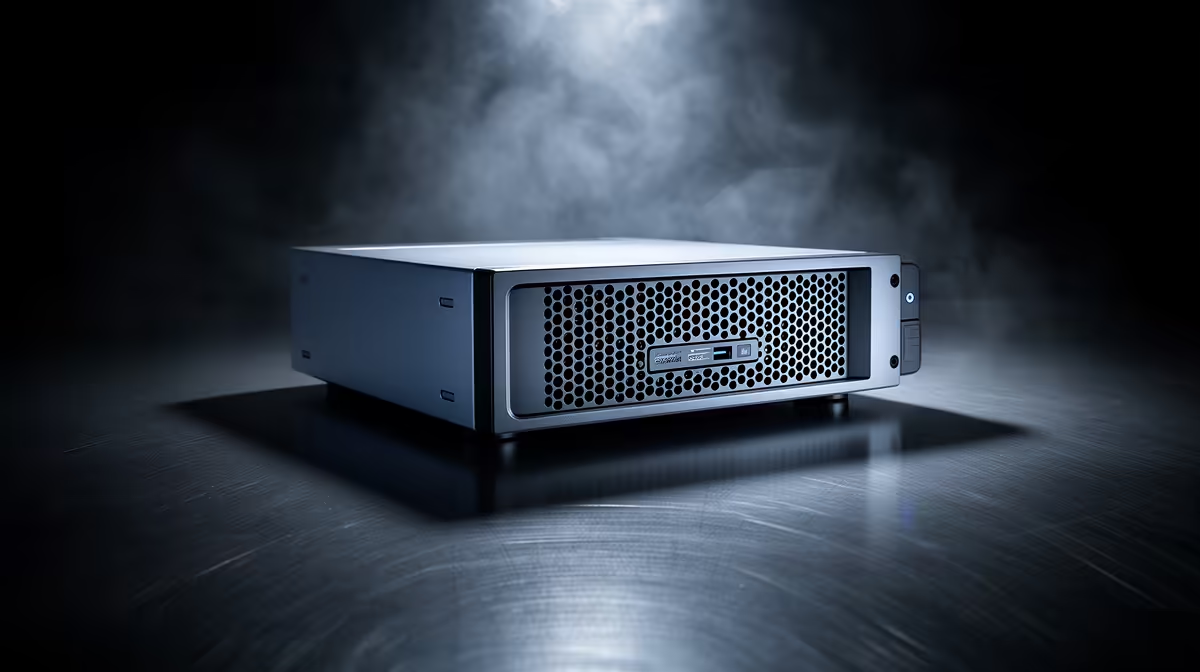
Copy a large folder to your NAS over Wi-Fi and watch the speed crawl while the same file flies on a wired machine. The NAS is not broken and its drives are not slow. NAS transfers that crawl over Wi-Fi are almost always the wireless link itself, where every device on the network shares the same airtime and the signal degrades with distance, walls, and interference.
Quick Answer
Plug the copying device into the router or a switch with an Ethernet cable, or at minimum move the transfer onto the 5GHz band. A wired link removes the shared-airtime bottleneck entirely and can push a 2.5GbE NAS past 300MB/s, while even the best Wi-Fi rarely holds half that.
Why Wi-Fi Throttles Your NAS
Wi-Fi is a shared medium. Every phone, laptop, and smart device on the network takes turns on the same wireless channel, so your big file copy is competing for airtime with everything else in the house. Throughput also drops with distance, with walls between the device and the router, and with interference from neighbouring networks. Speeds swing constantly as a result, which is why a transfer that started fast slows to a crawl partway through.
A wired NAS does not have any of these problems. The connection is dedicated, stable, and close to the port's rated ceiling. That is why moving the client to Ethernet is the single most effective change you can make, far more than swapping drives or tweaking the NAS itself.
The Fix, From Best to Workable
The best fix is to wire the device doing the copying. A short Ethernet run from your laptop or PC to the router or a desk switch turns an unpredictable wireless transfer into a steady one. If the NAS itself is still on Wi-Fi, wire that too, since both ends benefit.
If running a cable to the client is not practical, the next best step is to force the transfer onto the 5GHz band rather than 2.4GHz. The 5GHz band is faster and less congested, though it still cannot match a cable. Keep the device close to the router during big copies and avoid scheduling them when the network is busy. You can check current models and their port speeds in the NAS storage range at Evetech if you are planning a faster setup.
Get the Drives Out of the Way
Once the network is wired, confirm the bottleneck has actually moved. A NAS loaded with fast drives or an SSD cache can saturate a gigabit or 2.5GbE link, so the storage should no longer be the limit. If you are still seeing slow speeds on a wired connection, the next thing to look at is the drives themselves, and a faster set from the best-selling SSDs can lift transfer rates further.
Frequently Asked Questions
Why is my NAS slow only over Wi-Fi?
Wi-Fi shares airtime among every device on the network and weakens with distance and interference, so transfers fluctuate and crawl. The same NAS reaches near-full speed on a wired connection because the link is dedicated and stable.
Will switching to 5GHz fix slow NAS transfers?
The 5GHz band is faster and less congested than 2.4GHz, so it helps, but it still cannot match a wired connection. Use it as a workaround when running a cable is not possible.
How much faster is wired than Wi-Fi for a NAS?
A NAS with a 2.5GbE port can move data at over 300MB/s on a cable, while even strong real-world Wi-Fi struggles to hold half that consistently. The gap is large, especially on big files.
Should I wire the NAS or the computer?
Wire both if you can, but wiring the device doing the copying matters most. Both ends on Ethernet gives the steadiest, fastest transfers.
My transfers are still slow after wiring. What now?
If a wired link is still slow, the bottleneck has moved to the drives. Check whether the NAS disks or any SSD cache can keep up with the network port, and upgrade the storage if they cannot.
Stop fighting wireless bottlenecks. Explore the NAS storage range at Evetech, wire your setup, and get the full speed your drives can actually deliver.