NVIDIA Reflex can reduce system latency in supported games by coordinating CPU and GPU work so the render queue does not grow unnecessarily. It is enabled inside the game's settings. NVIDIA Control Panel Low Latency Mode is a separate driver feature.
Quick Answer
Turn Reflex On in a supported competitive game, then compare On plus Boost when the GPU clock falls during a CPU-limited or light-load scene. Boost can use more power. Keep the setting that improves measured latency or input feel without unwanted heat.
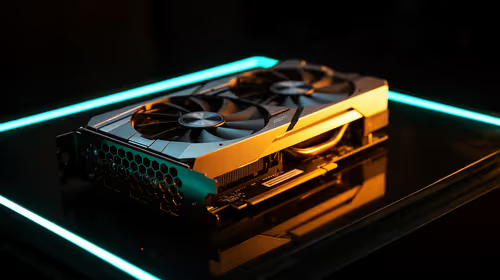
Browse supported hardware through current NVIDIA graphics cards and compare card designs under GPU best sellers. Game support remains title-specific.
Where It Helps
When the GPU is fully loaded, frames can queue before rendering. Reflex lets the game pace work closer to when the GPU is ready, reducing the delay from input sampling to a displayed result.
The gain varies with frame rate, CPU, GPU utilisation and game implementation. It cannot remove network delay, mouse latency or slow pixel response.
Use the Game Menu
Look for NVIDIA Reflex Low Latency under graphics or gameplay options. Use On as the starting point. Avoid forcing several latency modes without understanding their interaction.
Some games expose On plus Boost. Boost can keep GPU clocks higher in scenarios that would downclock, which can help consistency and increase power or fan noise.
Test a Repeatable Scene
Use the game's latency statistics or compatible Reflex Analyzer setup where available. Otherwise compare frame times and input feel in a controlled practice range.
Keep frame cap, V-Sync, resolution and graphics settings unchanged. A higher frame rate alone can reduce latency and confuse the result.
Frame Caps and V-Sync Change the Chain
Hitting the monitor's refresh ceiling can engage synchronisation behaviour and build a queue. A cap a few frames below the maximum is common with variable refresh, but the exact best setting depends on game, display and tearing tolerance.
Test Reflex with the same cap. If uncapped GPU utilisation sits at 99 percent, Reflex has more queueing work to address. If the game is CPU-limited at 50 percent GPU use, the gain may be smaller.
Do not use frame generation output as the base-rate latency number. Generated frames improve motion while Reflex works on the rendered pipeline.
Use Metrics Where Available
Some games expose NVIDIA's PC latency statistics. Compatible monitors and mice can use Reflex Analyzer for a broader end-to-end measurement.
Repeat several clicks or benchmark passes. One result varies with frame timing. Compare median or a stable range rather than keeping the lowest sample.
Without hardware measurement, use frame-time logs and a repeatable practice drill. Human feel is useful and vulnerable to expectation, so switch settings without staring at the label where possible.
Troubleshoot Odd Behaviour
Update supported drivers and the game, restore driver overrides and enable Reflex only in the game. Overlay conflicts or an unstable overclock can produce stutter unrelated to latency mode.
If Boost raises fans or power without a measured gain, use On. If Reflex creates a repeatable fault, disable it and report the exact game and driver through the proper support route.
FAQ
Is Reflex the same as driver Low Latency Mode?
No. Reflex is integrated by the game and coordinates its render pipeline.
Should I always use On plus Boost?
No. Start with On and use Boost when the game benefits enough to justify extra power or heat.
Does Reflex lower online ping?
No. It targets local system latency, not the network route.
Enable Reflex inside one supported game, hold every other setting constant and compare On with Boost through measured local latency or repeatable input tests.