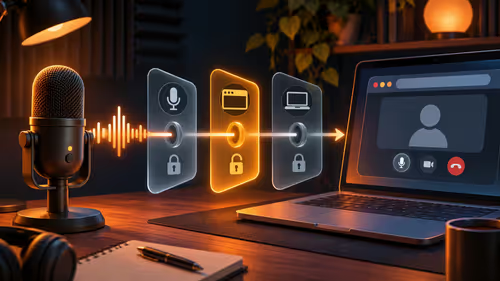
A photo-editing PC can run OBS when its processor or graphics encoder handles the chosen resolution, scenes and recording settings. Photo performance does not guarantee stable live encoding. Test the camera, overlays, audio and target application together, then watch missed frames and temperature before replacing a computer that already completes the job.
Rehearse the broadcast load
Build the normal OBS scenes, start local recording and run the content shown on stream. The verified MSI RTX 5060 Ventus costs R5,950 and offers a current graphics direction with supported encoding potential for a compatible desktop. Confirm encoder support, graphics memory, power connectors, case clearance and application compatibility before purchase.
Protect the photo workflow
Keep Lightroom or other catalogues, raw files and OBS recordings on planned storage volumes. Back up originals independently. Test the photo editor after installing stream drivers and capture tools, since plugin or colour-management changes can affect a stable workstation. The supplied facts contain no verified capture-card SKU, so verify camera-capture hardware separately.
Run a private stream for the intended duration and inspect audio sync, dropped frames, fan noise and reconnect behaviour. Use supported hardware encoding and sensible scene complexity first. Upgrade graphics only when measurements show that encoding or composition exceeds the current system.
Save a low-complexity OBS scene that can keep the broadcast running during troubleshooting.
Adding OBS to a photo workstation? > Ask Evetech to balance encoding, storage, power and cooling around the tested scenes.