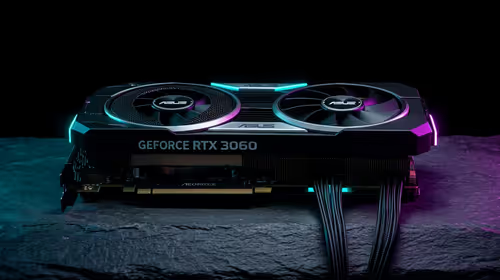
An RX 7900 XT not being detected by your system is a fixable problem in the vast majority of cases. The issue typically lies in one of a few specific areas: power delivery, driver conflicts, PCIe slot seating, or BIOS settings - all of which you can diagnose and resolve at home.
Quick Answer
How do you fix an RX 7900 XT not being detected? Start by reseating the GPU firmly in the PCIe x16 slot and ensuring all power connectors are fully engaged. If the card still is not detected, perform a clean AMD driver uninstall using DDU in safe mode, then reinstall the latest Adrenalin drivers. Check BIOS for PCIe settings and resizable BAR status.
🔧 Step-by-Step Diagnosis: RX 7900 XT Not Detected
Work through these steps in order - the most common causes are addressed first.
Step 1 - Physical reseating: Power down, remove the GPU, and reseat it firmly into the PCIe x16 slot. Press until you hear the retention clip click. Partial seating is the most overlooked cause of GPU detection failure. Also check both 8-pin or 16-pin power connectors - the 7900 XT requires substantial power (350W TDP) and a loose connector will prevent POST or cause the card to go undetected.
Step 2 - Check PSU adequacy: The RX 7900 XT requires a minimum 800W PSU. If your PSU is borderline or a low-quality unit that does not deliver its rated wattage, the system may POST to integrated graphics while the discrete card receives insufficient power. Test with a known-good PSU if available.
Step 3 - Verify display connection: Connect your monitor directly to the RX 7900 XT's output ports - not your motherboard's display output. If connected to the motherboard, you are running on integrated graphics regardless of whether the card is installed.
Step 4 - Check BIOS display output settings: Enter BIOS and verify that the primary display adapter is set to PCIe or Auto, not iGPU. On some Intel and AMD motherboards, the iGPU is prioritised by default. Find this under Advanced → System Agent → Primary Display or similar.
Step 5 - Enable Resizable BAR / SAM: In BIOS, ensure Above 4G Decoding and Resizable BAR (or AMD Smart Access Memory) are enabled. Some boards default these to disabled, which can cause issues with high-VRAM cards like the 7900 XT (24GB VRAM).
Step 6 - Clean driver uninstall: Boot into Windows Safe Mode, run DDU (Display Driver Uninstaller) with AMD selected, choose "Clean and Restart." After the clean boot, install the latest AMD Adrenalin drivers fresh. Driver corruption or conflicts with previous GPU drivers (especially NVIDIA to AMD migrations) are a frequent cause of non-detection in Device Manager.
Step 7 - Check Device Manager for error codes: If the card appears in Device Manager with a yellow exclamation mark, note the error code. Code 43 indicates a driver issue. Code 12 indicates resource conflict. Code 10 is a general failure that often resolves with a clean driver install.
📊 Common Causes by Symptom
No display output, system posts to iGPU: BIOS display setting is iGPU, or card is not receiving power. Check BIOS display priority and power connectors first.
Card not visible in Device Manager at all: PCIe slot seating issue, faulty slot, or completely absent power. Try a different PCIe x16 slot if your motherboard has one.
Card visible in Device Manager with error: Driver issue. Clean DDU uninstall and reinstall resolves this in most cases.
System crashes or black screens after detection: Driver instability or PSU unable to sustain 7900 XT power draw under load. Check PSU wattage and connector quality.
Card detected but underperforming (low GPU usage, low clocks): PCIe bandwidth issue. Check that the card is running in PCIe x16 mode (not x4 or x1) using GPU-Z. Some motherboards drop lanes when certain M.2 slots are occupied.
💡 SA-Specific Considerations
In South Africa, power quality variation can affect GPU behaviour. Voltage fluctuations - even with stable grid power - can cause intermittent GPU detection issues that appear as hardware faults but are actually power-related. A UPS with AVR (Automatic Voltage Regulation) between your wall and your PSU provides clean, stable input voltage and eliminates this variable.
If you purchased the RX 7900 XT as a new card and it is not being detected out of the box, do not attempt extended troubleshooting - exercise your consumer rights under the Consumer Protection Act and request a replacement or warranty assessment from your retailer. DOA (Dead on Arrival) cards, while uncommon, do occur.
❓ Frequently Asked Questions
Why does my RX 7900 XT show in BIOS but not in Windows Device Manager?
This usually indicates a driver issue - the BIOS can see the card at the hardware level but Windows cannot initialise it properly. Perform a clean DDU uninstall in safe mode and reinstall the latest AMD Adrenalin drivers.
Can a faulty PCIe slot cause the RX 7900 XT to not be detected?
Yes. Try a different PCIe x16 slot if available. Also inspect the slot for bent pins or debris. If the card works in a different slot, the primary slot may be damaged or have a connection issue.
Does the RX 7900 XT need Resizable BAR enabled to work properly?
The card will function without Resizable BAR, but AMD recommends enabling Smart Access Memory for full performance. More critically, some detection issues on high-VRAM cards are related to Above 4G Decoding being disabled - enabling this in BIOS resolves certain detection failures.
Evetech stocks All Graphics Cards and Graphics Card Deals — browse current SA pricing and availability online.