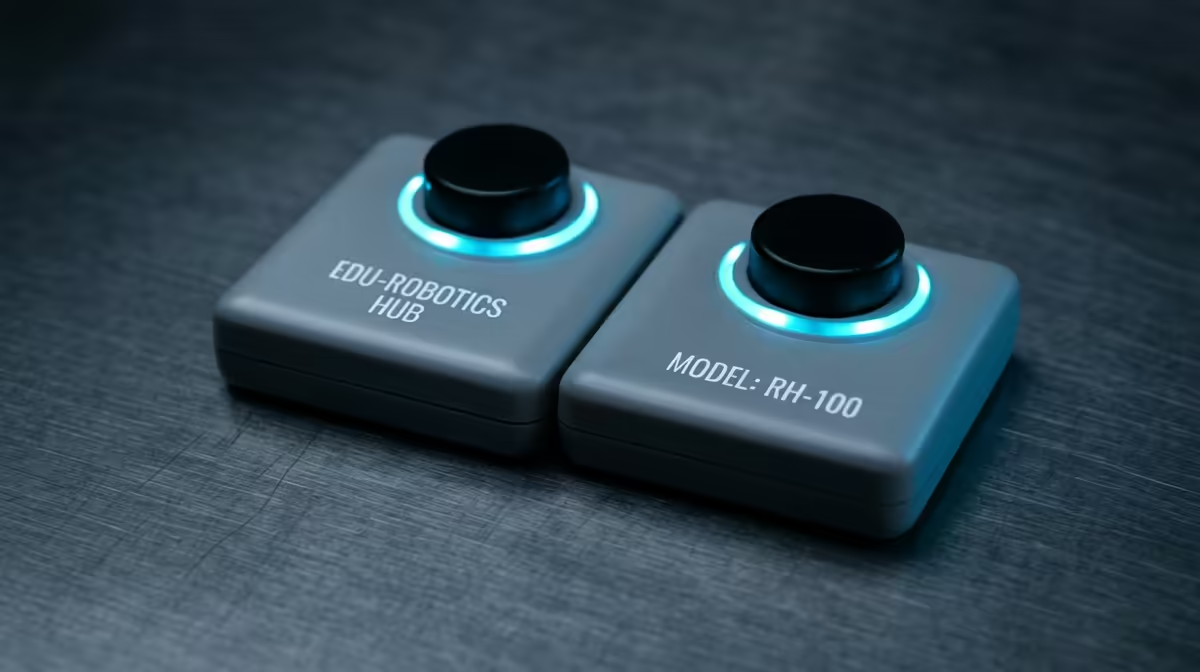
Run two LEGO SPIKE hubs in the same room and the app starts playing a guessing game: it connects to whichever hub it finds first, which is rarely the one you meant. The fix for two LEGO SPIKE hubs connecting to the wrong app is not a setting buried in menus, it is giving each hub a unique name so the software can tell them apart in Bluetooth range.
Quick Answer
Give each LEGO SPIKE hub its own unique name. The SPIKE app prompts you to name a hub on first connection, and two unnamed hubs look identical over Bluetooth, so the app cannot reliably pick the right one. Once each hub has a distinct name, the correct one connects every time.
Why Unnamed Hubs Get Confused
Bluetooth pairing works by identifying a device, and two hubs that were never named broadcast effectively the same default identity. To the SPIKE app, they are interchangeable, so it latches onto whichever responds first. In a classroom or on a desk with two builds running side by side, that means programs upload to the wrong hub and motors fire on the model you were not even looking at.
Naming solves it at the source. A unique name turns each hub into a clearly labelled target the app can select on purpose instead of by accident. The same principle keeps any cluster of connected devices, from a smart home and appliances range to a shelf of robotics kits, from talking over each other.
How to Rename a SPIKE Hub
The app asks for a name the first time it connects to a hub, so the easiest path is to name each one as you set it up. If your hubs are already in service, connect to one at a time, open its details in the SPIKE app, and set a clear, distinct name such as the pupil's name, a table number, or a colour. Do the same for the second hub with a different name.
Keep the names obviously different from each other so there is no ambiguity at a glance. In a classroom, naming hubs by group or station saves a great deal of "which one is this?" mid-lesson. A small label on the physical hub that matches its software name closes the loop nicely.
Keeping a Multi-Hub Setup Tidy
Once named, each hub stays distinguishable, but a few habits help. Connect to one hub at a time when assigning or changing names so you never rename the wrong unit. Charge and store hubs with their labels visible, and stocking up on spares and parts from the accessories best-sellers shelf means a flat battery never derails a session. Consistent naming across a class turns a chaotic Bluetooth scramble into a quick, predictable connection.
Frequently Asked Questions
Why do my two SPIKE hubs keep connecting to the wrong app session?
They are almost certainly unnamed, so they look identical over Bluetooth and the app connects to whichever it detects first. Giving each hub a unique name lets the app target the correct one deliberately.
Where do I name a LEGO SPIKE hub?
The SPIKE app prompts you for a name on first connection. If a hub is already set up, connect to it on its own, open its details in the app, and assign a distinct name there.
Can I rename a hub that already has a name?
Yes. Connect to that hub by itself, open its settings in the SPIKE app, and change the name. Do it one hub at a time so you are certain which unit you are editing.
What names work best in a classroom?
Anything clearly distinct: pupil names, table or station numbers, or colours. The goal is that no two hubs share a name, and a matching physical label on each hub makes connection effortless during a lesson.
Building out a robotics corner and need reliable kit that just works? Explore the smart home and appliances range at Evetech and keep your SPIKE setup running smoothly.