


Quick Answer
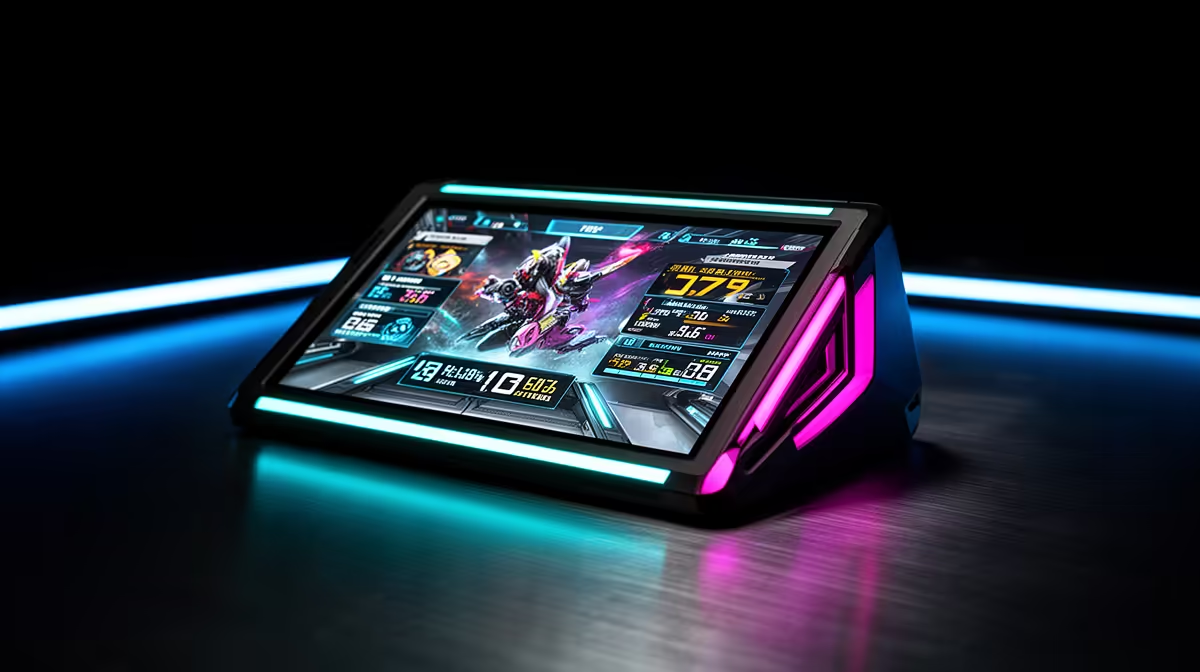
During gaming a 2.4-inch LCD cooler display shows live CPU temperature, coolant temperature, CPU utilisation percentage, and optionally fan RPM and clock speed. The data updates in real time via a USB 2.0 header connection to the motherboard and is configured through the AIO manufacturer's software suite.
The Real-Time Data on Screen During a Gaming Session 🖥️
When you launch a game and the CPU starts drawing sustained power, the 2.4-inch display on an AIO pump head like those found on NZXT Kraken or Corsair Capellix models cycles through or simultaneously presents several live sensor readings.
CPU clock speed is another useful readout during gaming. Watching a Ryzen 7 9800X3D sustain 5.0GHz to 5.2GHz boost clocks across a gaming session confirms the cooler is not causing thermal throttle. A CPU that should hit 5.2GHz but shows 4.6GHz on the display is flagging a thermal or power limit condition. This diagnostic utility is one of the genuine practical benefits of an LCD cooler display beyond aesthetics.
What You Can Customise on the 2.4-Inch Screen ✨
Beyond sensor data, 2.4-inch LCD displays support custom content through software like NZXT CAM or Corsair iCUE. You can upload a PNG image or animated GIF to display alongside or instead of sensor data.
You can also set the display to show GPU temperature if a secondary monitoring cable is routed or if the software pulls GPU data from the system hardware monitor API. During a heavy gaming session where the GPU is at 85 percent load and you are watching CPU cooling, having both temperatures on screen without alt-tabbing is a practical productivity feature for builders who monitor hardware closely.
Software Requirements and Setup ⚙️
The LCD display requires the AIO's companion software to be installed and running: NZXT CAM, Corsair iCUE, or equivalent. The software connects via USB 2.0 to the pump block and sends display configuration plus real-time sensor data. If the software is not running (for example, in safe mode or a fresh Windows install), the display reverts to a default screen or goes blank.
For South African builders who game from a clean Windows install, adding the AIO software to Windows startup ensures the display is active from boot. Most software suites store the last display profile in the AIO's onboard memory so the display works even before the software launches, but the sensor data feed requires the software to be running.
Use Coolant Temp as Your Gaming Thermal Alarm ⚡
CPU temperature spikes briefly during frame bursts but coolant temperature rises slowly and steadily. Set a software alert for coolant temperature exceeding 45 degrees Celsius. If coolant hits that threshold during gaming, it means the radiator is not dissipating heat fast enough, usually due to dust-clogged fins or too-low fan RPM in your custom curve.
FAQ
Does the LCD display work without the AIO software running?
Most AIO displays store a default static screen in onboard memory and will show it without software. Live sensor data (CPU temperature, fan RPM) requires the software to be running, as the software retrieves sensor data from Windows and forwards it to the display.
Can I display GPU temperature on the AIO LCD during gaming?
Yes, on most 2.4-inch AIO displays, through the companion software. GPU data is pulled from the GPU driver's sensor API and displayed on the pump head screen. The specific GPU metric available depends on the software: most support GPU temperature and GPU load percentage.
Will the LCD display drain system performance during gaming?
No. The display runs on a USB 2.0 connection at well under 1W and the sensor data polling from the software has negligible CPU overhead, typically less than 0.1 percent CPU utilisation. There is no measurable performance impact from running the display during gameplay.
Want live system stats on your AIO pump head? Browse AIO coolers with LCD displays at Evetech to find a model with the screen size and sensor features that suit your build.











