


FPS Drops Troubleshooting for DDR5 build
DDR5 build FPS drops needs a methodical troubleshooting pass. Review drivers, thermals, power settings, background apps, cables and game settings before replacing parts in an SA gaming setup.
Read moreHere it is: a tidy Thunderbolt or USB-C dock collapses cables into one cable. For the underlying spec usually explains the symptom you are seeing. Inside: port walkthrough, PD limits, and SA desk wiring.
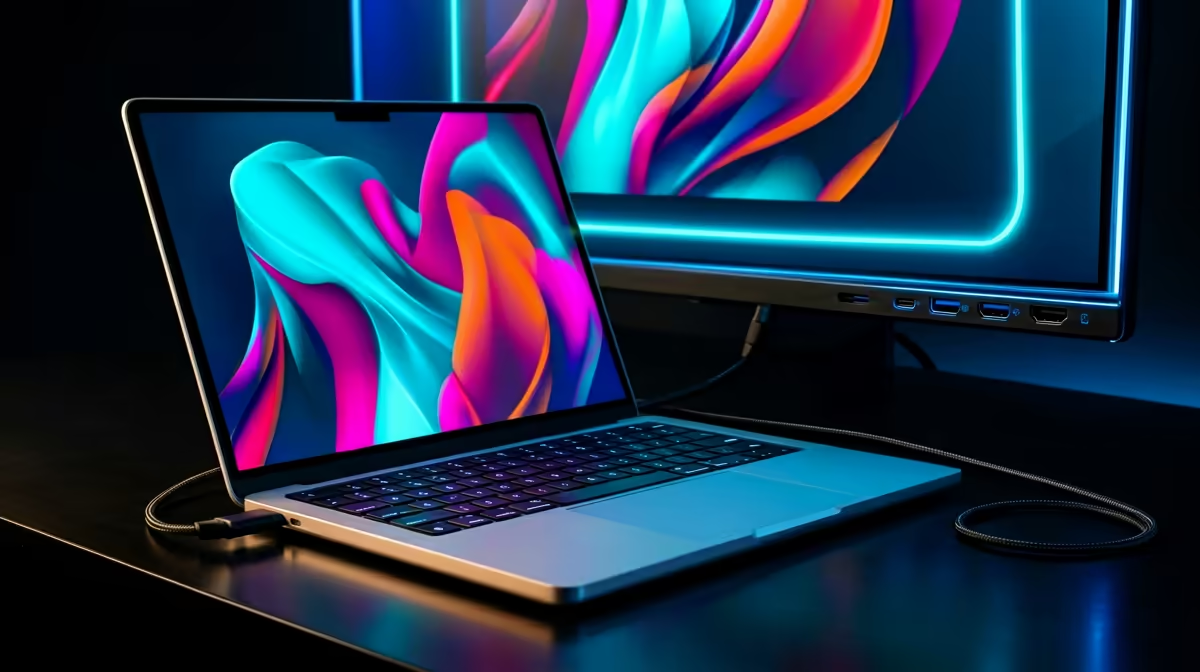
Your laptop is most likely not detecting the monitor through the dock because the USB-C port lacks DisplayPort Alt Mode, the dock firmware needs updating, or the display cable is faulty. Check these three causes in order before assuming the dock or monitor is broken.
Not every USB-C port outputs video. Laptops often have multiple USB-C ports where only one supports DisplayPort Alt Mode. Check your laptop's spec sheet or user manual for which USB-C port carries video output, indicated by a small display or DP symbol next to the port. Plug the dock into that specific port. If the laptop still shows no external display, press Win + P and confirm Windows recognises a second display in the projection menu. If no display appears there, the issue is at the connection or driver level, not the monitor settings.
DisplayLink-based docks require a DisplayLink driver installed in Windows before the video output functions. Download the latest DisplayLink driver from the manufacturer's support page (not a third-party site) and install it with the dock connected. Thunderbolt docks need Intel Thunderbolt Software installed, which enables the TB4 security approval and ensures the dock controller firmware is current. If you updated Windows 11 recently, a Windows Update sometimes rolls back or conflicts with DisplayLink drivers: uninstall and reinstall the driver after every major Windows feature update. For docks that use native USB-C Alt Mode without DisplayLink, no additional driver is needed, but a BIOS update on the laptop can sometimes restore broken Alt Mode detection.
A faulty display cable is the most common and cheapest fix. If the dock has an HDMI port, swap the HDMI cable with a known-working one before suspecting the dock hardware. HDMI cables from no-brand sources sometimes fail the HDMI 2.0 bandwidth spec under sustained 4K signal, causing black screens or no-detection. Try the monitor directly from the laptop's own HDMI or USB-C port: if it detects there but not through the dock, the dock's video output is suspect. If the monitor has both HDMI and DisplayPort inputs, try the other input on the monitor and update the monitor OSD to the correct input source. Some monitors default to the first detected input and do not automatically scan all inputs.
With the dock and monitor connected, press Windows key + Ctrl + Shift + B simultaneously. This forces Windows to reset the graphics driver and re-scan all display connections without a full reboot. If the monitor appears after this, a driver timeout was the cause and your setup is otherwise fine.
A Windows Update or DisplayLink driver update is the most common cause of suddenly broken dock display output. Check Windows Update history for recent updates and roll back the most recent display driver if the failure started within a day of an update.
Not necessarily. Some docks share bandwidth between ports and only one HDMI port supports 4K while the other is limited to 1080p. Check the dock's spec sheet for per-port video capabilities.
Yes. In Display settings, scroll down and click Detect next to the monitor section. This forces Windows to scan for displays not automatically recognised. On Windows 11 this option is under System, Display, Multiple displays.
Need a dock that just works with your laptop and monitor? Check the docking station range at Evetech for compatibility-tested options with your laptop brand.
DDR5 build FPS drops needs a methodical troubleshooting pass. Review drivers, thermals, power settings, background apps, cables and game settings before replacing parts in an SA gaming setup.
Read more
Fps drops on ddr5 build in south africa usually needs a settings, driver, thermal, or power check first. Work through safe SA troubleshooting steps before replacing parts or assuming a full upgrade.
Read more
X870E motherboard frame pacing issues needs a step-by-step check before replacing parts. Review drivers, settings, thermals, power, background apps, display limits, cables, and game options before changing hardware.
Read more
4K monitors cost more as sharp panels raise the bar. See why 4k monitors still expensive for gamers in cape town before choosing screen specs, GPU targets, and value trade-offs.
Read more
4K monitors still feel expensive for Gqeberha gamers because panel quality, higher refresh rates, and GPU demands raise total setup cost. Compare 1440p, screen size, ports, and refresh rate before paying more for 4K.
Read more
ARGB cases explain mid-tier SA build appeal with visible style, airflow room, and cable control. For SA buyers, the smarter choice is a case where lighting, fan layout, and GPU clearance work together instead of just looking bright.
Read more DDR5 build FPS drops needs a methodical troubleshooting pass. Review drivers, thermals, power settings, background apps, cables and game settings before replacing parts in an SA gaming setup.
Fps drops on ddr5 build in south africa usually needs a settings, driver, thermal, or power check first. Work through safe SA troubleshooting steps before replacing parts or assuming a full upgrade.

Wi-Fi 6E vs Wi-Fi 6 depends on AAA single-player gaming needs, platform limits, and budget fit. Compare compatibility, latency, upgrade path, and real setup constraints before choosing for an SA build.

Ryzen 9 9950X3D dead pixel checks should isolate the panel first. Run colour fills, inspect the monitor menu, test another cable or input, and capture proof before linking it to the SA CPU upgrade.

YouTube will count public views from the first frame across video formats from 24 August, while earnings and eligibility remain tied to engaged viewing.

Canonical expects Ubuntu on WSL users to outnumber native Ubuntu desktop users before the end of 2026. The software is open source and runs inside supported Windows PCs.

Telkom's daily bundles pair WhatsApp access with 10 all-network voice minutes. The R15 option includes 300MB, while the R17 option uses a fair-use threshold.

A 10,000-hour test found similar image retention across older and newer OLED TVs, while newer panels were brighter and more efficient. Local OLED monitors started at R9,999.
YouTube will count public views from the first frame across video formats from 24 August, while earnings and eligibility remain tied to engaged viewing.
CXMT memory has been demonstrated at DDR5-9000 and DDR5-6000 CL28, but the results depend on tuned hardware and do not represent a broad retail specification.
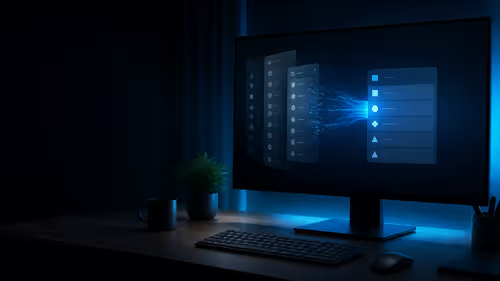
Microsoft is testing a simpler File Explorer context menu with controls for built-in commands, app extensions, icon labels and the position of Properties.
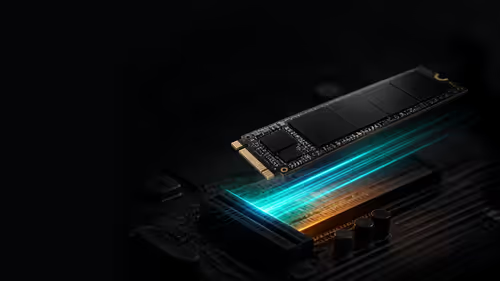
Lexar's THOR ULTRA is a DRAMless PCIe 5.0 SSD rated up to 11,000MB/s reads and 10,000MB/s writes, with capacities from 512GB to 4TB.