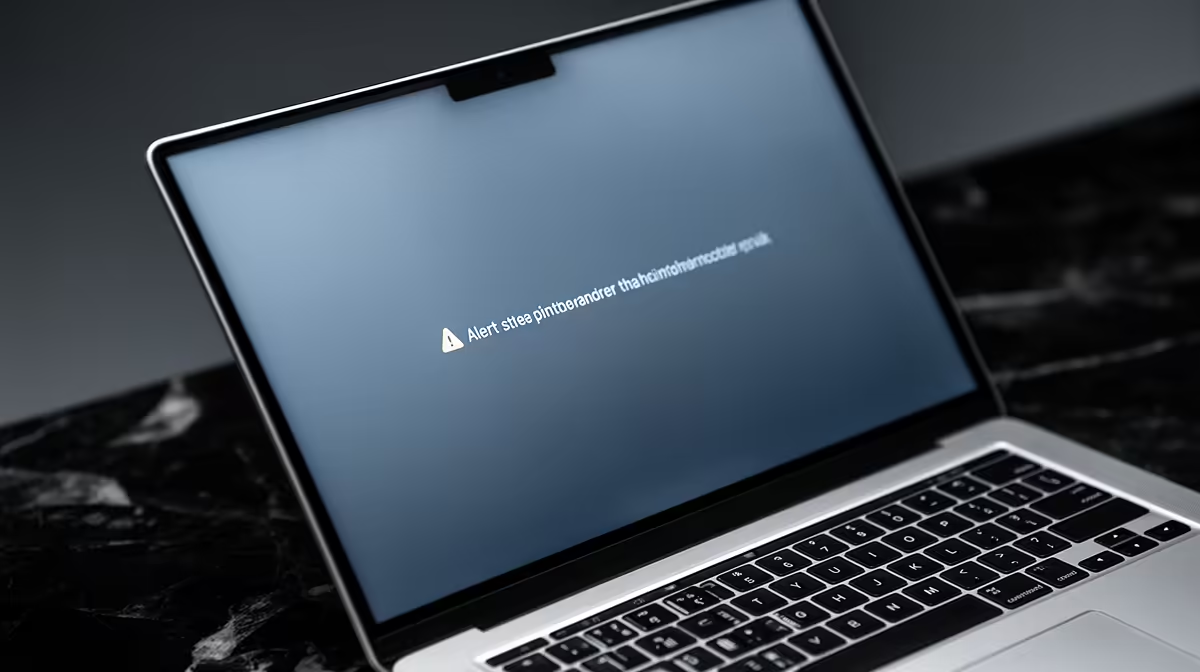
Your Mac freezes, a window pops up warning that your system has run out of application memory, and it tells you to force-quit apps to free space. It is alarming, but it is not a hardware fault and your files are safe. The message means your Mac has exhausted both its physical memory and the swap space it uses as overflow, and it needs you to close something heavy right now.
Quick Answer
The warning means your Mac's unified memory and its swap space on the drive are both full, so there is nowhere left to store active data. Open Activity Monitor, click the Memory tab, watch the Memory Pressure graph, and quit the apps using the most memory to recover immediately. No restart is required to clear it.
What Is Actually Happening
Modern Macs, including Apple Silicon models, share one pool of unified memory between the CPU and graphics. When apps demand more than that physical memory holds, macOS offloads the overflow to swap, a reserved area on your storage drive. Swap is slower than real memory, but it buys headroom.
The out-of-application-memory alert fires when both are exhausted: physical memory is full and swap has grown until the drive can no longer expand it, often because your storage itself is nearly full. At that point the system cannot keep every open app's data, so it asks you to intervene.
Fix It Right Now
Open Activity Monitor (search for it via Spotlight) and click the Memory tab. Look at two things:
- The Memory Pressure graph at the bottom. Green means healthy, amber means strained, red means critical. Red is what triggered your warning.
- The process list sorted by Memory. The apps at the top are your culprits, often a browser with dozens of tabs, a photo or video editor, or a virtual machine.
Quit the heaviest offenders, starting from the top. Memory Pressure should ease back toward green within seconds, and the warning will clear without a restart. A browser drowning in tabs is the single most common cause, so closing it usually solves the problem on its own.
Stop It Happening Again
A few habits keep the warning away:
- Tame your browser. Open tabs each hold data in memory. Close ones you are not using, or use a tab-suspending tool.
- Free up storage. Swap needs free drive space to grow. If your disk is nearly full, swap cannot expand, which makes the warning far more likely. Clear space and aim to keep a healthy buffer free.
- Quit, do not just minimise. Minimised apps still hold their memory. Fully quit ones you have finished with.
- Restart occasionally. A reboot clears swap and resets memory cleanly if things feel sluggish over days of uptime.
When It Is Time For More Memory
If you hit this warning constantly during normal work, your Mac may simply not have enough memory for what you do. Heavy multitasking, large creative projects, many browser tabs and virtual machines all push demand up. Unified memory on a Mac is fixed at purchase and cannot be upgraded later, so the only cure is a model with more of it.
When you are ready to look at a Mac with more headroom, the MacBook range at Evetech lets you compare configurations and memory tiers so you buy enough the first time. If you want a sense of which models SA buyers are choosing for demanding work, the laptop best sellers at Evetech are a quick reference point.
Frequently Asked Questions
Will I lose my work when this warning appears?
Not automatically. The system asks you to quit apps to free memory, and most apps will let you save first. Save open documents before force-quitting anything to be safe.
Does this mean my Mac is broken?
No. It is a memory-management warning, not a hardware fault. It means your active workload exceeded available memory and swap, which you fix by closing heavy apps and freeing drive space.
Why does full storage cause memory warnings?
Swap space lives on your drive and grows when physical memory fills. If the drive is nearly full, swap cannot expand, so the system runs out of overflow space sooner and the warning appears.
Can I add more memory to my Mac later?
On Apple Silicon Macs the unified memory is built in and cannot be upgraded after purchase. If you regularly run out, the only solution is moving to a model with more memory.
How much memory do I need?
It depends on your work. Light browsing and documents are comfortable on a base configuration, while heavy multitasking, creative editing and virtual machines benefit from a higher memory tier. Buy generously, since you cannot upgrade later.
Hitting memory warnings on an older Mac? Compare configurations and memory tiers in the MacBook range at Evetech and choose a model with enough headroom for the way you actually work.