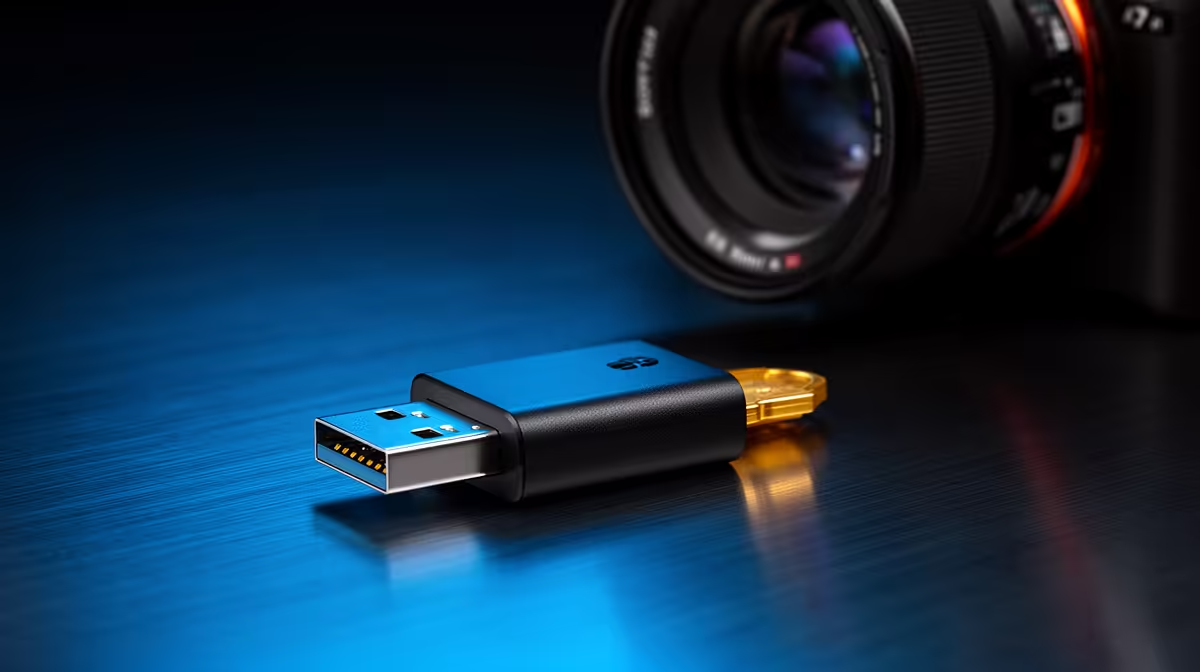
Why Your Desktop Needs a Wireless Upgrade
Let’s be honest: there is nothing more frustrating than trying to connect your favourite wireless controller or headset to your PC, only to realise your motherboard lacks built-in Bluetooth. Whether you are a competitive gamer in Joburg or a content creator in Cape Town, being tethered by cables in 2024 feels archaic. Learning how to add Bluetooth to a desktop PC is one of the most cost-effective ways to modernise your setup and declutter your desk for under R500. 🚀
Choosing the Right Hardware
Before you start, you need to decide between a USB dongle or a PCIe card. USB options are plug-and-play, perfect for those who aren't comfortable opening their chassis. However, for a more stable connection with better range, a dedicated internal card is the gold standard. You can explore a wide variety of reliable network adapters that offer both Wi-Fi and Bluetooth connectivity in one package.
If you are looking for brand reliability, we often recommend starting your search with TP-LINK network adapters. They consistently offer stable drivers that play nicely with Windows 10 and 11, ensuring you spend more time gaming and less time troubleshooting connection drops. ⚡
Installation and Setup
Once your hardware arrives, the installation is straightforward. If you chose a PCIe card, ensure your PC is powered down and unplugged. Seat the card into an available PCIe slot, secure it with a screw, and attach the antennas to the back. If you opted for a Cudy network solution, simply plug it into a high-speed USB port. Windows Update usually pulls the necessary drivers automatically, but it is always worth checking the manufacturer's website for the latest version to ensure optimal range and speed. 🔧
Connectivity Pro Tip ⚡
If you notice your Bluetooth audio stuttering, ensure your antennas are screwed on tightly and positioned away from large metal objects or your PC case itself. Metal can act as a shield, significantly reducing your signal range.
Enjoying a Wireless Workspace
With your new adapter installed, you can now pair your devices effortlessly. Simply head to your Windows Settings, select Bluetooth & devices, and click 'Add device'. Your desktop is now fully equipped to handle modern wireless peripherals, giving you the freedom to move your setup around without worrying about cable length. ✨
Ready to Find Your Perfect Match? The upgrade path is clear, but the right hardware makes all the difference. For maximum power, choice, and value in South Africa, our components are hard to beat. Explore our massive range of network adapters and find the perfect upgrade to conquer your world.