


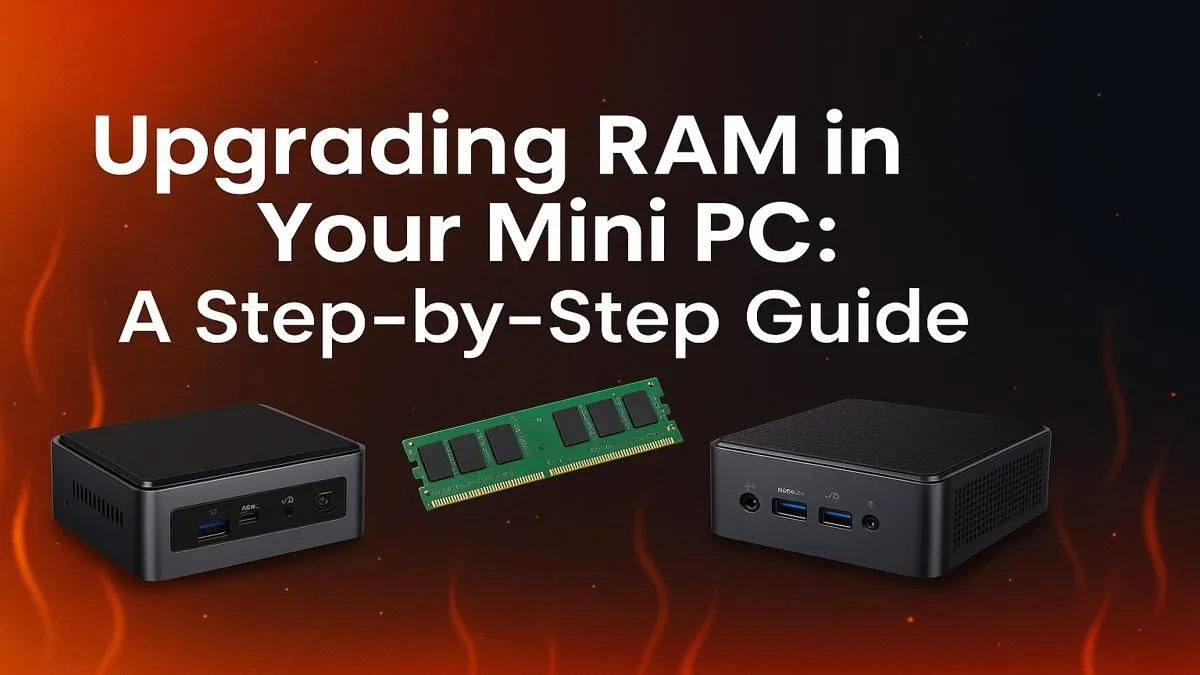
Is your compact powerhouse feeling a bit… cramped? When multitasking makes your mini PC stutter, it’s not time for a replacement—it’s time for a boost. A simple mini PC RAM upgrade is one of the quickest, most affordable ways to inject new life into your machine. It’s a 15-minute job that can transform your daily workflow and gaming sessions. Let’s get you sorted. ✨
Why a Mini PC RAM Upgrade is Worth It
Think of RAM (Random Access Memory) as your computer's short-term workspace. The more you have, the more applications and browser tabs you can run simultaneously without things grinding to a halt. For a mini PC, which often handles everything from home office duties to 4K media streaming, this is crucial.
A quick RAM upgrade delivers:
- Snappier Multitasking: Switch between Discord, Chrome, and your game without frustrating delays.
- Smoother Performance: Demanding applications like Photoshop or video editors will feel more responsive.
- Better Integrated Graphics Performance: iGPUs use system RAM as video memory (VRAM), so more (and faster) RAM can give you a welcome FPS boost in casual games.
It's one of the most cost-effective performance boosts you can give to any of our range of powerful mini PCs, extending its useful life for years.
Before You Begin: Choosing the Right RAM
Grabbing any old memory stick won't work. Compatibility is key to a successful mini PC RAM upgrade. Here’s what you need to check before you buy.
Check Compatibility First
Mini PCs almost exclusively use SODIMM (Small Outline Dual In-line Memory Module) sticks, which are shorter than the standard DIMMs used in desktop towers.
You also need to match the RAM generation. Is your machine using DDR4 or the newer DDR5? They are not cross-compatible. Your mini PC’s product page on Evetech or the manufacturer's official manual is the best place to find this info, along with the maximum amount and speed of RAM it supports.
How Much RAM Do You Need?
- 8GB: The absolute minimum for basic browsing and office work. If you're here, you likely need an upgrade.
- 16GB: The sweet spot for most South African gamers and power users. It provides enough headroom for modern games, heavy multitasking, and creative work.
- 32GB+: Ideal for professionals doing heavy video editing, running virtual machines, or anyone who simply never wants to close a browser tab again.
Dual-Channel for the Win 🚀
For the best performance, always try to install RAM in pairs of identical sticks (e.g., 2x 8GB instead of 1x 16GB). This allows the system to run in dual-channel mode, effectively doubling the data transfer bandwidth between the memory and the CPU. It's a "free" performance boost that makes a noticeable difference.
Your Step-by-Step Mini PC RAM Upgrade Guide 🔧
Ready to get hands-on? This process is surprisingly simple. While the exact steps vary slightly between models, the core principles for performing a mini PC RAM upgrade are universal for most modern units, including these versatile all-in-one mini PCs.
- Prep Your Workspace: Power down the mini PC completely and unplug all cables. Move it to a clean, well-lit area. Grab a small Phillips-head screwdriver and an anti-static wrist strap if you have one.
- Open the Case: Flip the unit over. You'll typically find four screws, often at the corners under the rubber feet. Unscrew them and gently lift the bottom panel off.
- Locate the RAM: You'll see one or two small, angled slots holding the SODIMM sticks. They're secured by a metal clip on each side.
- Remove Old RAM (If Necessary): To remove an existing stick, gently push both metal clips outwards simultaneously. The stick will pop up at an angle. You can then slide it out of the slot.
- Install the New RAM: Take your new SODIMM stick, align the notch on the stick with the key in the slot, and insert it firmly at a 30-45 degree angle. Once it's fully seated, press it down towards the motherboard until the side clips click into place, securing it flat.
- Close Up & Test: Replace the bottom panel, screw it back on, and plug everything back in. Power on your mini PC.
After the Upgrade: Verifying Your Success
The first boot after installing new RAM might take a little longer than usual—don't panic! This is just your system recognising the new hardware.
Once you're booted into Windows, right-click the Start button, go to System, and check the "Installed RAM" value. It should now reflect your new total. You'll immediately feel the difference in how snappy and responsive your machine is. Brands like Minisforum design their chassis for easy access, making this entire process a breeze.
You've just completed one of the easiest and most impactful DIY tech upgrades possible. Enjoy the extra breathing room!
Ready to Supercharge Your Setup? A Mini PC offers incredible power in a tiny footprint. Whether you're upgrading your current rig or looking for a brand new compact beast, Evetech has you covered. Explore our massive range of Mini PCs and find the perfect machine to conquer your world.










