The best HOTAS for Elite Dangerous is not automatically the controller with the longest feature list. It is the stick-and-throttle set that gives you precise analogue axes, enough reachable controls for flight and combat, stable desk placement and support you can use locally. A good mapping matters just as much as the hardware.
Quick Answer
For a complete traditional HOTAS, choose a separate flight stick and throttle with analogue pitch, roll, yaw and thrust, plus enough hats and buttons to keep common ship functions off the keyboard. The captured Evetech flight-simulation sample listed the Logitech X56 stick-and-throttle set at R4,999 in stock. Logitech documents a built-in Elite Dangerous X56 preset and recommends binding progressive controls to axis inputs. A R1,299 or R1,599 add-on grip in the same category is not a complete HOTAS because it still needs a compatible base and throttle.
Start with the four primary axes
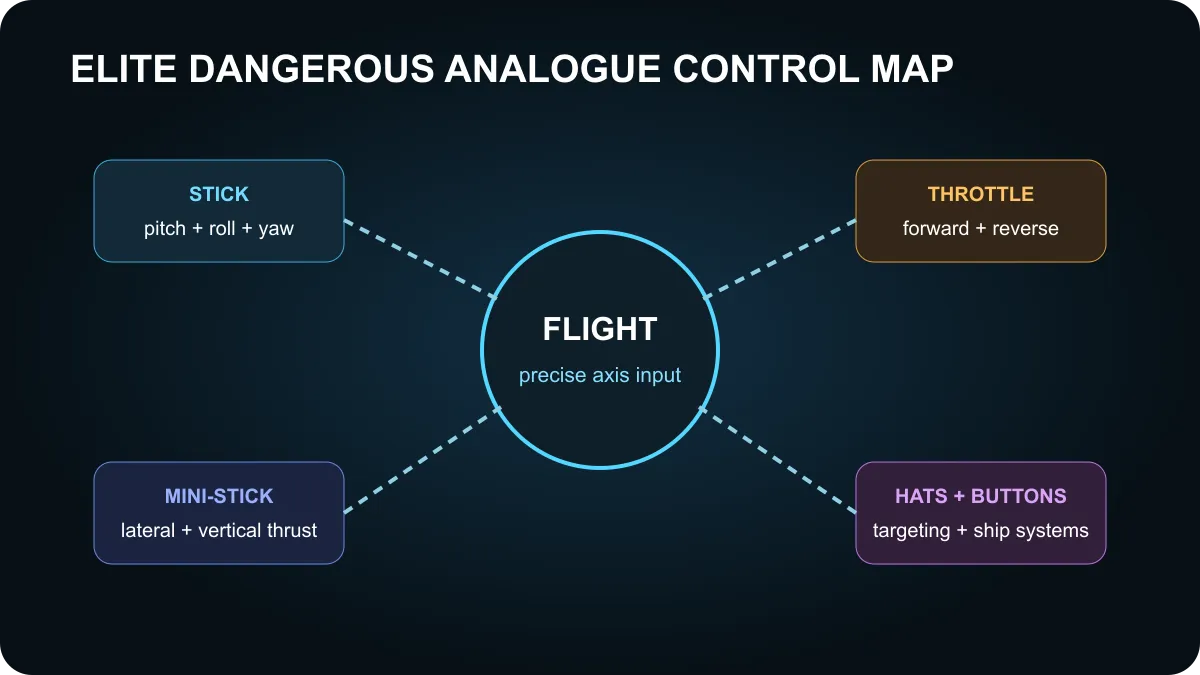
Pitch moves the nose up and down. Roll rotates the ship around its length. Yaw turns it left and right. Thrust changes forward and reverse speed. Those four controls need to feel predictable before extra buttons matter.
Many sticks add twist for yaw. That keeps the entire flight model on one hand and removes the immediate need for pedals. A separate throttle provides finer speed control and can hold buttons under the second hand. Dual-throttle designs also give more physical controls, although Elite Dangerous does not require separate engine levers.
Space flight adds lateral and vertical movement. These can sit on an analogue mini-stick, thumb control or hat. Analogue input is preferable when you use thrusters for docking or fine combat positioning, but a well-placed digital hat can still work. The important point is that the control is reachable without abandoning pitch, roll or thrust.
Axis bindings prevent avoidable control problems
Logitech's X56 setup note says to open Elite Dangerous, choose Controls and select the Saitek X56 preset. The game assigns buttons and axes, after which every binding can be changed. Use that preset as a starting point, not as a final rule.
A separate support note explains a common problem: pitch, roll and yaw each have an axis entry as well as digital direction entries. Binding a stick to Pitch Up and Pitch Down produces on-or-off movement instead of a progressive response. The same principle applies to twist, throttles, rotaries and mini-sticks. Bind continuous hardware to the matching axis.
After mapping, centre the controls and watch for unwanted input. Add only enough deadzone to stop drift. A large deadzone makes small corrections harder and can create a sudden jump when movement begins. Check the full range, direction and centre of every axis before changing response curves.
Complete systems, sticks and add-ons
The flight-simulation category contains several different kinds of product. The captured results included display panels, two add-on grips, rudder pedals, a yoke-and-throttle set, a standalone flight stick, the Logitech X56 HOTAS and a larger yoke package. Their prices cannot be compared as though every row is a full stick-and-throttle system.
The Logitech X56 at R4,999 was the clear complete HOTAS in the captured sample. The Turtle Beach VelocityOne Flightstick at R3,999 is a standalone stick with integrated controls, not a separate throttle unit. The Thrustmaster F-16C and F/A-18C rows are add-on grips that require compatible hardware. A yoke is built around aircraft-style control and is less natural for rapid space-combat movement.
Browse flight-simulation controls, review the broader simulation gear, and check simulation accessories. Read the exact product name and included items before comparing prices.
Plan the desk and button map
Measure the space on both sides of the keyboard. A large base can force the shoulders wide or leave the throttle too far forward. Desk clamps or mounts improve repeatable placement, but they add cost and may not suit every desk edge. Check cable length and USB port availability as part of the setup.
Map the functions used during pressure first: boost, frame-shift drive, target selection, weapon groups, power distribution, lateral thrust and landing gear. Leave rare galaxy-map or menu commands on the keyboard until the main flight layout feels natural. Save a copy of the binding file after a stable setup so an update or USB-port change does not erase hours of work.
The best controller is one you can use accurately for a long session. Extra switches are valuable only when they are reachable and memorable.
Frequently Asked Questions
Does Elite Dangerous recognise the Logitech X56?
Yes. Logitech documents a Saitek X56 preset in the game's Controls menu, with remapping available after selection.
Are the Thrustmaster grips complete HOTAS sets?
No. The captured F-16C and F/A-18C products are add-on grips and require compatible supporting hardware.
Do I need rudder pedals?
No. Stick twist can handle yaw, while pedals are an optional way to separate that axis or support other flight simulators.
Check the current flight-simulation category and confirm exactly what the box includes.
Map the axes before adding complexity. Stable pitch, roll, yaw and thrust will improve every flight; unused switches will not.