The Diablo 4 HDR settings should preserve both the game's deep shadows and the texture inside its brightest effects. If the whole picture looks grey, or fire and spell effects turn into flat white shapes, the problem is usually calibration order rather than one magic value. Set the display and Windows first, then adjust the game for the room you actually play in.
Quick Answer
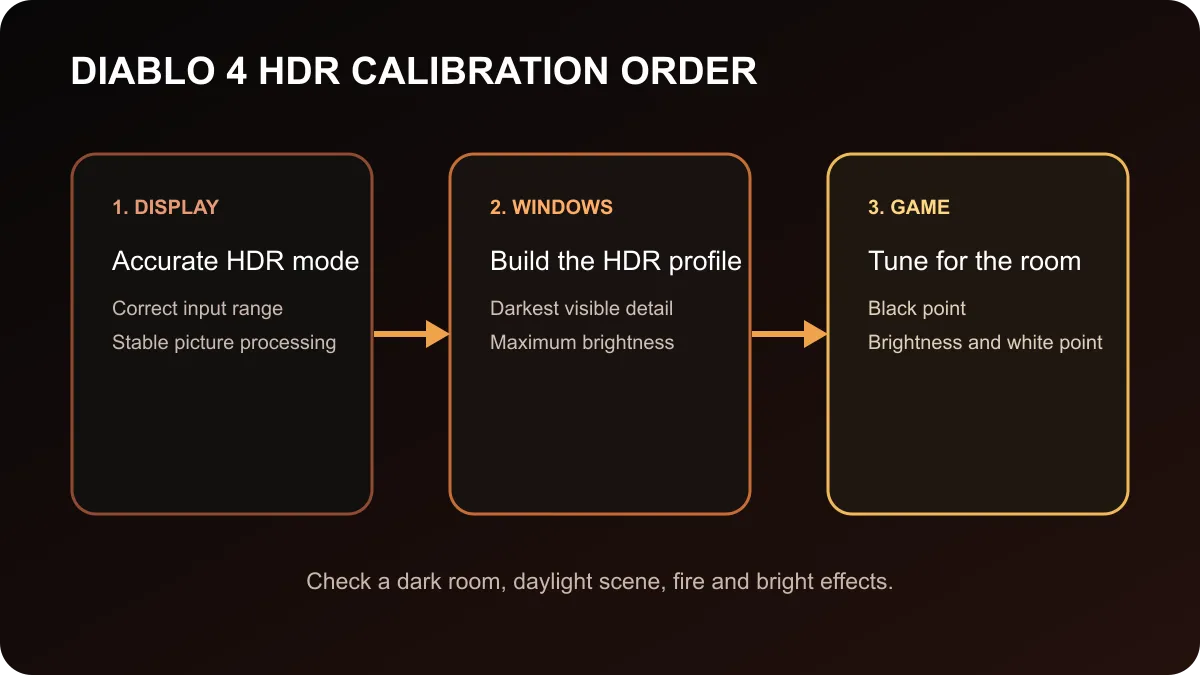
Enable HDR on the monitor and in Windows 11, run Windows HDR Calibration on the correct display, then open Diablo 4. Set the in-game black point so the darkest intended detail is barely visible, adjust brightness for comfortable midtones, and lower or raise the white point until bright effects retain structure without looking dull. Do not copy another player's nit values. OLED, LCD backlighting, tone mapping and room light all change the correct result. The captured Evetech OLED sample started at R9,999, which is context for a display upgrade rather than a requirement for using HDR.
Calibrate the display before the game
Begin with the monitor's own HDR mode. Disable aggressive picture processing that changes contrast from scene to scene, and choose the manufacturer's accurate HDR preset when one is available. Check that the PC is connected to the correct input and that Windows reports HDR support for the selected display.
On Windows 11, turn on HDR under Settings, System, Display and HDR. Run Windows HDR Calibration in full screen on the monitor used for the game. Microsoft's tool uses three patterns to establish the darkest visible detail, brightest visible detail and maximum display brightness. It also saves a profile for that display.
Run the calibration in normal room light. A profile created in a bright afternoon room can feel too dark at night, while a dark-room profile can lift the image when sunlight reaches the screen. Avoid extreme saturation. The objective is a consistent base for all HDR software, not a vivid desktop at any cost.
Set black point for shadow detail
Diablo 4 provides a black-point control because displays do not all reach the same dark level. OLED panels can switch individual pixels off, while LCD monitors depend on a backlight and, sometimes, local dimming. The same numerical setting can therefore produce different results.
Lower the black point until the darkest test detail is close to disappearing, then move back slightly. In normal play, stone texture and character outlines should remain readable in dim areas without turning black into grey. If every dungeon corner looks foggy, the black point may be too high or another device in the chain may be using a mismatched range.
Do not raise general brightness to recover crushed shadows. That can wash out the full picture. Fix the black point and display range first, then use brightness for the middle of the image.
Balance brightness and white point
Brightness should make menus, characters and ordinary scenery comfortable over a long session. White point controls the upper highlight range. Increase it only while bright effects retain visible shape. Once sparks, windows or spell effects merge into featureless white, the setting has gone beyond the display's usable range.
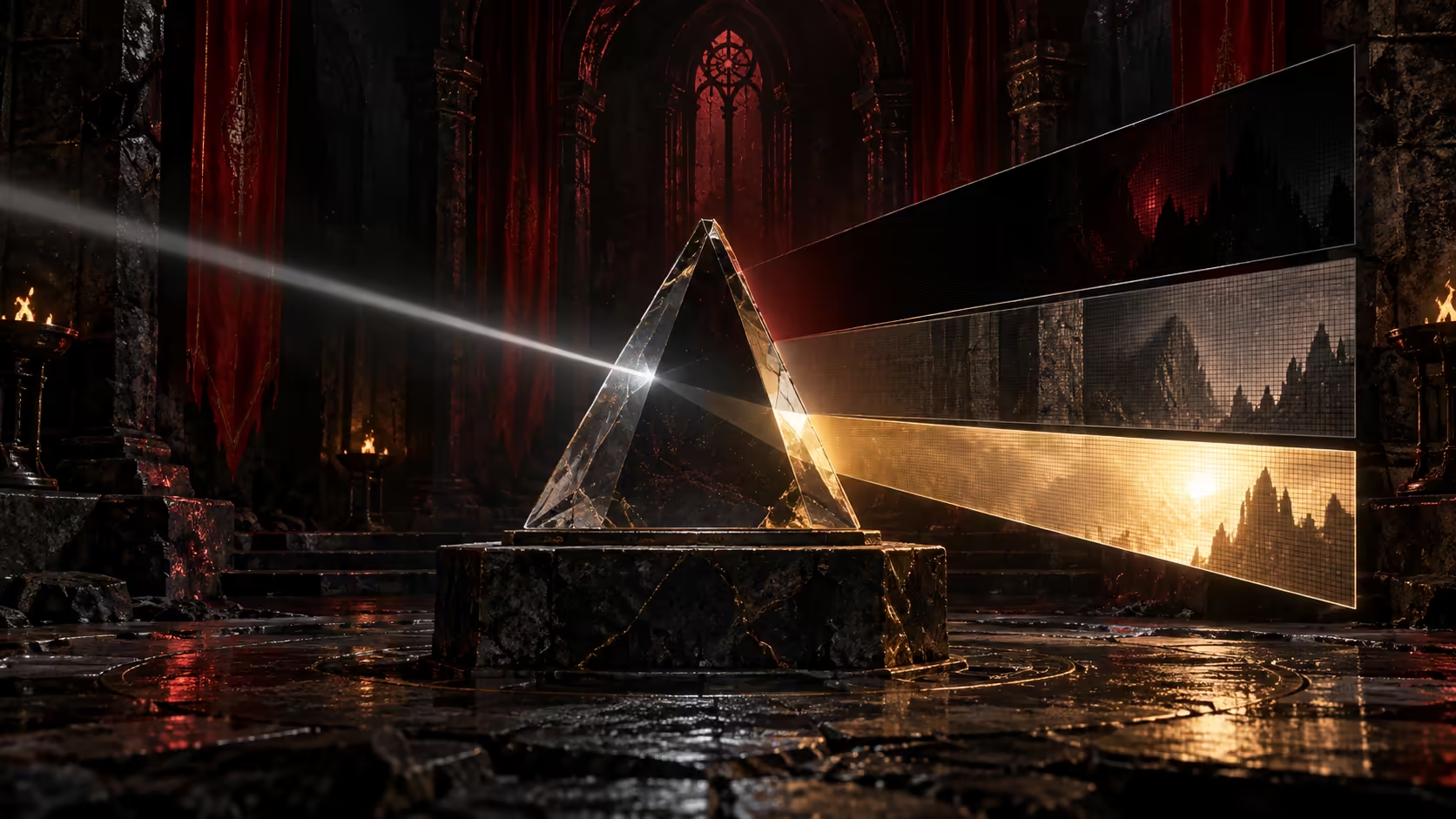
The developer's graphics explanation notes that Diablo 4 was designed to use HDR for true black and much brighter highlights while preserving its dark gothic atmosphere. It also describes black point, brightness and white point as the controls provided for different displays and ambient conditions. That is why a copied setup can be wrong even when both players own OLED monitors.
Use the game's real scenes after the test pattern. Check a dark interior, an outdoor daytime area, fire and a bright interface element. A sound result should hold shadow texture and highlight detail across all four.
When a monitor upgrade helps
HDR quality depends on more than an HDR label. Useful peak brightness, strong contrast, controlled tone mapping and an appropriate dimming system matter. OLED delivers pixel-level black and excellent local contrast, while a good LCD can reach higher sustained brightness. The room and the games you play decide which trade-off fits.
The captured Evetech sample included active in-stock OLED gaming monitors from R9,999, followed by options at R10,999, R13,999, R16,899 and R17,899 among the first five rows. These are dated catalogue values, so check the live page before making a budget decision.
Compare OLED monitors, review all gaming monitors, and use the monitor best sellers for broader context.
Frequently Asked Questions
Why does Diablo 4 HDR look washed out?
The display profile, black point, room light or extra picture processing may be lifting dark areas above their intended level.
Should I use the same white point as another player?
No. Displays differ in peak brightness and tone mapping, so a copied value can clip highlights or make them unnecessarily dim.
Is OLED the only good option?
No. OLED offers precise black, but a capable LCD can also deliver useful HDR when its brightness and dimming are well controlled.
Start with the current OLED range only if calibration shows the present display is the limiting part.
Calibrate from the outside in. Set the monitor, build the Windows profile, then tune Diablo 4 while watching real dark and bright scenes.