

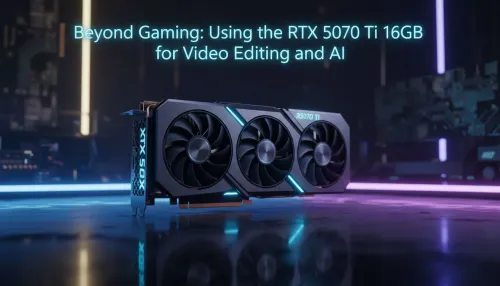
RTX 5070 Ti 16GB for Video Editing and AI Workflows
RTX 5070 Ti 16GB for video editing powers faster renders and AI-assisted workflows, speed up Premiere and Resolve exports, and optimize inference. 🎬🤖
Read moreStruggling with DeepSeek performance issues? This guide provides actionable steps to diagnose and fix common problems like slow responses and high resource usage. Learn how to optimize your setup and unlock DeepSeek's full potential. 🚀 Get faster, more reliable AI results today!
Is DeepSeek running slower than a Telkom line during load shedding? You're not alone. This powerful AI can sometimes feel sluggish, but don't blame your PC just yet. Before you start pricing new hardware, let's walk through a simple troubleshooting guide. These practical steps will help you fix DeepSeek performance issues and get you back to generating code or content at lightning speed. Let's get this sorted. 🚀
Before we talk hardware, let's cover the basics. Often, slow DeepSeek performance stems from simple software or system-level problems that are easy to fix. Think of this as the essential tune-up for your machine.
First, check your graphics card drivers. Both NVIDIA and AMD frequently release updates that include performance optimisations for AI and machine learning tasks. An outdated driver is a common cause of unexpected slowdowns.
Next, take a look at what else is running. Are you downloading a massive game on Steam or rendering a video in the background? AI models are resource-hungry, and competing applications can bring your system to its knees. Close any unnecessary programs to free up valuable CPU, GPU, and RAM resources.
Press Ctrl + Shift + Esc to open the Windows Task Manager. Click on the "Performance" tab. While running a DeepSeek task, keep an eye on your GPU's "Dedicated GPU memory usage" (VRAM). If it's maxed out, this is a major performance bottleneck, and it might be time to consider a card with more VRAM.
It's not always about the machine... sometimes it's about the instructions you give it. If you're trying to fix DeepSeek performance issues without changing your approach, you might be missing a key part of the puzzle.
Complex, multi-layered prompts require significantly more processing power. Instead of asking DeepSeek to write a 10,000-word novel in one go, try breaking it down into smaller, more manageable chunks like generating an outline first, then writing chapter by chapter. This iterative process often yields better results and feels much faster. Simple, clear instructions almost always lead to quicker response times.
If you've tried the software fixes and your performance problems persist, it might be time to look at your hardware. Running large language models locally is demanding, and older components can struggle to keep up.
Your Central Processing Unit (CPU) is crucial for many tasks, but for AI, the Graphics Processing Unit (GPU) does most of the heavy lifting. Modern GPUs have specialised cores (like NVIDIA's Tensor Cores) designed to accelerate AI calculations.
Don't forget about memory and storage. AI models need to be loaded into your system's RAM and VRAM (the GPU's own memory). If you don't have enough, your system will resort to using your much slower SSD or hard drive, causing a massive performance drop. Aim for at least 16GB of system RAM, with 32GB being a comfortable spot for more serious work. A fast NVMe SSD also ensures that models load quickly, getting you started without delay.
Realising your hardware is the issue doesn't mean you need to spend a fortune. The key is finding the right balance for your needs and budget. A troubleshooting exercise for DeepSeek can often reveal the perfect upgrade path.
For professionals who rely on AI for their work and cannot afford slowdowns, investing in one of our purpose-built workstation PCs is the smartest long-term decision. If you're an enthusiast looking for a quick and reliable boost without the hassle of building, our pre-built PC deals offer expertly crafted systems ready to go.
Worried about the cost? You can still get a machine capable of running AI without breaking the bank. Our range of budget gaming PCs provides an excellent entry point into the world of AI and gaming. ✨
Ready to Unleash AI's Full Potential? Slow hardware can turn cutting-edge AI into a frustrating chore. For maximum power, choice, and value in South Africa, the right PC is hard to beat. Explore our best gaming PC deals and find the perfect machine to conquer your world.
DeepSeek can run slow due to insufficient hardware (VRAM, RAM), suboptimal model configuration, network latency, or inefficient code. Our guide helps you diagnose the bottleneck.
To speed up DeepSeek, try using a quantized model version, increasing your batch size for multiple prompts, ensuring you have a powerful GPU, and optimizing your local environment.
Common DeepSeek errors include 'out of memory' (OOM), configuration file mismatches, and API connection timeouts. Check your hardware specs and installation to solve them.
Yes, running large DeepSeek models locally is resource-intensive. A modern GPU with ample VRAM (e.g., 12GB+) and sufficient system RAM are crucial for good performance.
For optimal performance, adjust parameters like temperature for creativity vs. accuracy, use smaller, quantized models for speed, and ensure your GPU drivers are fully updated.
If you are using the DeepSeek API, network latency is a major cause of slow responses. Ensure you have a stable, low-latency internet connection for the best experience.
RTX 5070 Ti 16GB for video editing powers faster renders and AI-assisted workflows, speed up Premiere and Resolve exports, and optimize inference. 🎬🤖
Read more
- Assess longevity - Embrace scalable AI - Plan upgrade paths AI upscaling for gaming boosts visuals and FPS while extending GPU life, helping you future-proof your rig with smart upgrades ⚡🎮
Read more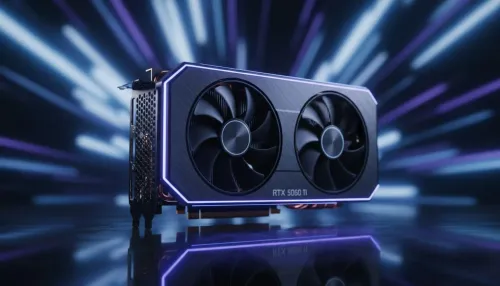
RTX 5060 Ti for AI workflows delivers cost-effective tensor performance to accelerate training, inference, and data prep. Learn tuning tips, memory/driver setup, and benchmark gains to boost daily AI productivity. ⚡️💡
Read more
RX 9060 XT for machine learning: Explore whether the RX 9060 XT can handle local AI and ML tasks, plus practical tips, benchmarks, and configuration advice. ✅🔧
Read more
AI NAS combines storage and on-device AI by adding a neural processing unit (NPU). Learn how an AI NAS speeds inference, secures data, and boosts backups. 🤖💾
Read more
Edge computing smart home setups reduce latency, boost privacy, and enable on-device AI for future-proof automation and security. Learn hardware picks and upgrade tips. 🔒🤖
Read more
Discover webcams that automatically adjust light and color for crystal-clear video calls 🎥✨. Boost your streaming quality today!
Read more
Discover webcams that blend into your workflow 🎯 Capture moments while you work, stream, or create. Upgrade your setup with smart, multitasking tech!
Read more
Dedicated media keys give streamers one-touch control to mute, switch scenes, clip highlights, and adjust audio — cutting task time and boosting consistency 🎛️⚡
Read more
PBT vs ABS keycaps: Clear, local guide for South African gamers—compare feel, sound, durability and where to buy. Find the best material for your budget and playstyle 🎮🇿🇦
Read more
- Multi-Function Digital Dial: define benefits - Show gamer setups and macros - Offer buying and setup tips Multi-Function Digital Dial puts programmable control at your fingertips for faster actions and smoother streaming. 🎮⚙️
Read more
- Explain benefits; - Show the science; - Compare options; - Recommend picks. Magnetic wrist rest for gaming cuts wrist strain and boosts comfort during long sessions 🕹️✨
Read more