

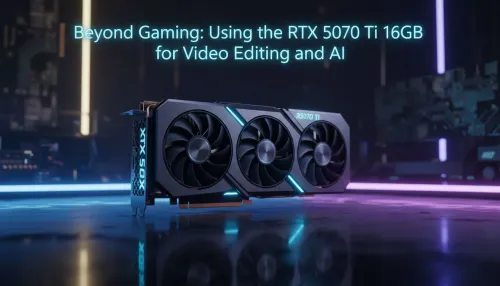
RTX 5070 Ti 16GB for Video Editing and AI Workflows
RTX 5070 Ti 16GB for video editing powers faster renders and AI-assisted workflows, speed up Premiere and Resolve exports, and optimize inference. 🎬🤖
Read moreMaster PC troubleshooting with AI and solve frustrating issues fast! This guide shows you how to leverage the power of DeepSeek to diagnose blue screens, slow performance, and hardware conflicts. Stop guessing and start fixing your computer like a pro. 💻⚙️
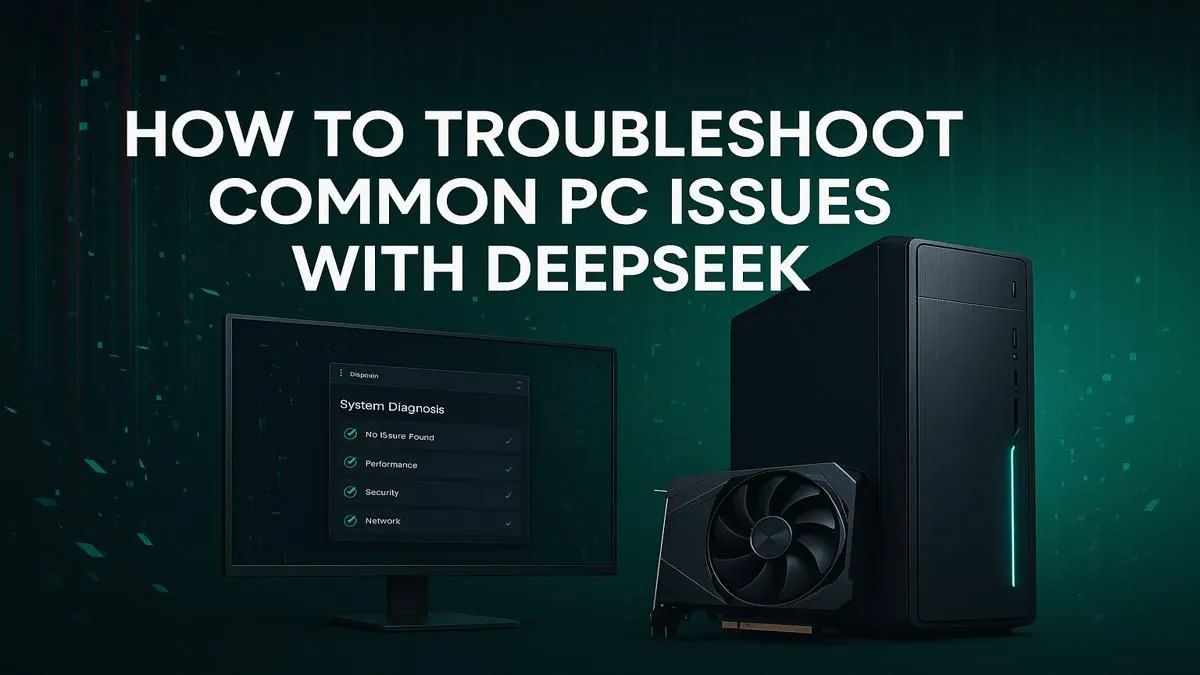
That sinking feeling... your PC, your pride and joy, suddenly throws up a Blue Screen of Death minutes before a crucial online match. We’ve all been there. Scouring endless forums for answers, trying solutions from 2012, and getting lost in technical jargon. What if there was a smarter, faster way? It's time to explore PC troubleshooting with AI, using powerful tools like DeepSeek to diagnose and fix your machine like a pro. 💡
For years, fixing a PC meant becoming a digital detective. You'd copy-paste cryptic error codes into Google, wade through pages of conflicting advice on dusty forums, and hope for the best. This process is slow, often confusing, and sometimes you end up making the problem worse.
The core issue is context. A solution that worked for someone's ten-year-old rig might not apply to your modern beast. This is where using AI for PC troubleshooting offers a massive advantage. Instead of just matching keywords, AI can understand the specifics of your problem and your hardware.
Think of models like DeepSeek as an expert technician who's available 24/7. These large language models are trained on vast amounts of technical documentation, code, and troubleshooting guides. They can understand complex queries, analyse error logs, and generate step-by-step solutions tailored to you. This new approach to PC troubleshooting with AI can turn hours of frustration into a few minutes of focused fixing, getting you back in the game on your high-performance NVIDIA GeForce gaming PCs faster than ever.
Getting great results from an AI requires giving it great information. Here’s how to effectively use DeepSeek for your PC issues.
Vague questions get vague answers. Don't just say "my game is crashing." Provide as much detail as possible.
The more details you provide, the more accurate and helpful the AI's response will be.
Need to grab your PC specs fast? Press Windows Key + R, type dxdiag, and hit Enter. The DirectX Diagnostic Tool will open, giving you all the essential info about your CPU, RAM, and GPU to feed into your AI prompt.
Let's say you're getting a DPC_WATCHDOG_VIOLATION error while gaming. You could ask DeepSeek:
"I keep getting a BSOD with the error 'DPC_WATCHDOG_VIOLATION' when playing Apex Legends on my PC. It happens randomly after about 20 minutes of gameplay. I'm running Windows 11 with an AMD RX 7800 XT and a Ryzen 7 7700X CPU. What troubleshooting steps should I take?"
The AI will likely suggest a prioritised list of actions, such as updating your chipset drivers, checking your SSD firmware, and running the System File Checker (sfc /scannow) command. This guided approach is far more efficient than random searching, especially for owners of the latest AMD Radeon gaming PCs who want to maximise their performance.
This method of PC troubleshooting with AI isn't just for gamers. Video editors dealing with render crashes, developers debugging code, or architects facing software glitches can all benefit. If your livelihood depends on your machine, having an AI assistant to help diagnose software conflicts or hardware bottlenecks can save you valuable time and money. It’s a powerful tool to have in your arsenal, ensuring your powerful workstation PCs maintain peak productivity. 🚀
Ready for a Hassle-Free PC Experience? While AI is a fantastic tool for troubleshooting, starting with a professionally built, stable machine is the ultimate fix. Skip the headaches and explore our massive range of expertly assembled PCs, built and tested for peak performance right here in South Africa. Find your perfect gaming PC today and focus on what matters... winning.
Yes! AI tools like DeepSeek analyze symptoms, process vast technical data, and provide step-by-step solutions, making it easier to diagnose and fix complex PC issues.
Describe your PC issue to DeepSeek in plain language. Provide details like error messages or when the problem occurs. The AI will then suggest diagnostic steps and solutions.
It is generally safe for diagnostics. AI provides guidance and information. Avoid sharing personal data and always back up your system before making significant changes.
Absolutely. You can provide the BSOD stop code to an AI like DeepSeek, which can quickly interpret the code and suggest common causes and fixes for the crash.
An AI assistant can help fix a slow PC by suggesting optimizations like clearing temporary files, managing startup programs, checking for malware, and updating drivers.
AI cannot perform physical repairs or run diagnostic software on your machine. It acts as an expert guide, providing information and steps for you to follow.
RTX 5070 Ti 16GB for video editing powers faster renders and AI-assisted workflows, speed up Premiere and Resolve exports, and optimize inference. 🎬🤖
Read more
- Assess longevity - Embrace scalable AI - Plan upgrade paths AI upscaling for gaming boosts visuals and FPS while extending GPU life, helping you future-proof your rig with smart upgrades ⚡🎮
Read more
RTX 5060 Ti for AI workflows delivers cost-effective tensor performance to accelerate training, inference, and data prep. Learn tuning tips, memory/driver setup, and benchmark gains to boost daily AI productivity. ⚡️💡
Read more
RX 9060 XT for machine learning: Explore whether the RX 9060 XT can handle local AI and ML tasks, plus practical tips, benchmarks, and configuration advice. ✅🔧
Read more
AI NAS combines storage and on-device AI by adding a neural processing unit (NPU). Learn how an AI NAS speeds inference, secures data, and boosts backups. 🤖💾
Read more
Edge computing smart home setups reduce latency, boost privacy, and enable on-device AI for future-proof automation and security. Learn hardware picks and upgrade tips. 🔒🤖
Read more
Discover webcams that automatically adjust light and color for crystal-clear video calls 🎥✨. Boost your streaming quality today!
Read more
Discover webcams that blend into your workflow 🎯 Capture moments while you work, stream, or create. Upgrade your setup with smart, multitasking tech!
Read more
Dedicated media keys give streamers one-touch control to mute, switch scenes, clip highlights, and adjust audio — cutting task time and boosting consistency 🎛️⚡
Read more
PBT vs ABS keycaps: Clear, local guide for South African gamers—compare feel, sound, durability and where to buy. Find the best material for your budget and playstyle 🎮🇿🇦
Read more
- Multi-Function Digital Dial: define benefits - Show gamer setups and macros - Offer buying and setup tips Multi-Function Digital Dial puts programmable control at your fingertips for faster actions and smoother streaming. 🎮⚙️
Read more
- Explain benefits; - Show the science; - Compare options; - Recommend picks. Magnetic wrist rest for gaming cuts wrist strain and boosts comfort during long sessions 🕹️✨
Read more