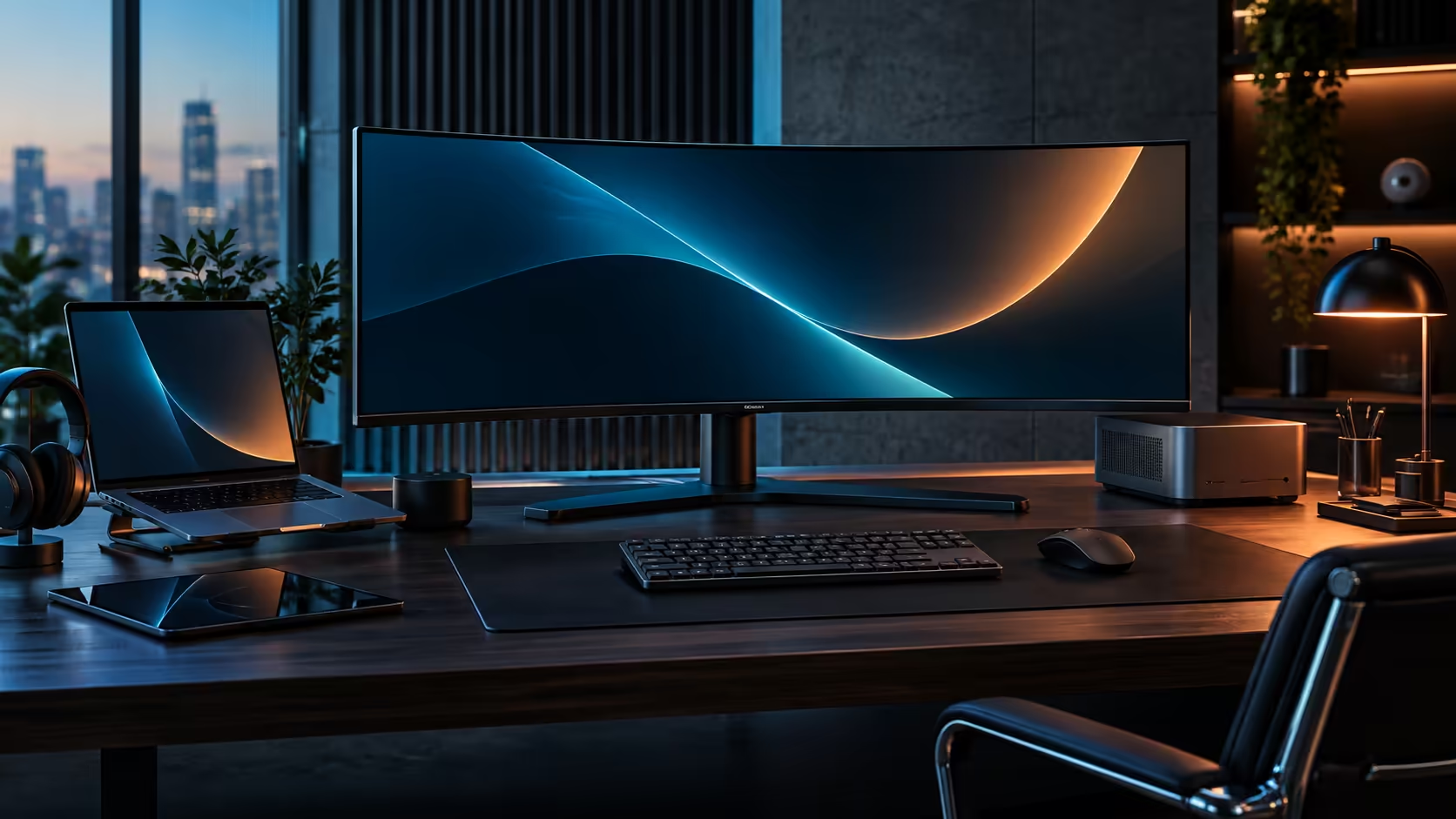
The buying decision for a one-cable docking monitor starts nowhere near the monitor itself. It starts with your laptop's own USB-C port, and skipping that one check is, by far, the most frequent reason a shopper here ends up with a screen that quietly fails to do what they expected the moment it is unboxed.
Quick Answer
Before choosing a docking monitor, make sure the exact USB-C port you plan to use carries a video signal alongside charging, and note the wattage printed on your laptop's factory brick. Once those two line up, a R7,999 docking ultrawide like the CU34E4CW turns arriving home into plugging in one connector, and leaving for the office into pulling that same connector back out.
🔍 Step one: confirming your laptop actually supports this
This check takes two minutes and prevents the single most common disappointment with a docking monitor purchase.
Scan your laptop's USB-C ports for a small display or "DP" marking, or pull up the manufacturer's spec page and search for DisplayPort Alt Mode, since video capability is not guaranteed just because a port has the right connector shape. Next, turn over the laptop's original brick and read its wattage off the label: an office machine pulling 45W or 65W leaves plenty of the CU34E4CW's 90W spare, whereas a gaming or workstation model drawing upward of 130W keeps charging over the dock too, only at a pace its own supplied charger would beat.
🔌 Step two: building the one-cable habit
Once the hardware is confirmed compatible, the daily routine is what actually delivers the convenience this kind of monitor promises.
Move your keyboard, your mouse and the household network lead so all three terminate at the panel rather than the laptop, leaving exactly one USB-C cable to run between the two. Arriving home and plugging that single cable in restores your full desk setup, video, charging, network and peripherals, in one motion. Leaving for the office is the same action in reverse: unplug one cable, close the laptop, and the desk itself stays exactly as it was for the next time you dock.
🚗 Step three: what the commute actually needs alongside the monitor
The docking cable solves the desk half of a hybrid routine, but the bag you carry between home and office is a separate consideration worth planning for.
A laptop that gets disconnected and reconnected daily benefits from a bag built to protect it during an actual commute, rather than one chosen purely for looks. Beyond the bag itself, keep a spare charging cable of the right length in your bag if your office desk is not also set up with a docking monitor, since relying on a single cable that lives permanently on your home desk means being without a charger entirely on office days.
Something built to survive a daily commute is worth pairing with the routine: browse the bags and backpacks selection, and look at the docking station range if it makes more sense to give your office desk its own dock rather than shuttling accessories back and forth every day.
🏠 Step four: the local details that matter once it is set up
With the technical side sorted, a small number of South African-specific factors round out a smart purchase.
A wired connection through the monitor's own network socket takes real pressure off a shared household fibre line during calls, which matters more here than on a dedicated office network. There is also a quieter reason to buy this locally rather than sourcing an equivalent overseas: if the panel ever needs to go back for repair, Evetech is the one place your call needs to reach, rather than a seller on another continent who may or may not still answer.
Compare the office monitor range directly against your laptop's confirmed specifications before ordering.
Frequently Asked Questions
What is the first thing to check before buying a docking monitor?
Your laptop's USB-C port support for both video output and Power Delivery. Without both, a docking monitor cannot deliver its main benefit regardless of its own specifications.
Do I need to carry a charger separately if I use a docking monitor at home?
Only if your office desk lacks its own docking setup. Otherwise your laptop's original charger can generally stay at home, since the monitor handles charging while docked.
How much charging speed do I lose with a docking monitor versus my original charger?
Only laptops rated above the monitor's charging ceiling see a difference, and even then the laptop still charges, just more slowly than its factory brick would manage.
Does a wired network connection through the monitor genuinely help call quality?
Yes, particularly on a shared household fibre line, since it removes the connection from Wi-Fi bandwidth contention with other devices in the home.
Is buying a docking monitor locally worth it over an equivalent import?
Generally yes, for equipment you sit in front of every day. Sourced locally, a fault means one phone call and a collection; sourced privately, it means finding a box, paying to post it abroad, and waiting for it to clear customs twice.
Ready to build a one-cable routine that works for your commute?
Confirm your laptop's port and charger first, then set up the desk so only one cable ever needs to move.