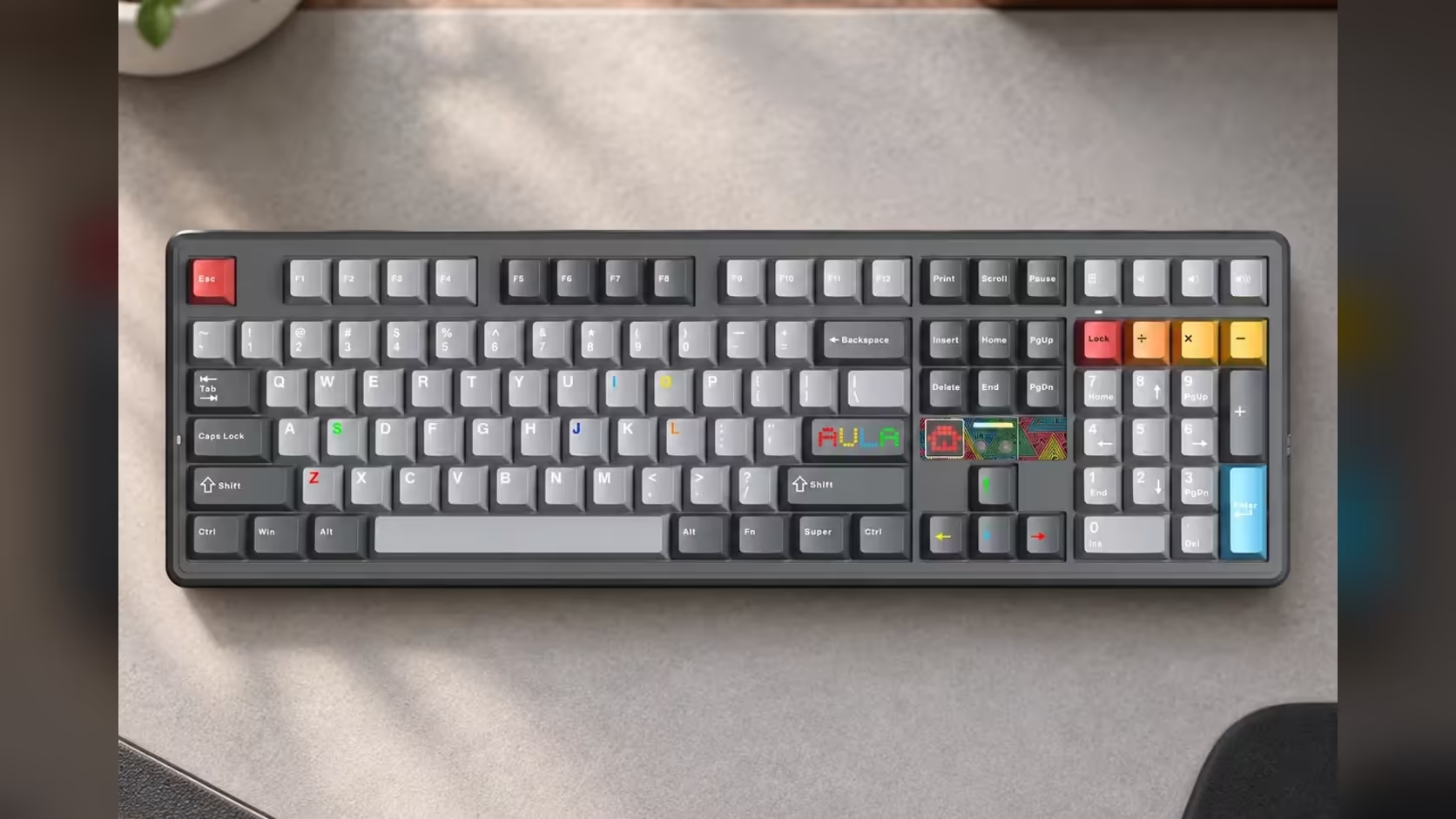
A home office has two jobs that most desks handle badly: long stretches of typing and a steady stream of video calls. The AULA F108 PRO V2 and the AULA GS6 Pro split those jobs neatly. The keyboard gives you a full number pad and a softened typing feel, and the soundbar gives you room-filling audio plus a microphone built for calls. This build walks through setting up an AULA home office around the pair, from placement to your opening meeting.
Quick Answer
Put the F108 PRO V2 front and centre for typing and number work, and the GS6 Pro below or in front of your monitor for audio and calls. The keyboard keeps a full numpad and quietens its linear switches thanks to a gasket build that stacks seven dampening layers. The soundbar's detachable 360-degree mic uses ENC noise cancellation and AEC echo cancellation, so its own playback stays out of your meetings. Both sit under Evetech's 1 Year Local Warranty, with the F108 PRO V2 at R949 in Black/Grey/White or R1,099 in Dark/Light Grey and the GS6 Pro at R349.
🗺️ Step 1: Plan the desk and place the soundbar
Start with measurements. The GS6 Pro is 410 x 80 x 76mm, so you need a strip of desk about that size in front of or beneath your monitor. Its single USB lead is 1.4m long and handles audio and power together, so park the bar within that reach of a spare USB port. No separate power adapter is needed.
Being a 100% layout, the F108 PRO V2 needs the whole width of a standard keyboard, numpad included. Plan your mouse space to the right of the numpad, and leave room in front of the keyboard for your forearms.
Place the soundbar
Set the GS6 Pro directly below your screen, centred with your seating position. AULA designed the bar to tilt up by 10 degrees towards you, which points the sound at your ears rather than at the desk surface. Keep it clear of clutter so nothing blocks the metal mesh front.
Next, fit the detachable microphone onto the bar. Because it picks up sound through 360 degrees, placing the bar centrally in front of you gives it the most direct line to your voice. A mute button on the bar puts privacy one press away during calls.
⌨️ Step 2: Choose and connect the keyboard
Your LEOBOG linear switch is tied to the edition you pick:
- Sea Dome (two-tone grey): a 32gf press point that keeps a long working day easy on the fingers.
- Panda: 38gf before a key fires, for typists who like a little pushback.
Both bottom out at 45gf and have no click or bump, so they stay smooth and relatively quiet. The gasket mount with seven dampening layers takes the edge off each keystroke, which matters when your mic is open. Centre the main typing area, not the whole board, in front of you so your hands sit square to your shoulders.
Connect your devices
Home offices often have more than one machine. The F108 PRO V2 can connect by USB-C cable, a 2.4GHz USB receiver or Bluetooth, so it can serve a work laptop and a personal PC without replugging.
The GS6 Pro offers USB or Bluetooth 5.4. A common setup is USB to the main computer for calls and system audio, with a phone paired over Bluetooth for music during breaks. If you want to tune the sound or add extras, AULA's Windows driver (Windows 10 onwards) is where the EQ, the voice changer, AI noise cancellation and the game audio modes live. There is no Mac app, so on a Mac you work with the bar's own button modes.
🎙️ Step 3: Set up for calls
A few habits make the GS6 Pro's mic sound its best:
- Sit at a consistent distance from the bar so your voice level stays steady.
- Pick the right sound mode. The bar has Game, Music and Movie modes on a button; try each with a test call to hear which suits speech playback in your room.
- Soften hard surfaces nearby where you can. Even with echo cancellation, a quieter room helps any desk mic.
- Use the mute button whenever you are typing heavily and not speaking.
Typing noise is where the two products work together. Linear switches without a click, the keyboard's dampening, and the mic's ENC processing all help keep keystrokes in the background.
🌙 Step 4: Plan for late nights and lighting
For calls or listening after hours, plug headphones into the GS6 Pro's 3.5mm port. AULA says the headphones still get the speaker's sound processing, so you do not lose your settings.
Lighting can stay subtle. Along the soundbar's base, 15 RGB LEDs cycle solid, flowing, breathing or music-rhythm effects with no driver installed. The keyboard adds per-key RGB, spacebar LEDs, a light bar and its dot-matrix display, which you can load with your own GIFs through AULA's driver for a calmer look during work hours.
Other full-size options sit alongside this keyboard in Evetech's gaming keyboards category, and the wider peripheral best sellers list covers the rest of the desk.
Frequently Asked Questions
How much space does the GS6 Pro need?
A strip of 410 x 80 x 76mm, placed no further than its 1.4m lead can reach from a USB port.
Will people on calls hear my typing?
Less than with a clicky board. The keyboard's linears never click, the gasket build absorbs much of the stroke, and ENC on the soundbar's mic filters steady background sound.
Which switch suits a home office?
For long typing days the 32gf Sea Dome is lighter, while the Panda gives a firmer start.
Can the soundbar and keyboard both use Bluetooth?
Yes. The F108 PRO V2 supports Bluetooth alongside cable and 2.4GHz, and the GS6 Pro supports Bluetooth 5.4 alongside USB.
Can I remove the microphone?
Yes. Yes. The boom detaches, so the mic can be put away between meetings.
Setting up a desk that works as hard as you do?
Browse Evetech's keyboards and peripherals to pair a full-size board with audio that is ready for your next meeting.