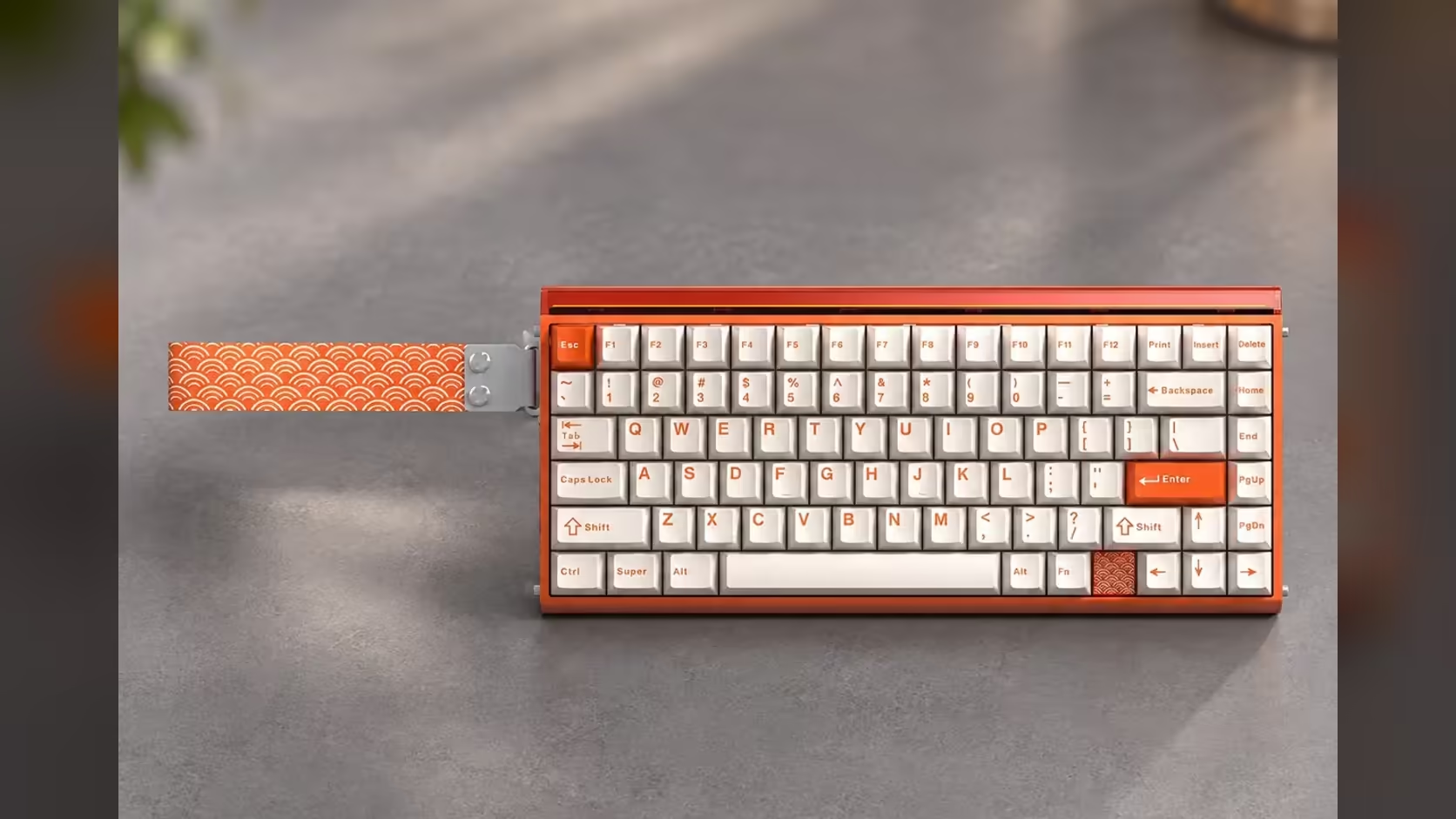
A wireless keyboard is only as good as the link between its receiver and the board. Plug the AULA HERO 75 HE's receiver into the wrong port, behind a steel side panel and a tangle of cables, and even an 8000Hz board can stutter. Getting receiver placement for 8000Hz right takes a few minutes and costs nothing, and it is the single most useful thing you can do for a clean wireless connection.
Quick Answer
Plug the AULA HERO 75 HE's 2.4GHz receiver into the port with the shortest, clearest line to the keyboard, which is often a front-panel port on a desktop. Rear ports sit behind a metal case that can weaken the signal. With a clean link, the board holds its 8000Hz polling over the receiver, the same rate it reaches over its USB-C cable. Evetech sells the HERO 75 HE for R899.
📡 Why port position matters for 2.4GHz
The receiver talks to the keyboard by radio on the 2.4GHz band. Radio signals weaken with distance and when they pass through or around obstacles, and metal is the worst offender. A desktop tower is essentially a metal box, so a receiver tucked into a rear port has the whole case between it and a keyboard sitting in front of the monitor.
At high polling rates this matters more. The HERO sends up to 8000 reports every second over 2.4GHz, so a marginal link has more chances to drop or delay a report. The symptoms are usually small: an odd missed key, jittery movement in a game, or a delay after the board wakes.
🛠️ Finding the best port, step by step
Step 1: start at the front
On most desktops, the front-panel USB ports face you and sit closer to the keyboard with less metal in the way. Plug the receiver in there and test before trying anything else.
Step 2: watch out for crowded or high-speed neighbours
Some USB 3 ports and devices produce radio noise in the 2.4GHz range, and a receiver right next to a busy external drive or another wireless dongle can suffer. If you have a choice, leave a free port between the receiver and other high-traffic devices.
Step 3: consider a monitor USB hub
Many monitors have USB ports on the side or back, which can put the receiver much closer to the keyboard. Results vary by monitor and hub, so test it; if stutter appears, move back to a port on the PC.
Step 4: bring the receiver closer if needed
If no port gives a clear path, a short USB extension cable can place the receiver on the desk near the keyboard. AULA's product page does not list an extension in the box, so plan on using your own if you go this route.
Step 5: test in a real game
Load a game you know, strafe, type in chat and see whether anything feels off. Run the same test on the cable for comparison; if the cable feels clean and the receiver does not, placement is the likely cause.
🔄 If stutter persists
Work through the likely causes in order:
- Wi-Fi congestion. Home routers share the 2.4GHz band. Moving your own devices to 5GHz where possible frees airtime for the keyboard.
- Battery level. A low battery can affect wireless behaviour on many devices. Top up and test again.
- Other receivers. Mice, headsets and controllers often use 2.4GHz dongles too. Spread them across ports rather than bunching them together.
- Fall back to the cable. The HERO's USB-C connection also runs at 8000Hz, so for tournaments or critical sessions the cable removes the radio variable entirely.
💻 Laptops and the Bluetooth question
On a laptop, the receiver usually has a shorter, clearer path because the keyboard sits right next to it. Use a side port nearest the board. If ports are scarce, Bluetooth is an option for typing, but it runs at 125Hz and is not meant for games. The HERO pairs with up to three Bluetooth devices, which is handy for switching between a laptop and a tablet.
The rest of the board stays the same whichever link you use: 84 keys in a 75% layout, magnetic switches whose trigger point moves in 0.005mm increments anywhere between 0.1mm and 3.4mm, plus Rapid Trigger, SOCD and DKS, all on an 8000mAh battery. The HERO 75 HE is sold by Evetech with a 2 Years Local Warranty. See it with other boards under Evetech's gaming keyboards, or browse top-selling keyboards for comparison.
Frequently Asked Questions
Are front ports usually better than the rear I/O?
Usually, yes. Front ports sit closer to the keyboard with less of the metal case in the way.
Can USB 3 ports interfere with the receiver?
Some USB 3 ports and devices generate noise near 2.4GHz, so avoid placing the receiver right beside a busy drive or hub.
Is a monitor's USB hub a good spot?
It can be, since it often sits close to the keyboard. Test it, and move back to the PC if you notice stutter.
What if the link still stutters?
Check Wi-Fi congestion, charge the battery, spread other receivers out, or use the cable, which also runs at 8000Hz.
Where should the receiver go on a laptop?
In the port closest to the keyboard, usually on the side where the board sits.
Does Bluetooth sidestep the problem?
It avoids the receiver, but it runs at 125Hz, so keep it for typing and media rather than games.
Setting up a cable-free gaming desk?
Explore wireless magnetic boards like the HERO 75 HE in Evetech's gaming keyboard range and build a link you can trust.