Good HDR setup is a chain rather than a vivid preset. The room, Windows, content, display mode and in-game calibration must all agree before DisplayHDR 400 and Dolby Vision can produce a balanced picture.
Quick Answer
Begin with correct black level and a neutral SDR baseline. Enable HDR in Windows for compatible content, run system calibration and then set the game's paper white and peak controls. Use recognised scenes to preserve highlight texture, shadow detail and believable colour. DisplayHDR 400 is an entry HDR tier, so favour controlled tone mapping over unrealistic intensity.
Prepare the viewing environment
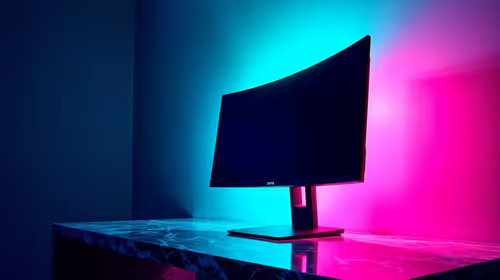
Move lamps and windows that reflect directly on the panel. Moderate ambient light is easier to manage than strong daylight or a completely dark room with excessive brightness. Sit centrally in front of the AW3426DWM's 1500R curve and inspect both centre and edges.
The curved monitor collection helps compare how different shapes fit the room. Physical placement should be settled before picture controls are judged.
Establish a clean SDR reference
Reset the picture mode, choose a neutral colour temperature and set a comfortable luminance. Avoid dynamic contrast, black boost and extreme sharpening during the baseline. Open familiar photographs and a greyscale to check that dark steps and bright detail remain distinct.
The AW3426DWM covers 95% DCI-P3, but ordinary desktop content is often designed around sRGB. Use restrained mapping for SDR so wide-gamut capacity does not oversaturate every interface colour.
Calibrate the operating system
Select 3440 x 1440 and the desired refresh before enabling HDR. Run the Windows HDR calibration tool, following its clipping patterns rather than copying values from a different monitor. Set SDR-content brightness for a comfortable desktop after HDR mode is active.
If the image turns washed out, check the active colour range and picture preset. Incorrect range mapping can lift black or crush shadow detail. Change one setting at a time and return to the saved SDR reference when necessary.
Tune the game or video separately
Use genuine HDR material. In a game, follow its paper-white and peak-luminance patterns, then test a scene with sun glints, fire, dark clothing and textured shadows. A clipped lamp should not be accepted merely because it looks bright.
Dolby Vision can provide dynamic metadata for compatible content and playback paths. Unsupported SDR does not gain those instructions. Keep format handling automatic or explicitly correct rather than forcing every source into the same mode.
Balance VA contrast and motion
The 34-inch VA panel provides useful native contrast, while 240Hz, 1ms GTG and FreeSync Premium address gaming motion. Choose overdrive with a dark HDR scene as well as a bright test, because trailing and overshoot can become more visible around high-contrast edges.
The gaming monitor range helps weigh HDR against refresh and resolution. Buyers seeking self-emissive per-pixel black control can inspect the OLED monitor category; the R8,999 Alienware remains VA.
Save and verify useful presets
Create separate SDR work, competitive gaming and HDR cinema profiles. Record brightness, colour mode, overdrive and HDR controls. Recheck them after driver or operating-system updates.
Spend at least one complete session in the chosen HDR mode. Eye fatigue, crushed shadow detail or exaggerated colour may be less obvious in a short demo. Refine gently rather than stacking enhancement features.
Inspect tone mapping with varied scenes
Use daylight clouds to check whether bright texture remains visible, a night street to inspect near-black gradation and a face lit by mixed sources to judge skin colour. A setup that succeeds only with neon signs is incomplete. Pause at several points and compare subtle transitions instead of making a decision from rapid gameplay.
When a title offers a paper-white control, use it for ordinary diffuse elements such as menus or white walls. Reserve peak control for small bright highlights. Setting both to their maximum can flatten the relationship between everyday brightness and specular detail.
Handle SDR applications inside HDR mode
Some hybrid workflows keep Windows HDR active while opening standard desktop programs. Adjust the SDR content slider until documents and browsers remain comfortable, then verify that photographs are not washed out. If colour-managed work remains inconsistent, return to a dedicated SDR preset and enable HDR only for suitable media.
Do not use wide-gamut vivid modes as a universal correction. Oversaturated icons may look lively but make ordinary content less faithful. Keep a neutral reference image available when moving between presets.
Check signal stability
HDR plus high refresh and deeper colour increases link demand. If the screen drops out after HDR is enabled, simplify the connection and inspect the active refresh and colour depth. Re-establish the working SDR signal first, then add HDR without changing unrelated game settings.
Once stable, run a long HDR clip and a game rather than trusting a static desktop. Record the final active mode so future cable or driver changes can be compared accurately.
Revisit brightness after the eyes adapt for twenty minutes. A level that looked restrained immediately after a vivid mode may still be tiring through a full film. Comfortable luminance preserves attention for subtle colour and tone differences instead of making the viewer squint. Keep a room light behind or beside the screen rather than reflecting directly from its curved surface.
Frequently Asked Questions
Should maximum brightness be used for all HDR?
No. Tone mapping and comfortable room-adjusted viewing matter more than forcing every scene to the brightest setting.
What does 95% DCI-P3 mean?
It describes broad coverage of a cinema-oriented colour gamut, not a guarantee that every mode is perfectly accurate.
Can Dolby Vision improve ordinary SDR?
No. Compatible content and a working format path are required for its dynamic metadata.
Why save a separate SDR preset?
Desktop work often needs different brightness and gamut handling from HDR games or films.
Ready to tune HDR for texture instead of spectacle? Control the room, calibrate Windows and the content in sequence, then save the mode that protects both subtle shadows and bright highlights.