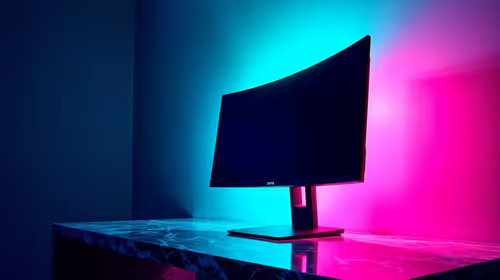
True Black HDR works best when the room, source, operating system, game and display preset agree. Getting the best HDR picture from DisplayHDR 500 True Black is therefore a staged calibration task, not a brightness race. The ASUS XG27AQDPG combines that HDR capability with QD-OLED and 99% DCI-P3 coverage at R23,899.
Quick Answer
Control room light, connect the XG27AQDPG through HDMI 2.1 or DisplayPort 1.4, select QHD, and enable HDR output only for compatible content. Begin from a neutral monitor preset, adjust the operating system's HDR balance, then tune the game so near-black detail remains visible and highlights stay distinct. DisplayHDR 500 True Black identifies an HDR performance class; it does not make every source correctly mastered.
🌑 Prepare the viewing environment
Move bright lamps and direct window reflections away from the screen. QD-OLED can produce deep black areas, but glare on the panel can hide low-level detail and encourage excessive brightness. Use modest ambient light behind or beside the viewing position rather than shining into the display.
Set a comfortable viewing distance for the 27-inch QHD panel. A stable angle matters during calibration because moving close to inspect one shadow can change the impression of the whole scene. The broader OLED display range helps compare screen sizes and panel options before deciding on room placement.
🔌 Confirm the digital path
Connect a known source directly through HDMI 2.1 or DisplayPort 1.4. Select 2560x1440 and verify the desired refresh separately from HDR. A correct 500Hz setting does not prove HDR is active, and an HDR badge does not confirm the high-refresh mode.
Open the operating-system HDR controls and confirm the XG27AQDPG is the selected display. Multi-monitor systems can apply a setting to the wrong screen. Use a recognised HDR video or game scene rather than judging through a standard desktop wallpaper.
The complete gaming monitor selection is useful for comparing HDR labels beside resolution and input specifications.
🎛️ Start from a neutral preset
Reset only the picture mode being calibrated. Disable extra contrast or colour effects during the first pass, and note the original values. The panel covers 99% DCI-P3, which provides broad colour capability, but coverage is not the same measurement as perfect calibration.
Use an HDR scene with dark texture, mid-tone skin or surfaces, and small bright highlights. Adjust black or shadow controls until detail is visible without turning black areas grey. Then inspect the highlight region for clipping. Moving both ends at once makes it difficult to see which control solved the problem.
🎮 Tune games individually
Enable HDR in the operating system first when the game requires that route, then open the game's HDR setup. Follow its black point, paper-white or peak-brightness screens in order. Do not reuse one title's slider values blindly in another, because game implementations and mastered scenes differ.
Save a competitive SDR or HDR profile separately. A fast shooter may favour immediate shadow recognition, while cinematic content may benefit from the fuller contrast presentation. The monitor's 500Hz refresh and 0.03ms GTG response remain available display characteristics, but they solve motion problems rather than colour mapping.
🎨 Check colour without oversaturation
Inspect familiar natural colours, neutral greys and gradients. If faces or interface colours look unnaturally intense, return saturation or gamut behaviour toward the neutral baseline. Wide DCI-P3 coverage supplies a larger palette for suitable content; it should not force every SDR item into exaggerated colour.
Compare the result through Evetech's curved display category only when screen shape is also part of the buying decision. Curve and HDR are separate characteristics.
🧪 Diagnose a washed-out image
First confirm whether the content is HDR or SDR. Then check the operating-system HDR state, game mode and chosen monitor preset. Toggle only one layer and repeat the same scene. A washed-out result often comes from a mismatch between source and output treatment rather than insufficient panel colour.
Record input, HDR state, picture preset, room lighting and game values after the image is balanced. This card makes the setup recoverable following a driver update or input change.
🧭 Validate HDR across three luminance regions
Choose one reference containing near-black texture, another with mid-tone faces or surfaces, and a third with small bright highlights. Begin with the dark reference and adjust until separate shadow steps remain visible without turning the background grey. Move to mid-tones and look for natural balance, then inspect highlights for clipping. Return to the first reference after every major change because a control that improves one region can damage another.
Repeat the sequence from the normal chair with the room lighting used for evening play. Then check it once in the brighter daytime condition. If glare hides texture, solve the reflection or save a different room preset instead of permanently lifting the black floor. Keep 99% DCI-P3 coverage in context: wide gamut supplies colour range, while the chosen mode and source determine how that range is used.
Finally, compare one HDR game and one HDR video. If the video looks balanced but the game does not, return to the title's calibration rather than rewriting the entire monitor preset. This cross-content check isolates implementation differences and gives DisplayHDR 500 True Black a practical, recoverable setup.
Frequently Asked Questions
What should I adjust first for HDR viewing?
Begin with room light, a neutral display preset and the operating system's HDR output before changing game sliders.
What does DisplayHDR 500 True Black identify here?
It identifies the XG27AQDPG's VESA HDR performance class for an OLED display.
Does the panel support a wide colour range?
Yes. It covers 99% DCI-P3.
Why can an HDR image look washed out?
The source, operating-system state, game output or monitor preset can be mismatched. Check them one at a time.
Should I tune HDR with a single game?
No. Save title-specific values because different games use different HDR controls and content.
How much is this True Black QD-OLED monitor?
The ASUS XG27AQDPG is priced at R23,899.
Ready to reveal shadow texture without sacrificing OLED black? Browse Evetech's HDR gaming monitors and build a measured picture profile around your room and favourite content.