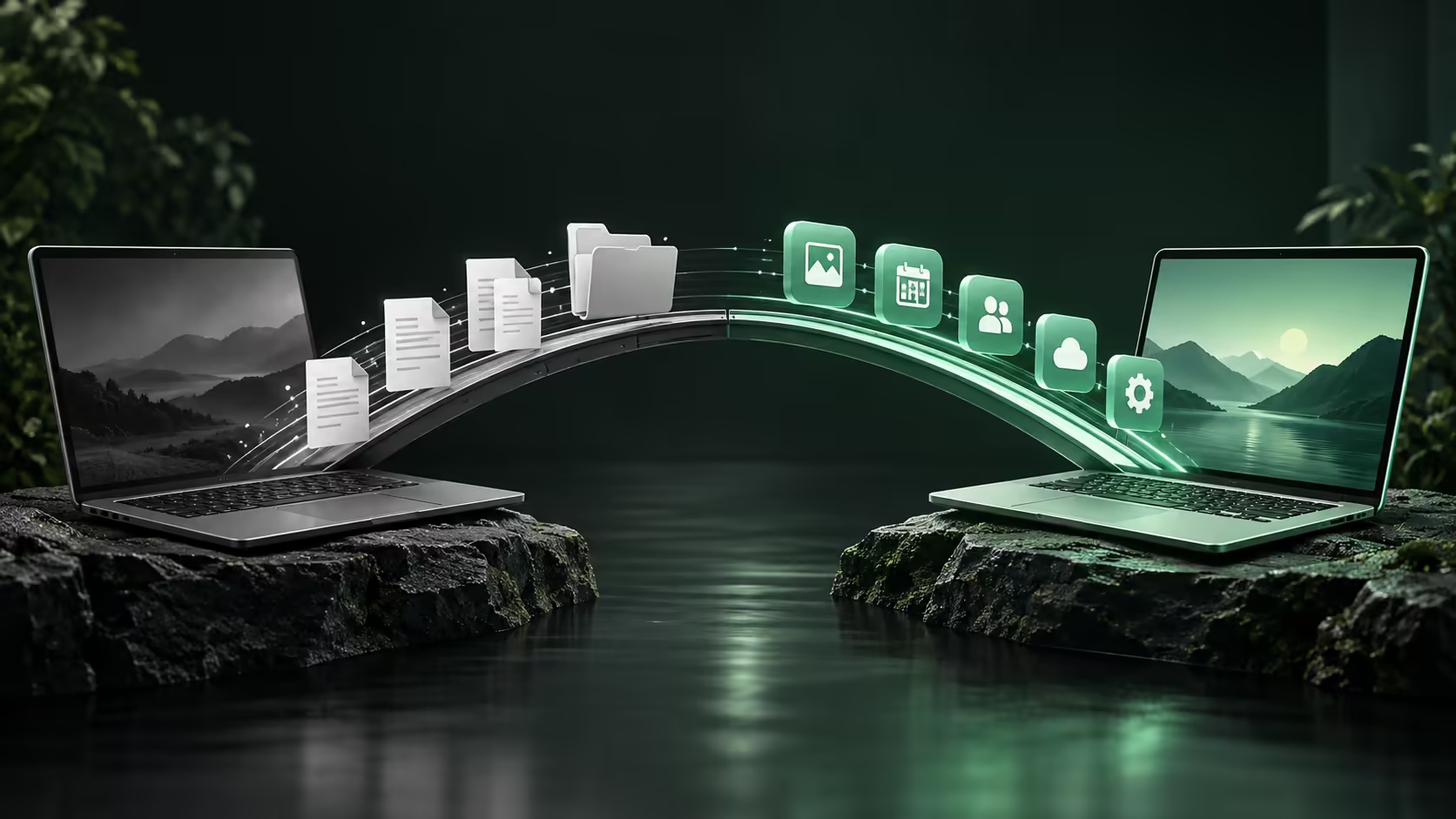
A successful sign-in can make a new laptop look familiar before the important files have moved at all. Moving to Googlebook works best as several controlled transfers, with a different method for browser information, documents and applications.
Quick Answer
Bring account-saved Chrome information across through the intended Google identity, transfer ordinary files through a supported storage or cloud route, and choose compatible applications separately. Verify a small complete working set before expanding the move. Keep the old machine and an independent backup until the new workflow can produce the outputs you need.
🗂️ Divide the move into useful categories
Create four groups: account data, ordinary files, application projects and installed programs. Account data includes saved browser information. Ordinary files include documents and photos. Projects may reference several files, fonts or plugins. Installed programs need a supported application route rather than being treated as personal documents.
This grouping explains why a familiar bookmark can appear immediately while a local report remains missing. It also prevents a false sense of completion after email starts working. The migration is successful when your tasks work, not when the home screen looks recognisable.
Select a current working set: the documents needed this week, a few representative media files and one important project. Leave a large historical archive for a later pass. Smaller batches make it easier to identify a missing font, unsupported format or incorrect account.
Before choosing the new hardware, compare Evetech laptop options against those actual tasks. An app requirement discovered at this stage is cheaper to resolve than after the old machine has been wiped.
🔐 Establish the right identities first
Use the Google Account that contains the intended browser information, not simply the first account remembered during setup. Personal and school or workplace identities can hold different files and permissions. Check that account recovery and the required second authentication factor are accessible.
Google's switching guidance describes account-led browser continuity, but only data saved through the relevant account route can follow. Local-only bookmarks or passwords require attention on the old computer. A custom synchronisation passphrase can also be needed on the new device.
Sign into other services deliberately. The account that owns a Microsoft subscription, creative plan or game library may differ from the Google identity used for setup. Keep a private account inventory without copying passwords into an ordinary notes file.
Avoid reorganising or deleting data simultaneously on both machines. During the first pass, the old device is the reference copy. A clear source reduces confusion when synchronised changes appear elsewhere.
💾 Copy, open and compare before calling files moved
Choose a supported transfer route for each group. Cloud storage is convenient for current shared documents; external storage can suit larger archives. Connection shape, file-system support and encryption requirements still matter for physical drives.
For each batch, compare filenames and approximate sizes, then open representative files. A folder containing the expected number of entries is reassuring but does not prove every file is readable. For irreplaceable archives, checksum comparison offers stronger byte-level verification where suitable tools are available.
Projects deserve a functional check. Open the project, confirm linked assets are present, make a harmless change and export a sample. If the app reports missing media, repair the package while the source machine is still available. Do not discard the editable original merely because a finished export plays correctly.
Explore external SSD options for a separate migration copy. Keep the original folder arrangement until the transfer is verified, then organise the destination without destroying the safety copy.
✅ Finish with a normal working day
Complete the routine that matters: open the file, edit it, send or submit the result and reopen the delivered copy. Include printing, meetings or a specialist peripheral if those are essential. One successful document does not establish the whole working day.
Write down any remaining dependency on the old computer. It may be reasonable to retain it for a specific desktop application, but that should be a deliberate arrangement. A remote-access shortcut still depends on a working host and connection.
Only after the required workflows and backup copies are sound should the old machine move towards retirement. Remove account access and personal data using the appropriate supported procedure when that time comes. Migration and disposal are separate steps, and keeping them separate makes the move much easier to recover if a forgotten file appears later.
Frequently Asked Questions
What can follow Chrome account sign-in?
Information saved to the Google Account can appear on the new device according to the enabled data categories and account settings.
Does signing into Chrome copy the Downloads folder?
No. Browser account data and ordinary files are separate. Local downloads need their own transfer and verification.
Can installed Windows applications be migrated by copying folders?
No. Program files alone do not supply the required operating system, installation state or licence activation.
Should everything be moved on the first evening?
Transfer essential current work first, verify it, then bring over archives deliberately. This makes missing dependencies easier to identify.
When is it safe to retire the old machine?
After required tasks work, important files are verified and independent backups exist, rather than immediately after a successful sign-in.
Move each kind of data through its proper route?
Explore Evetech laptops and backup storage for a staged move that keeps current work accessible and original files protected.