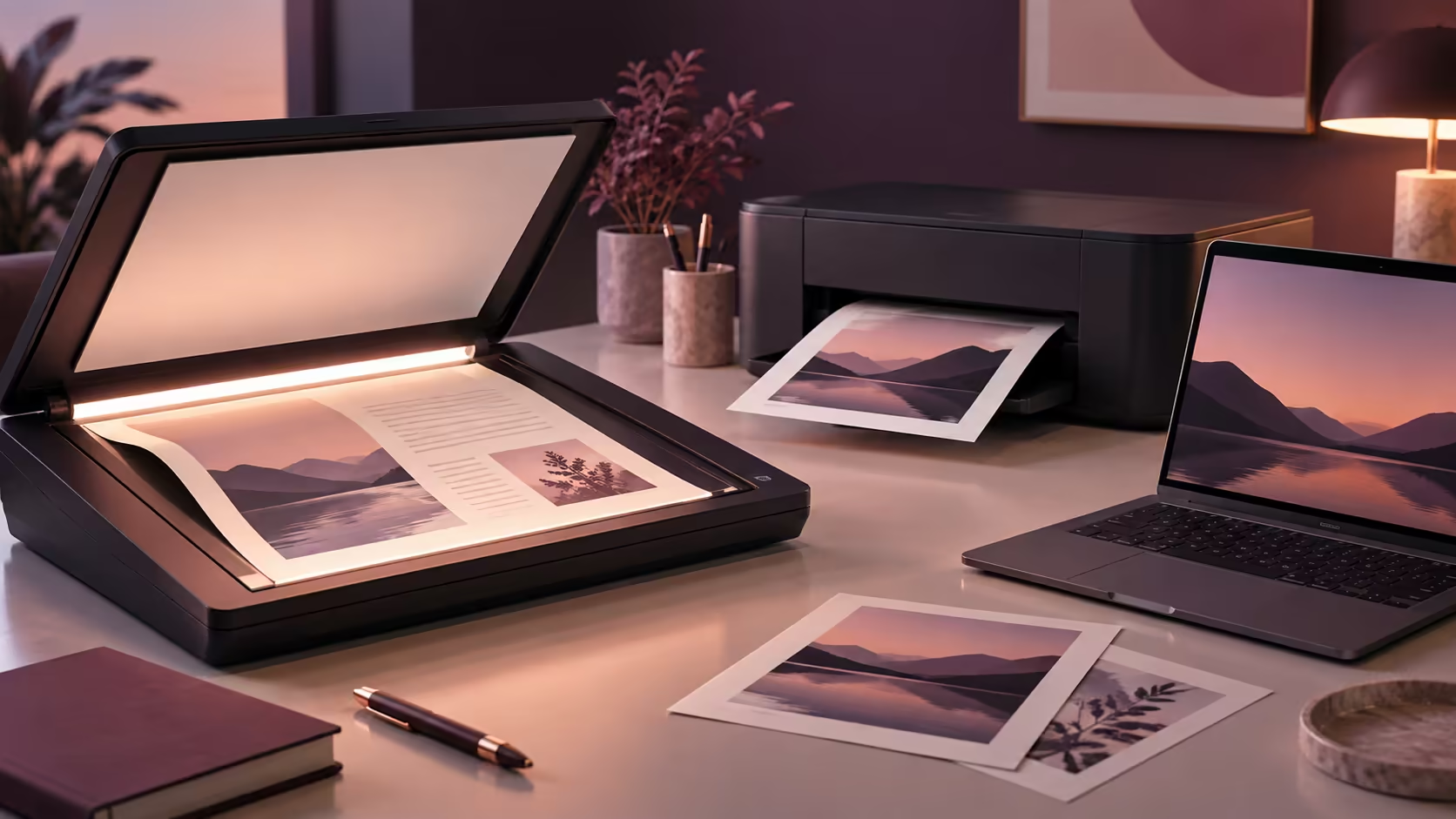
A multifunction printer contains two workflows that can fail independently. Googlebook printing and scanning should therefore be checked as separate jobs: producing the page you need and returning a usable digital file. A printer appearing in a list is only the beginning of that process.
Quick Answer
Identify the exact printer or scanner and confirm a supported application and connection for Googlebook. Mopria documents Android network printing and scanning routes, but those documents do not by themselves certify a Googlebook combination. Use a R0 trial with existing equipment where available before replacing a printer that may already have a suitable route.
🖨️ Start with the device and the output
Record the printer's full model identifier, not only its brand. Similar-looking models can have different network functions and application support. Find the manufacturer's current compatibility information and distinguish printing from scanning. A mobile print app may solve one without exposing all the functions of the desktop software.
Write down the actual job. A one-page PDF is different from duplex printing, photo output or scanning a multi-page document through an automatic feeder. Include the paper size and whether you need colour, page order or a searchable file. The required result is more specific than simply making the printer work.
Mopria's documentation describes printing over local networks or Wi-Fi Direct with compatible equipment. It does not present direct USB or USB-OTG as a supported Mopria Print Service route. That matters if your existing setup depends on a USB cable: an Android app name is not evidence that the same connection will work unchanged.
Treat Android documentation as a candidate route to verify on the actual platform. Confirm app availability and device support rather than assuming all Android phone functions are inherited by Googlebook. If printing is essential, obtain that answer before making the laptop your only computer.
📡 Keep discovery separate from internet access
A network printer and laptop often need to communicate locally. Both can have internet access while a guest network prevents them from seeing each other. The symptom can look like a missing printer even though neither device is generally offline. Check the network design before repeatedly reinstalling an app.
Use the printer manufacturer's connection instructions and keep the devices on the intended trusted network. Do not disable security controls broadly to force discovery. If a managed network is involved, ask the administrator which printing route is permitted. Public Wi-Fi is not a sensible place to assume direct printer discovery will work.
Wi-Fi Direct, where the printer and supported application offer it, is a different connection from using a household router. Follow the device documentation and understand whether changing that connection affects ordinary internet access. Avoid borrowing setup instructions from a different printer model merely because the buttons look similar.
If coverage or local networking is the issue, compare wireless router options against that requirement. A new printer will not necessarily solve a network that isolates the two devices you want to connect.
📄 Verify the page and the returned file
Choose a representative document rather than a nearly blank test page. Include a heading, an image and content near the page edge. Print it on the intended paper size and inspect scaling, margins and orientation. A default that shrinks every page to fit can be acceptable for reading but unsuitable for a form requiring fixed dimensions.
Test duplex and page order only if those functions matter to you, and record the settings that produced the correct result. An app may expose fewer controls than a desktop utility. If a required option is missing, investigate the supported application route rather than assuming the printer itself cannot perform it.
Scanning deserves a fresh test. Select a document, scan it through the supported route and open the resulting file on the laptop. Check that every page is present, the orientation is correct and the text is legible. A photograph of a page and a scanner-generated document can serve different needs; choose the method appropriate to the required output.
If you need searchable text, verify that the workflow actually produces it. A PDF can contain only images, so the file extension alone does not prove optical character recognition. Try searching for a visible word in the saved file instead of assuming the feature was applied.
Keep important scans in a named folder with a second copy. Evetech's external SSD selection can help with portable document archives once connection compatibility is known. Remove temporary sensitive scans from shared locations after the final copy is safely stored.
A successful trial should end with the correct printed page and an independently opened scan. Those concrete results are much stronger evidence than a device name in a menu or a claim that an app supports mobile printing.
Frequently Asked Questions
Will any USB printer work on Googlebook?
USB printer compatibility depends on the exact printer and the software available for it. Confirm that complete combination before relying on it.
Does Mopria print through USB?
Mopria Print Service documents network and Wi-Fi Direct routes, not direct USB or USB-OTG support.
Can Android printing documentation prove Googlebook support?
No. It identifies a possible app route to verify; the app, device and printer combination still needs confirmation.
Does a working printer also prove scanning works?
No. Printing and scanning use separate application paths and may have different device requirements.
Connect the document workflow before replacing equipment.
Explore networking and storage at Evetech around your verified printer route and the files you need to preserve.