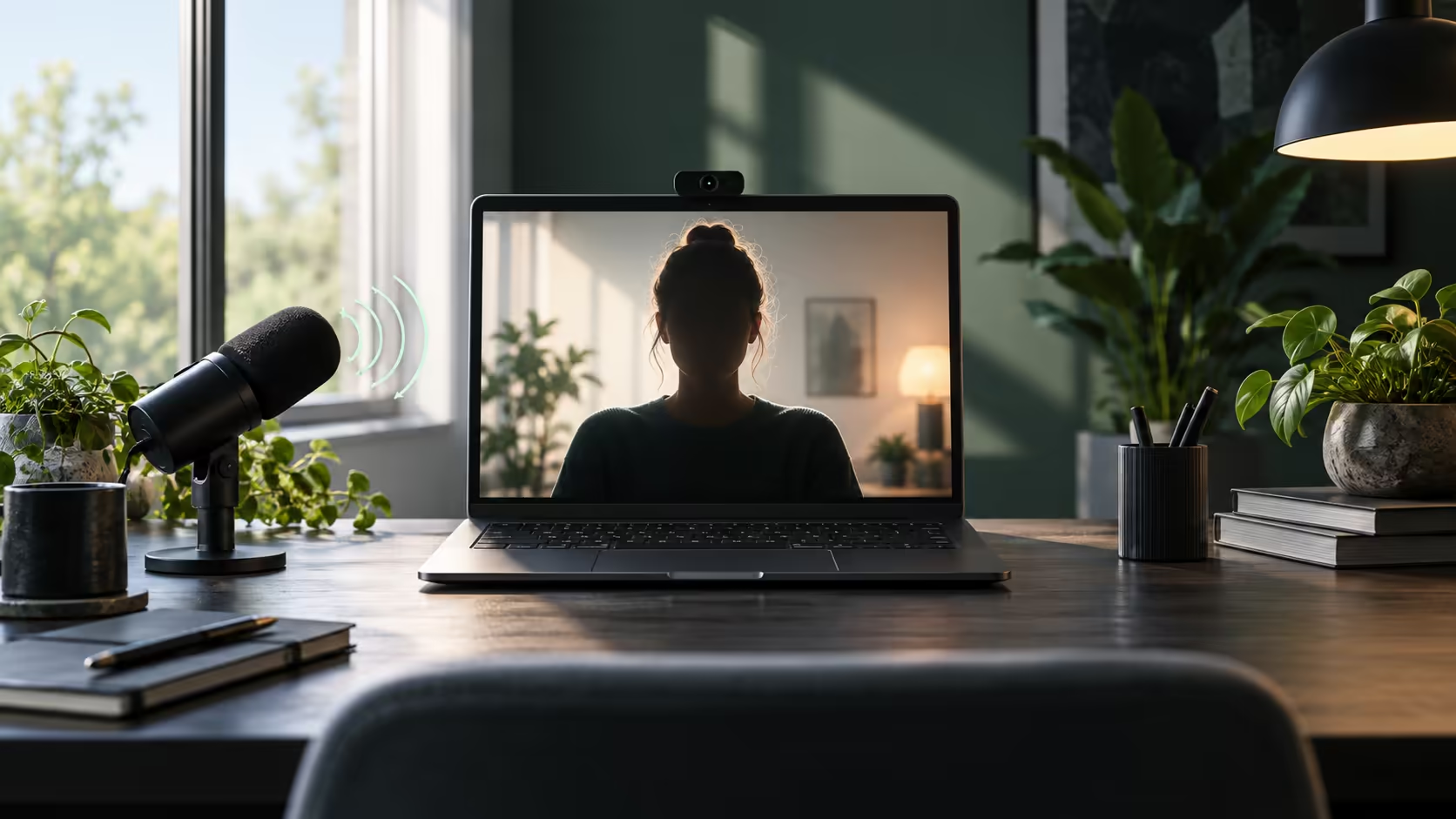
The clearest webcam cannot rescue a face hidden in shadow, and a good microphone can sound poor when it records the wrong source. Googlebook video calls improve when you treat the room, equipment and meeting application as one setup. Start with the simple changes you can hear and see.
Quick Answer
Place light in front of you, bring the camera to a comfortable height and confirm the microphone selected inside the call application. Use headphones if speaker sound feeds back into the call. These R0 adjustments often reveal whether you need a new accessory or simply a better arrangement of the equipment already on the desk.
💡 Put useful light on the subject
Sit facing a soft light source rather than placing a bright window directly behind you. A strong background can leave your face comparatively dark. Turn the desk or change your position before increasing camera settings or buying another device. The call preview will show whether the change helps in your actual room.
Avoid a small harsh light aimed directly into your eyes. A broader, softer source is usually easier to sit beside for a long call. Watch for reflections in glasses and glare from nearby surfaces. Move the light slightly to one side and check again rather than assuming maximum brightness is the best result.
Raise the camera enough to avoid a steep upward view, while keeping the laptop stable. If raising the whole machine makes typing uncomfortable, use separate input devices for longer sessions. Keep the lens clear of fingerprints and make sure a sleeve or cover is not partly obstructing it.
Frame enough of your shoulders and surroundings to look natural without exposing unnecessary private details. The background does not need to be elaborate. Remove distracting material and close documents you would not want visible if you later share the screen. A tidy visual field makes it easier for others to concentrate on the conversation.
🎧 Select the sound you intend to send
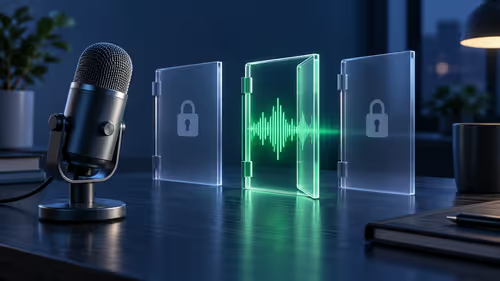
Open the meeting application's audio settings or preview and identify the active microphone. Plugging in a headset may not select its input automatically. You could be listening through the headset while the laptop microphone picks up distant room sound. A short recording or call check can reveal that immediately.
Keep the microphone reasonably close to your voice without placing it directly in the path of strong breath. A headset boom and a desk microphone need different positioning. Move gradually and listen to the result rather than relying only on a moving level indicator, which can show activity without showing clarity.
Speaker output entering the microphone can create echo. Headphones reduce that path, while lower speaker volume and muting when you are not speaking can also help. If two devices join the same meeting in one room, do not leave both microphones and speakers active without a deliberate audio plan.
Compare headsets at Evetech when you need a consistent speaking position or private listening. Confirm the connection and application support, and distinguish ordinary playback quality from the sound others hear through the microphone.
🧪 Use a short, repeatable call check
Google Meet provides a pre-join preview for checking appearance and audio. Use the equivalent supported preview in your chosen service. Confirm the camera, microphone and speaker selections before entering an important meeting. Keep a familiar short sentence for audio checks so differences are easier to recognise.
Ask another person how the received sound behaves during a brief trial. Your own local playback cannot reveal every network-related interruption. Speak normally, turn slightly as you would during the call and type a few words if that is part of your routine. The test should resemble use, not an artificially silent studio pose.
If video breaks up while the local preview looks good, investigate the connection and competing traffic. A camera purchase will not fix an unstable route to the meeting service. Save work and close unnecessary demanding tasks, then repeat the same call before changing several settings at once.
Software effects can add convenience, but their availability depends on the service, account and supported platform. Do not assume a particular AI lighting feature is included with every Googlebook or available in every region. Establish a useful physical setup first so the call remains acceptable without optional processing.
An external camera is worth considering when its documented features solve the limitation you found. Browse webcam options for suitable mounting and connection, then confirm support for the intended application. Keep the comparison focused on your real room and framing needs rather than a resolution number alone.
Once the setup works, note the selected input and camera position. A repeatable arrangement saves time before each call and makes new problems easier to isolate. It also lets you spend the meeting thinking about the discussion rather than wondering whether anybody can hear you.
Frequently Asked Questions
What should I improve before buying a webcam?
Move useful light in front of your face, raise the camera to a comfortable angle and check the actual call preview.
Why do callers hear an echo?
Speaker sound can feed back into the microphone. Headphones, lower speaker volume and the correct input selection can help.
Does plugging in a headset select its microphone?
Not always. Check the input shown by the meeting application and make a short audio test.
Will AI lighting fix every dark room?
No. Availability and processing conditions vary, and a better physical light position remains a useful first improvement.
Build a call setup that sounds as clear as it looks.
Explore headsets and webcams at Evetech after testing the light, framing and audio route in your own room.