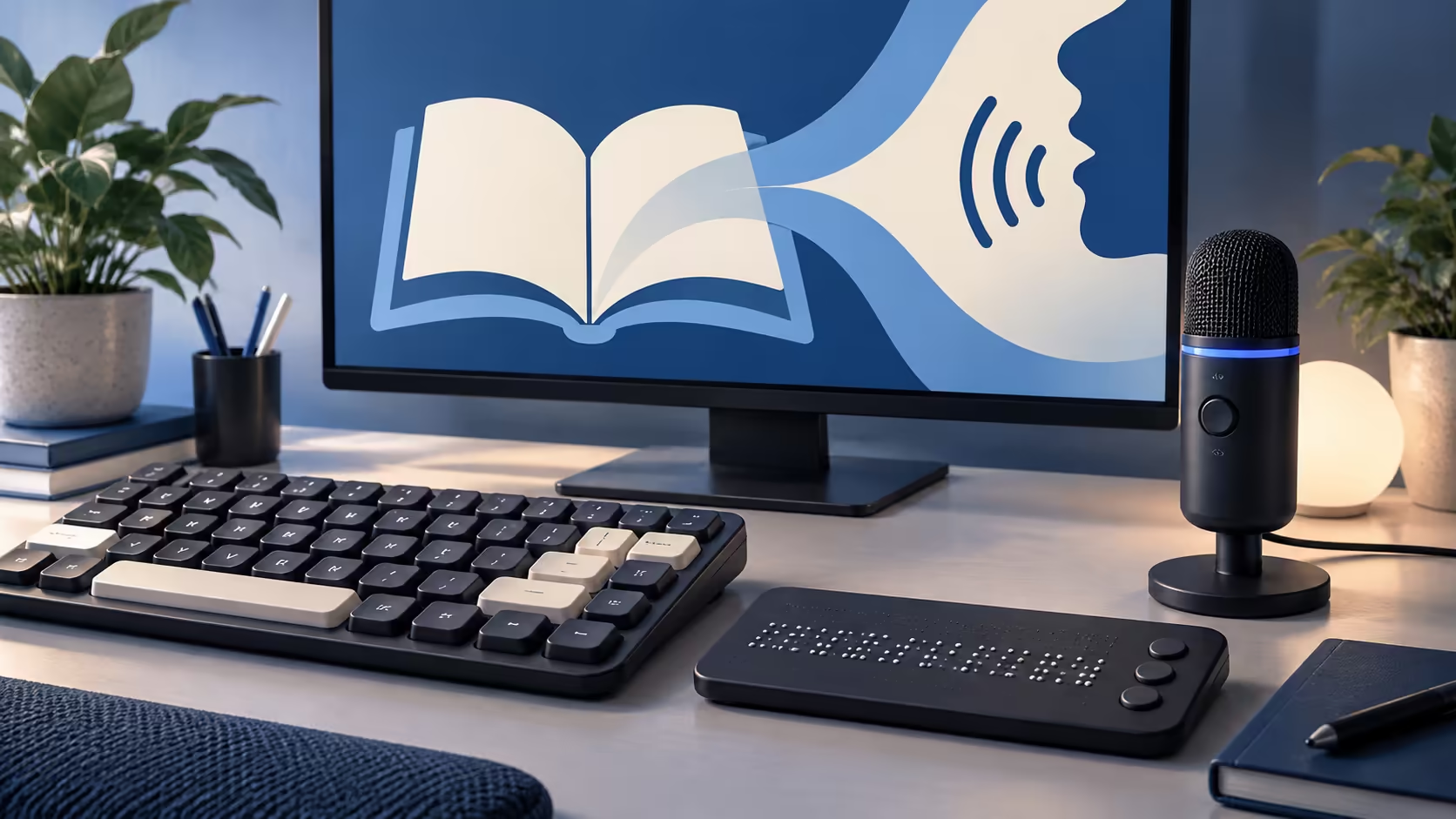
A large button is helpful only if you can reach it, understand it and activate it in the way you use the computer. Googlebook accessibility should be assessed through complete tasks, including the awkward parts between them. A successful demonstration of one feature is not enough to establish an independent daily workflow.
Quick Answer
Test the actual applications, input methods and assistive devices you depend on, from sign-in to saving the result. General Android accessibility features are useful starting points for research, but they are not a confirmed Googlebook support matrix. A R0 task list prepared before a demonstration makes the trial far more informative.
⌨️ Follow one task without switching input methods
Choose a familiar job, such as opening a document, changing a sentence and exporting it. If keyboard navigation is essential, attempt the whole sequence with the keyboard. Watch where focus moves, whether it is visible and whether every required control can be reached. A mouse rescue can hide an essential gap.
Include dialogs and error messages. Saving to a different folder, choosing an attachment or correcting an invalid form field may expose a problem that ordinary reading does not. The workflow should remain understandable when something unexpected happens, not only when every step succeeds on the first try.
Keep a short record of the application version and the exact point where the task becomes difficult. That is useful for support and for comparing alternative apps. A broad statement that keyboard support is poor gives a developer less to investigate than a named control that cannot receive focus.
Keyboard hardware also matters. Compare external keyboard options for the layout, spacing and connection you prefer. Custom remapping or macro utilities may have separate platform requirements, so confirm those if they are part of your accessibility routine.
🗣️ Separate dictation, control and spoken feedback
Dictation turns speech into text. Voice control operates interface actions. A screen reader describes information and navigation. These capabilities can work together, but a promise about one does not establish the others. Google's description of Rambler is about spoken text cleanup, not proof of complete hands-free laptop control.
Android documentation describes tools such as TalkBack and other accessibility services. Use it to form precise questions about Googlebook support rather than transferring phone instructions unchanged. Ask which service is available, which version is used and how it interacts with the applications you need.
For spoken feedback, try headings, links, form controls and changing notifications. Does the reading order make sense? Are controls named clearly? Can you return to the document after a dialog? A visually attractive app can still have weak labels or an awkward accessibility structure, and a larger screen does not automatically repair that.
If you use a braille display, switch device or other assistive hardware, identify the exact model and connection requirements. USB or Bluetooth alone is not a compatibility statement. A practical demonstration should include connection, ordinary use and reconnection after the device has been removed.
🔎 Evaluate reading comfort and resilience
Try your preferred text size and viewing distance with real content. Menus, dialogs and application panels need to remain usable alongside the document itself. Enlarging only the webpage may leave another part of the workflow difficult to read. Check the complete environment rather than a single enlarged paragraph.
Contrast and colour choices should be assessed with the actual interface. A theme can help in one app while making another chart or control harder to interpret. Use familiar material during the trial so you can distinguish an accessibility issue from simply not knowing the content.
For spoken output or voice interaction, headsets and listening options may help provide consistent audio. Consider comfort over a realistic session and confirm the microphone and playback route. Equipment that sounds clear for a minute may be tiring over the duration of your normal work.
Include recovery in the assessment. Can you unlock the device after a restart, recognise an authentication request and reach help if a preferred input method is unavailable? A daily workflow needs an accessible way back from those interruptions. Arrange assistance for initial setup if needed, while still testing the independence you expect afterwards.
Complete these trials early in the purchase process and retain the results. If an essential task fails, seek a supported alternative or clarification before moving all your work. Accessibility is individual: the strongest evidence is a successful task with your tools, not a general claim that a platform is easy to use.
Frequently Asked Questions
Does Android accessibility documentation guarantee Googlebook behaviour?
No. It identifies tools and capabilities to investigate, but the exact Googlebook interface, app and assistive-device combination needs confirmation.
Is Rambler a complete voice-control system?
Google describes Rambler as dictation and text cleanup. That is not proof of hands-free control over every part of the laptop.
What should a screen-reader trial include?
Include sign-in, navigation, reading, editing, saving and recovery from an error, using the actual applications you need.
Can an app look accessible while still failing keyboard use?
Yes. Visual size does not prove logical focus order, labelled controls or keyboard access to every action.
Choose around the way you use the computer.
Compare keyboards and audio accessories at Evetech with your confirmed input, comfort and assistive-technology requirements.