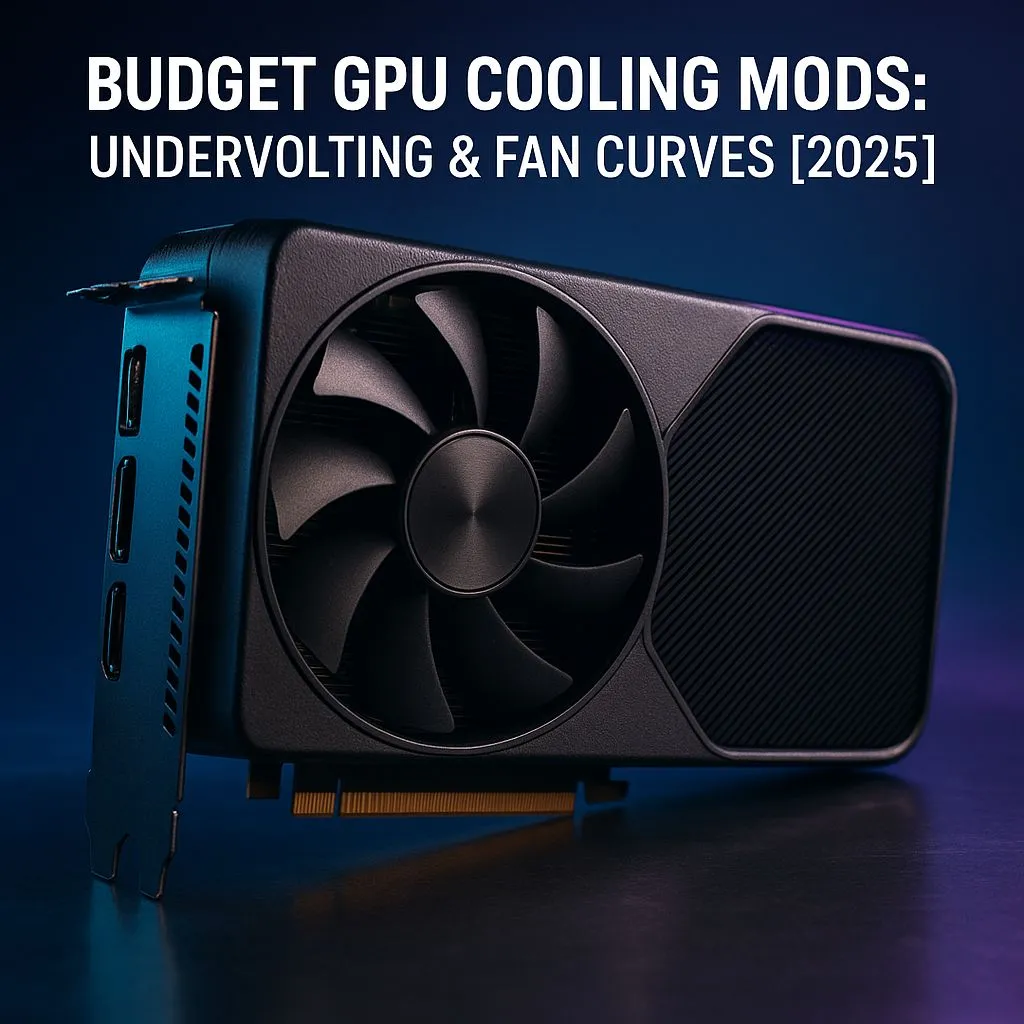
Is your gaming rig starting to sound like a jet engine during intense sessions? Especially during a hot South African summer, high GPU temperatures can mean loud fans and even performance throttling. What if you could lower those temps, reduce the noise, and potentially gain performance… for free? 🔧 Welcome to the ultimate GPU undervolting guide, the secret tweak that every PC enthusiast in SA should know. It’s simpler than you think and delivers seriously impressive results.
Understanding GPU Undervolting
At its core, GPU undervolting is the process of reducing the amount of voltage your graphics card receives without sacrificing its clock speed or stability. Manufacturers often ship GPUs with a "one-size-fits-all" voltage setting that's higher than necessary to guarantee stability across millions of units. By fine-tuning this, you find the sweet spot for your specific card.
The benefits are immediate:
- Lower Temperatures: Less voltage means less heat generated. This is the primary reason most gamers explore undervolting.
- Quieter Operation: Cooler temperatures mean your GPU fans don't have to spin as fast or as often. Blissful silence!
- Reduced Power Consumption: Your PC will draw less power from the wall, saving you a few Rands on your electricity bill.
- More Consistent Performance: By staying cooler, your GPU is less likely to thermal throttle (automatically reducing its speed to prevent overheating), leading to smoother frame rates.
While this guide focuses on your GPU, remember that overall system airflow is a team effort. A hot case makes every component work harder, so ensuring you have effective CPU coolers is a critical first step to a healthy rig.
Your Toolkit for a Successful Undervolt
Before we dive in, you'll need a couple of free software tools. This process is safe, as we are reducing voltage, not increasing it. The worst-case scenario is a system crash, which is easily fixed with a reboot.
- MSI Afterburner: The gold standard for GPU tweaking, regardless of your card's brand (it works on both NVIDIA and AMD).
- A Benchmarking Tool: Something to stress-test your GPU and verify stability. Unigine Heaven or 3DMark's Time Spy are excellent choices.
Make sure your graphics drivers are up to date before you begin!
The Step-by-Step GPU Undervolting Guide
Ready to unlock some free performance? Let's get started. This GPU undervolting guide will walk you through every step.
Step 1: Establish a Baseline
First, run your benchmark tool at stock settings. Let it run for at least 15-20 minutes. Keep an eye on MSI Afterburner's overlay and note down your peak temperature, average clock speed, and fan speed. This is the data we'll be trying to beat.
Step 2: Access the Voltage/Frequency Curve
In MSI Afterburner, press Ctrl + F to open the Voltage/Frequency Curve Editor. This graph shows the relationship between voltage (bottom axis) and clock speed (left axis). Our goal is to make the curve flatter—achieving a high clock speed at a lower voltage.
Step 3: Find Your Sweet Spot
This is where the magic happens. ✨
- Look at your baseline clock speed. Let's say it was hovering around 1950MHz.
- On the graph, find a voltage point you want to target. 900mV (0.9V) is often a good starting point.
- Click the square on the vertical line for 900mV and drag it upwards until the clock speed matches your target (e.g., 1950MHz).
- Press L to lock the voltage at this point. The rest of the curve should flatten out after this point.
- Click the "Apply" checkmark in the main Afterburner window.
Pro Tip: Start Small ⚡
When first attempting this GPU undervolting guide, be conservative. Try lowering the voltage in small increments (like 25mV at a time) and testing thoroughly. Pushing too far too fast will just lead to crashes. Patience is key to finding the perfect, stable setting for your unique card.
Step 4: Stress Test for Stability
Now, run your benchmark again for at least 30 minutes. Watch for any visual glitches, driver crashes, or a full system freeze. If it's stable, congratulations! You've successfully undervolted. If it crashes, simply reboot, re-open Afterburner, and try a slightly higher voltage point (e.g., 925mV) for the same clock speed.
Step 5: Save Your Profile
Once you've found a stable setting, save it to a profile in Afterburner. Make sure to enable the "Apply at Windows startup" option so you don't have to re-apply it every time you boot up.
Beyond Undervolting: Mastering Custom Fan Curves
An undervolt's best friend is a custom fan curve. Now that your card runs cooler, you can tell your fans to be less aggressive, resulting in a much quieter PC.
In Afterburner's settings, go to the "Fan" tab and enable user-defined control. You can drag the points on the graph to create a new curve. A good goal is to keep the fans at a low, inaudible speed until the GPU hits around 50-55°C, then have them ramp up smoothly to handle gaming loads.
This level of control is where enthusiasts separate their builds from the rest. Pairing a tweaked GPU with a premium cooling solution from a brand like CORSAIR creates a system that's both powerful and quiet. For those pushing the absolute limits, a top-tier 360mm Radiator setup can provide the thermal headroom needed for extreme performance.
Air vs. Liquid Cooling
The choice between an Air Cooler and a Liquid Cooler (AIO) for your CPU also impacts your GPU's environment. AIOs often exhaust heat directly out of the case, which can help lower the ambient temperature your GPU has to work with, making your undervolt even more effective.
Is GPU Undervolting Worth It? 🚀
Absolutely. For the cost of an hour of your time, you get a cooler, quieter, and more efficient graphics card. It’s one of the most satisfying DIY optimisations you can perform on your PC. By following this GPU undervolting guide, you're taking direct control over your hardware's performance and acoustics. Give it a try—your ears (and your temps) will thank you.
Ready to Build a Cooler, Quieter PC?
GPU undervolting is a powerful free upgrade, but it works best with a solid cooling foundation. From whisper-quiet air coolers to high-performance liquid AIOs, the right hardware makes all the difference. Explore our massive range of PC components and build the ultimate rig today.