Is your gaming rig feeling a bit sluggish lately? That powerful CPU you invested in might be choking. Before you start blaming game updates or your internet, the culprit could be something much simpler: old, crusty thermal paste. Learning how to clean your CPU is one of the most effective bits of PC maintenance you can do. It’s a simple fix that can restore lost performance, lower temps, and make your games feel smooth again. 🚀
Why a Clean CPU is Your Secret Weapon
Think of thermal paste as the crucial link between your processor and its cooler. Over time, this paste dries out and becomes less effective at transferring heat. When that happens, your CPU gets hotter, faster.
To protect itself, it "throttles"—intentionally slowing down to cool off. For a gamer, that means stuttering, lower frame rates, and frustrating lag spikes. A proper CPU cleaning session replaces that old paste, ensuring optimal heat transfer and letting your processor run at its full potential. It’s the key to unlocking the performance you paid for, whether you're running one of the latest powerful AMD Ryzen processors or a high-end Intel chip.
Your CPU Cleaning Toolkit 🔧
Before you open your case, let's get your gear in order. You don't need a fancy lab, just a few essential items.
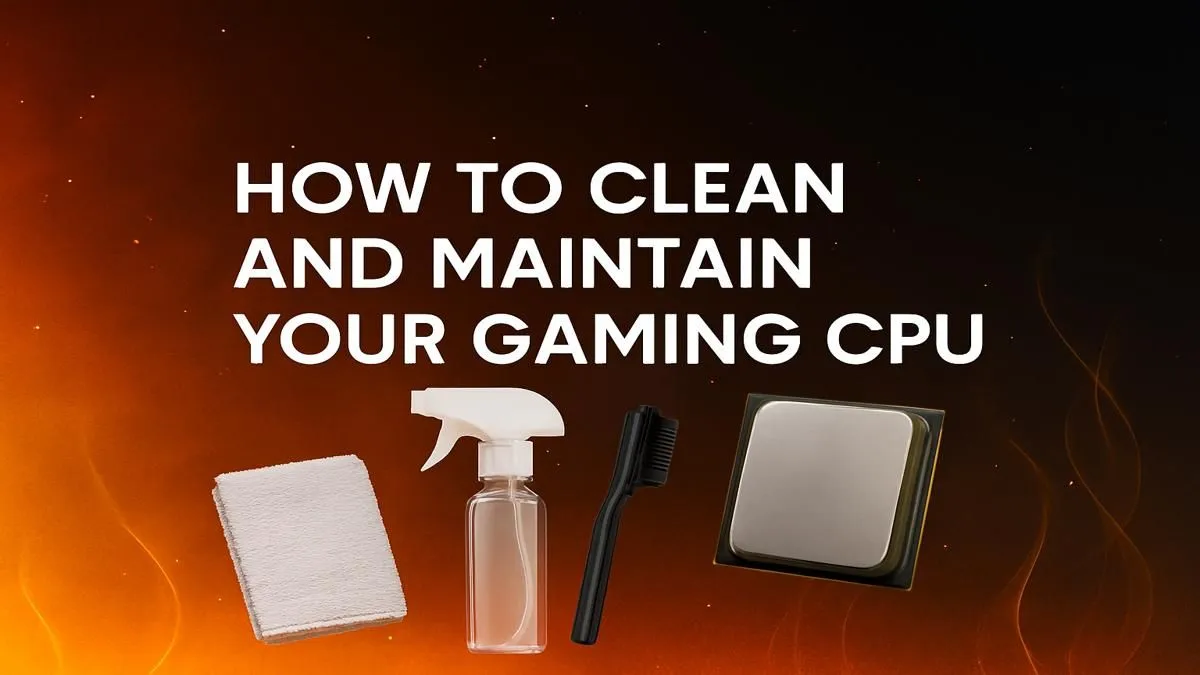
- Isopropyl Alcohol (90% or higher): This is non-negotiable. Its high purity means it evaporates instantly, leaving zero residue behind.
- Lint-Free Cloths or Coffee Filters: A microfiber cloth is perfect. In a pinch, a standard coffee filter works wonders as it won’t leave tiny fibres on your chip.
- Cotton Swabs (Q-tips): Great for getting into tight corners on the cooler.
- New Thermal Paste: Don't reuse the old stuff! A quality thermal compound is a small investment for a massive performance return.
- Patience: Rushing is how mistakes happen. Take your time.
A Gamer's Guide on How to Clean Your CPU
Alright, let's get to it. Follow these steps carefully for a safe and successful CPU cleaning.
Step 1: Power Down and Prep
Shut down your PC completely. Unplug the power cable from the wall and hold the power button for 5 seconds to discharge any remaining electricity. Move your PC to a well-lit, clean workspace. It's also a good idea to ground yourself by touching a metal part of the case to prevent static discharge.
Step 2: Remove the CPU Cooler
First, unplug the CPU fan from the motherboard header. Next, carefully loosen the screws or release the retention clips holding the cooler onto the motherboard. Loosen screws in a diagonal (X) pattern to ensure even pressure release. The cooler might be stuck on with the old paste; give it a gentle twist to break the seal. Do not yank it off. Lift it straight up and set it aside.
Handle With Care! ✨
When the CPU socket is open, be extremely careful not to drop anything on the pins (for AMD) or the socket pads (for Intel). A single bent pin can spell disaster for your processor. Always handle the CPU by its edges.
Step 3: Cleaning the Processor
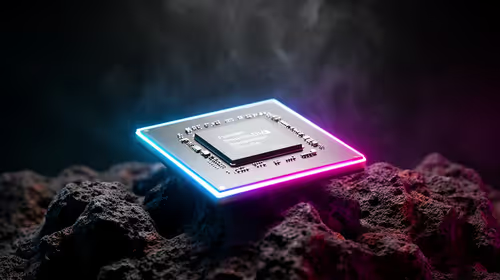
You'll see a crusty, grey residue on both the CPU's integrated heat spreader (IHS) and the base of your cooler.
- Apply a small amount of isopropyl alcohol to your lint-free cloth.
- Gently wipe the top of the CPU in one direction.
- Rotate to a clean part of the cloth and repeat until all the old thermal paste is gone and the metal surface is shiny.
- Let it air dry for a minute. The alcohol will evaporate completely.
Step 4: Applying Fresh Thermal Paste
This is the most critical step in this guide on how to clean a CPU. Less is more! You only need a small, pea-sized dot of new thermal paste in the centre of the CPU. When you reinstall the cooler, the pressure will spread it out into a thin, even layer.
Step 5: Reinstall the Cooler
Carefully place the CPU cooler back onto the processor, aligning it with the mounting holes. Tighten the screws in the same diagonal pattern you used to remove them, turning each one a little at a time to apply even pressure. Reconnect the CPU fan cable to the motherboard, and you're done!
When Cleaning Isn't Enough
This CPU cleaning guide will breathe new life into most systems. But what if your temps are still high, or your games are still struggling? It might be a sign that your processor is simply a bottleneck for your other components. If you've upgraded your GPU recently, an older CPU can hold it back significantly. Sometimes, the best way to get peak performance is to upgrade the core of your machine, whether that's jumping to one of the latest Intel CPUs for raw gaming power or looking at a multi-core AMD chip for streaming and content creation.
Ready for a Real Power Boost?
Cleaning your CPU is a fantastic way to restore performance, but sometimes you just need more cores and higher clock speeds. If your processor is holding you back, browse our full range of CPU processors and give your rig the upgrade it truly deserves.