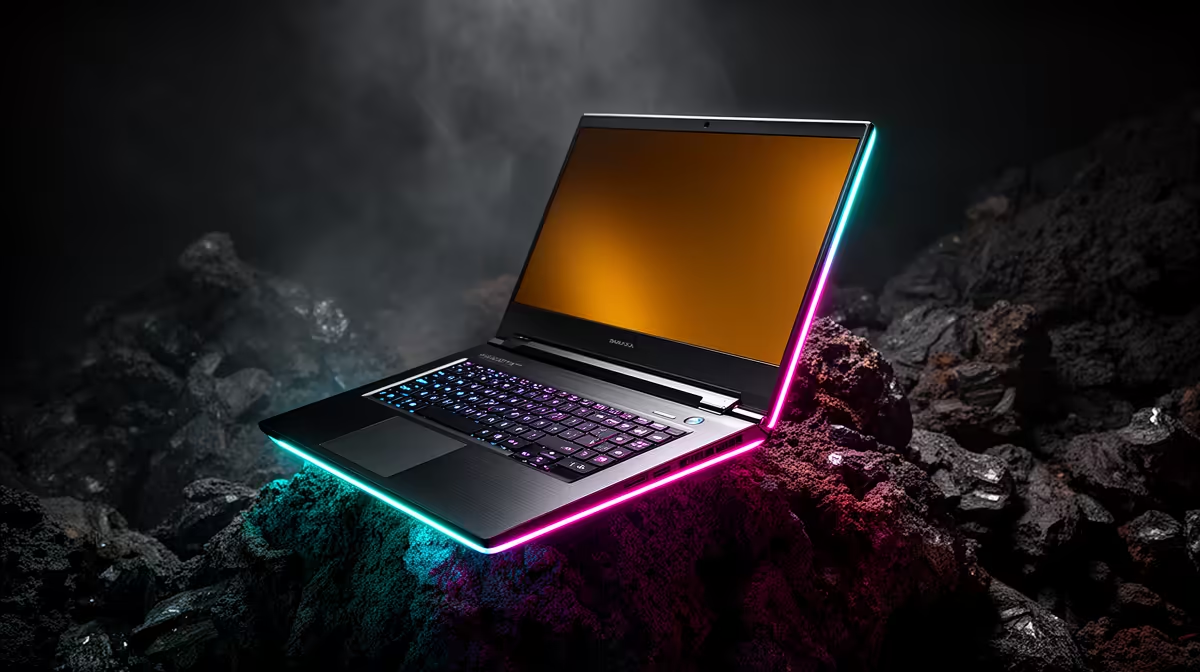
A gaming laptop that suddenly shows frame pacing issues is rarely broken; the trigger is normally a recent driver, cable, or power-profile change.
Quick Answer
Yes, most frame pacing issues on a gaming laptop clears once you align display mode, power profile, and a clean driver install. Capable gaming laptops start near R18,000, with RTX-class machines crossing R28,000. Treat the named hardware as context until your numbers prove otherwise.
Tune One Setting At A Time
Change a single option, re-run the identical scene, and write down the frame timing result before touching the next one. Bundling changes hides which one helped and which hurt. This disciplined loop turns frame pacing issues on a gaming laptop from a guessing game into a short, repeatable diagnosis.
Recreate frame pacing issues With One Repeatable Scene
Pick a single in-game area you can reload on demand and run it the same way each time. Note whether frame pacing issues arrives during loading, busy fights, online play, or only after the gaming laptop warms up. A capable setup can still feel rough when 144 Hz panel settings or background tasks are unsettled, so a fixed scene gives you comparable frame timing readings instead of vague impressions.
Pin down the limit before you upgrade your gaming laptop. Once your notes show whether frame timing is held back by drivers, display mode, thermals, or load, browse the matching Evetech gaming laptop shortlist with confidence.
Update Drivers From A Clean State
Install the latest stable GPU and chipset drivers, reboot once, and avoid stacking other changes in the same pass. A clean driver state removes a frequent trigger for frame pacing issues on a gaming laptop. If a recent update introduced the problem, roll back to the previous known-good version and retest the same scene.
FAQ
Will updating drivers actually reduce frame pacing issues?
Often yes, because a clean, current driver fixes scheduling and compatibility quirks behind frame pacing issues. Install the latest stable release, reboot once, and retest the same scene. If a new driver caused it, roll back to the prior version.
Why does frame pacing issues only appear after the gaming laptop warms up?
That pattern points to thermals or power limits. Log temperatures through your scene, improve airflow, and confirm no part is throttling. frame timing that recovers when cool confirms heat as the cause.
How do I measure frame timing reliably on a gaming laptop?
Use an on-screen overlay and the same in-game scene each test. Capture a 60-second run, note the average and the lows, then compare after every change. Consistent scenes make small differences visible.
Test Smart
a short log: setting changed, before value, after value. A 30-second repeatable run is worth more than testing three different games.