A blank screen after working on a Core Ultra 9 285K build rarely means a dead GPU or a faulty panel; it usually points at the display route or a driver that lost its place.
Quick Answer
In Windows 11, open Display settings and hit Detect once any image appears. Before that, confirm the cable feeds the GPU, the monitor input matches, and the chipset plus graphics drivers are current. A clean DDU reinstall fixes most no-detect cases that survive cable and port swaps.
Walk the physical signal path first
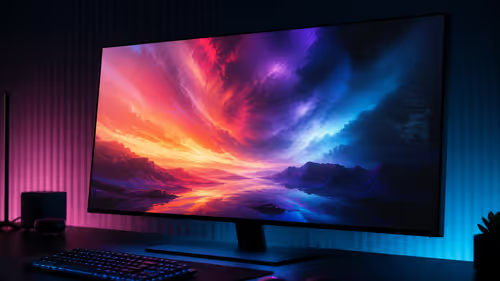
Power the monitor off at the wall for ten seconds, then back on, and select the input manually because auto-detect often lands on the wrong source after a hardware change. Move the cable to a second port on the graphics card and try a known-good cable; a R900 HDMI lead that handled 1080p60 can choke once you push higher resolution or refresh. If the system has a dedicated card, ignore the motherboard outputs entirely until you have proven the GPU path. It is the one habit that keeps a a Core Ultra 9 285K build project from spiralling.
Prove the output before touching Windows
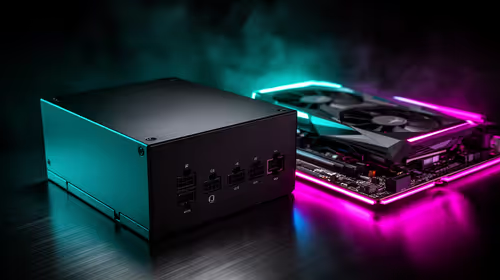
See whether the BIOS or POST splash appears. If it does, the cable and panel are basically healthy and the problem lives in Windows or the driver. If nothing shows even at POST, switch off, disconnect power, and reseat the GPU until it clicks, then confirm every power connector is fully home. A card can spin its fans and still fail to light an output if it is not seated or powered correctly. That single discipline is what separates a tidy a Core Ultra 9 285K build build from a frustrating one.
FAQ
Why does the motherboard port show nothing on this build?
With a dedicated graphics card installed, the CPU graphics outputs on the board are often disabled or set low in priority by default. Plug into the GPU first; only fall back to board ports if you have no card or are deliberately testing integrated graphics in BIOS. Applied to a Core Ultra 9 285K build, the difference shows up within a single test session.
Will reseating the RAM help a no-display fault?
Sometimes. A poorly seated stick can stop a system from posting, which looks identical to no display. Try one stick in the first slot, confirm a POST image, then add the rest. Pair that with a GPU reseat for the fastest path to a stable baseline. For a Core Ultra 9 285K build, write the result down so you never repeat a passed test.
Should I clear CMOS before replacing parts?
Clearing CMOS is a low-risk reset that wipes bad display or overclock settings. Power down, pull the plug, use the clear jumper or pull the battery for a minute, then retest with stock settings. It resolves many no-detect cases without spending a cent. For a Core Ultra 9 285K build, the right call now saves a return and a wasted weekend.
Pro Tip
Keep one cable and one screen you trust set aside for testing, and record each change so a failed test never hides the real fault.