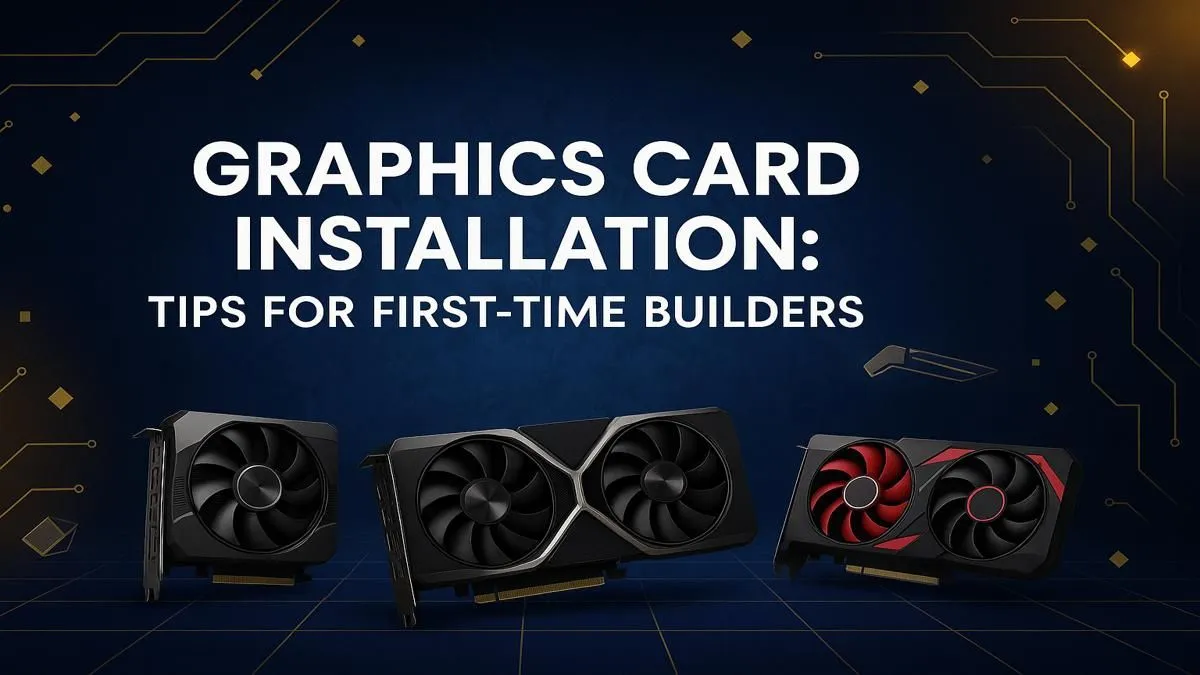
That new graphics card box is sitting on your desk, isn't it? The smell of fresh anti-static plastic is in the air. You're just one step away from glorious, high-frame-rate gaming... but first, you have to install it. Don't stress, boet. This guide on how to install a graphics card is for every first-time South African builder. We'll get you from box to benchmark in no time. Let's get that beast into your rig! 🚀
Before You Begin: The Pre-Installation Checklist
Jumping straight in is tempting, but a little prep work saves a lot of headaches. Before you even open your PC case, run through this quick checklist. A smooth graphics card installation starts here.
### What You'll Need
Make sure you have these on hand:
- Your new graphics card.
- A Phillips head screwdriver.
- Your PC's power cable (for grounding).
- A clear, well-lit workspace.
### Check Compatibility
Does your new card actually fit?
- Power Supply (PSU): Does your PSU have enough wattage and the correct PCIe power connectors (e.g., 6-pin, 8-pin)? The card's box will list its power requirements.
- Case Size: Will the card physically fit inside your case? Check its length, height, and width against your case specifications. There's nothing worse than a GPU that's 5mm too long.
- Motherboard: You'll need a free PCIe x16 slot—it's the long one closest to your CPU.
Before you buy, it's always smart to browse the specs and ensure everything lines up. If you're still deciding, you can check out the latest graphics card deals to compare sizes and power needs.
### Uninstall Old Drivers
If you're upgrading, it's crucial to remove the old software first to prevent conflicts. Use Display Driver Uninstaller (DDU) for a clean sweep. Run it in Safe Mode, wipe your old NVIDIA or AMD drivers, and then shut down your PC.
Anti-Static Pro Tip ⚡
Before you touch any component, make sure your PC is unplugged from the wall. Then, touch a large metal part of your PC case to ground yourself. This discharges any static electricity you've built up, protecting your new GPU from getting zapped.
The Step-by-Step GPU Installation Guide
Alright, prep work is done. It's time for the main event. This is the core process for how to install a graphics card. Take a deep breath... it's easier than you think.
- Power Down & Unplug: Shut down your PC completely. Switch the PSU off at the back and unplug the power cable from the wall.
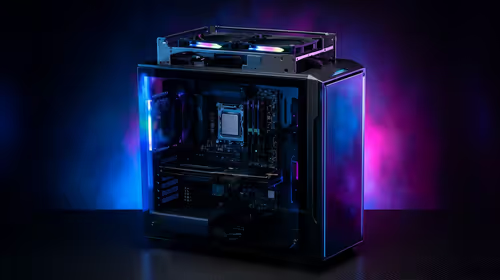
- Open Your Case: Remove the side panel (usually the left one) to get access to the motherboard.
- Locate the PCIe Slot: Find the primary PCIe x16 slot. You may need to remove the small metal brackets (PCIe slot covers) on the back of the case that line up with the slot.
- Unseat the Old Card (If Upgrading): If you have an old GPU, unplug its power connectors first. Then, find the small plastic clip at the end of the PCIe slot and press it down to release the card. Gently but firmly pull the card straight out.
- Install the New Graphics Card: Line up your new card's gold connector with the PCIe x16 slot. Push it down firmly until you hear a satisfying click. This means the retention clip has locked it in place. The card should feel secure and not wobble.
- Secure and Connect Power: Screw the card's metal bracket into the case to hold it steady. Now, connect the required PCIe power cables from your PSU. Whether you're installing one of the popular NVIDIA GeForce models or one of the many powerful AMD Radeon options, make sure every power socket on the card is populated. The connections should click securely into place.
- Close Up & Power On: Put the side panel back on, plug everything back in, and boot up your PC. Don't panic if the resolution is low at first—that's normal.
Final Steps: Installing Your Drivers
The physical part of the GPU installation is done! Now for the easy part. Once you're back in Windows, your PC might automatically detect the card.
Regardless, it's best to get the latest drivers directly from the manufacturer's website (either NVIDIA or AMD). Download the correct driver package for your specific graphics card model, run the installer, and follow the on-screen prompts. A restart will be required.
Once you've restarted, your resolution should be correct, and you're officially ready to go. Fire up your favourite game, crank those settings to Ultra, and enjoy the performance you've just unlocked. Well done! ✨
Ready for a Power Boost?
Now that you know how to install a graphics card, the only thing left is choosing the right one. A new GPU is the single biggest performance upgrade you can make for gaming. Explore our massive range of graphics card deals and find the perfect engine for your rig.