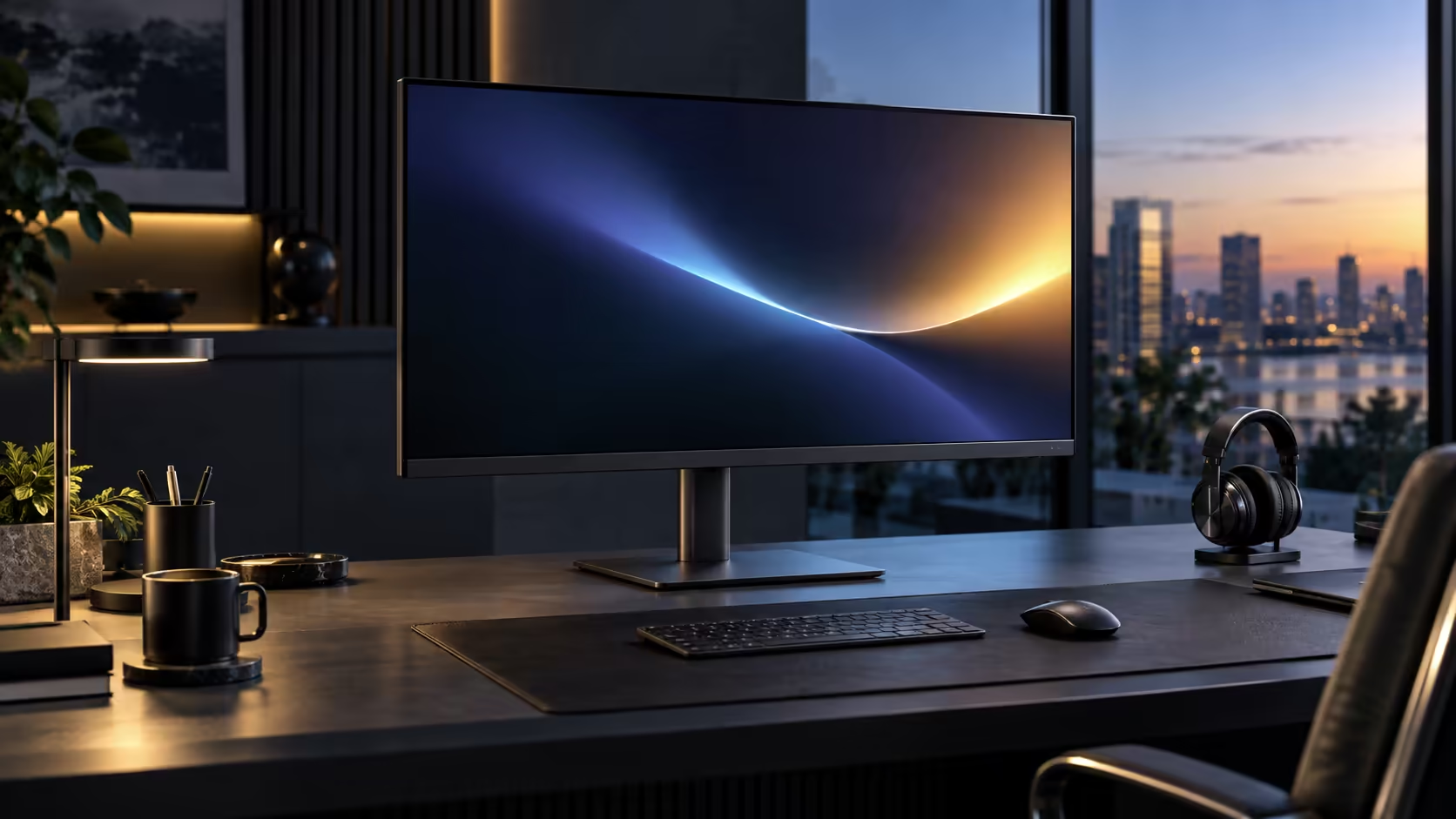
Eye strain at the end of a long day rarely traces back to one single cause, but brightness, colour temperature and screen position are the three most controllable factors, and getting all three right on a large 31.5-inch panel makes more difference than any single setting alone. The Dell Pro 32 Plus P3225DE gives you the physical adjustment range to act on all three, for R8,799.
Quick Answer
Match screen brightness to the room instead of running it at maximum. Warm the colour temperature after dark, then set the panel so the top edge sits at eye level and reflections fall away. The height-adjustable stand on this R8,799 Dell makes the last step quick.
💡 Brightness: matching the screen to the room, not maximising it
Running a monitor at full brightness in a dim room is one of the most common and easily fixed causes of unnecessary eye strain.
Your eyes work hardest when there is a large contrast between the brightness of your screen and the light in the room around it. In a bright, daylit room, a brighter screen setting is genuinely appropriate and comfortable. In a dim room, particularly in the evening, the same brightness level becomes a source of strain, since your pupils are adjusting to a screen far brighter than everything else in view. Adjusting brightness through the monitor's on-screen menu or Windows Settings, Display, to roughly match the ambient light in the room, rather than defaulting to maximum, is a genuinely effective and free first step.
🌡️ Colour temperature: warming the screen after dark
This setting gets less attention than brightness but has a real, measurable effect on evening comfort.
Blue-heavy light in the evening is associated with reduced comfort and disrupted sleep patterns for many people, which is why warming a screen's colour temperature toward orange in the evening hours is a widely recommended adjustment. Windows Night light, found under Settings, Display, is a free built-in tool that automates this on a schedule, gradually warming the display as evening approaches and reverting in the morning. Manually adjusting a monitor's own colour temperature setting through its on-screen menu achieves a similar effect if you prefer manual control over an automatic schedule.
📐 Ergonomic positioning: where a large screen actually helps
Screen position interacts with eye strain differently on a 31.5-inch panel than on a smaller one, mostly because there is more surface for reflections and a wider field of view to manage.
Position the top third of the screen at eye level, sitting roughly 70 to 90cm back for this size, and angle the top edge a few degrees away from you so ceiling lights bounce off elsewhere instead of straight into your eyes. Tilt earns its keep more on a panel this wide simply because the extra surface area gives a stray light source more room to land on, and a poorly angled large screen catches glare from a wider spread of directions than a compact monitor ever would.
🪑 Using the stand's full range rather than the default position
Many people never move a monitor from the height it arrives in, which is worth changing given how much adjustment this stand actually offers.
The Dell Pro 32 Plus P3225DE's stand adjusts for height, tilt, swivel and pivot, giving genuine room to correct both eye level and glare without buying a separate monitor arm. Spending 5 minutes working through each adjustment once, using the eyes-closed test for height and checking for reflections while moving the tilt, sets a baseline worth keeping rather than readjusting from scratch regularly.
🌙 Building a simple end-of-day routine
Combining all three adjustments into a habit, rather than a one-time setup, gets more benefit than any single change made in isolation.
Check brightness against the room each time lighting changes meaningfully through the day, let Windows Night light handle colour temperature automatically in the evening, and revisit height and tilt only if your chair, desk or seating position changes. The office monitor range has other panels sharing this adjustment range, monitor accessories carries a VESA arm for a desk needing more height than the bundled stand gives, and a desk mat rounds out the setup.
Frequently Asked Questions
Does a bigger screen cause more eye strain than a smaller one?
Not inherently, provided viewing distance and height are adjusted correctly for the larger size. Poor positioning causes more strain than screen size alone.
Is Windows Night light enough, or should I adjust the monitor's own colour temperature too?
Night light alone is sufficient for most people. Manually adjusting the monitor as well is a matter of personal preference for finer control rather than a necessity.
How often should brightness actually be adjusted through the day?
Whenever ambient lighting changes meaningfully, such as moving from daylight to evening lighting, rather than on a fixed schedule.
Does blue light filtering actually reduce eye strain, or is that unproven?
Evidence is mixed on blue light specifically causing eye strain, but many people report evening comfort improvements from warmer colour temperatures regardless of the exact mechanism.
Ready to reduce end-of-day eye strain with settings you already have?
Match brightness to the room, enable Night light, and adjust the stand for your correct eye level.