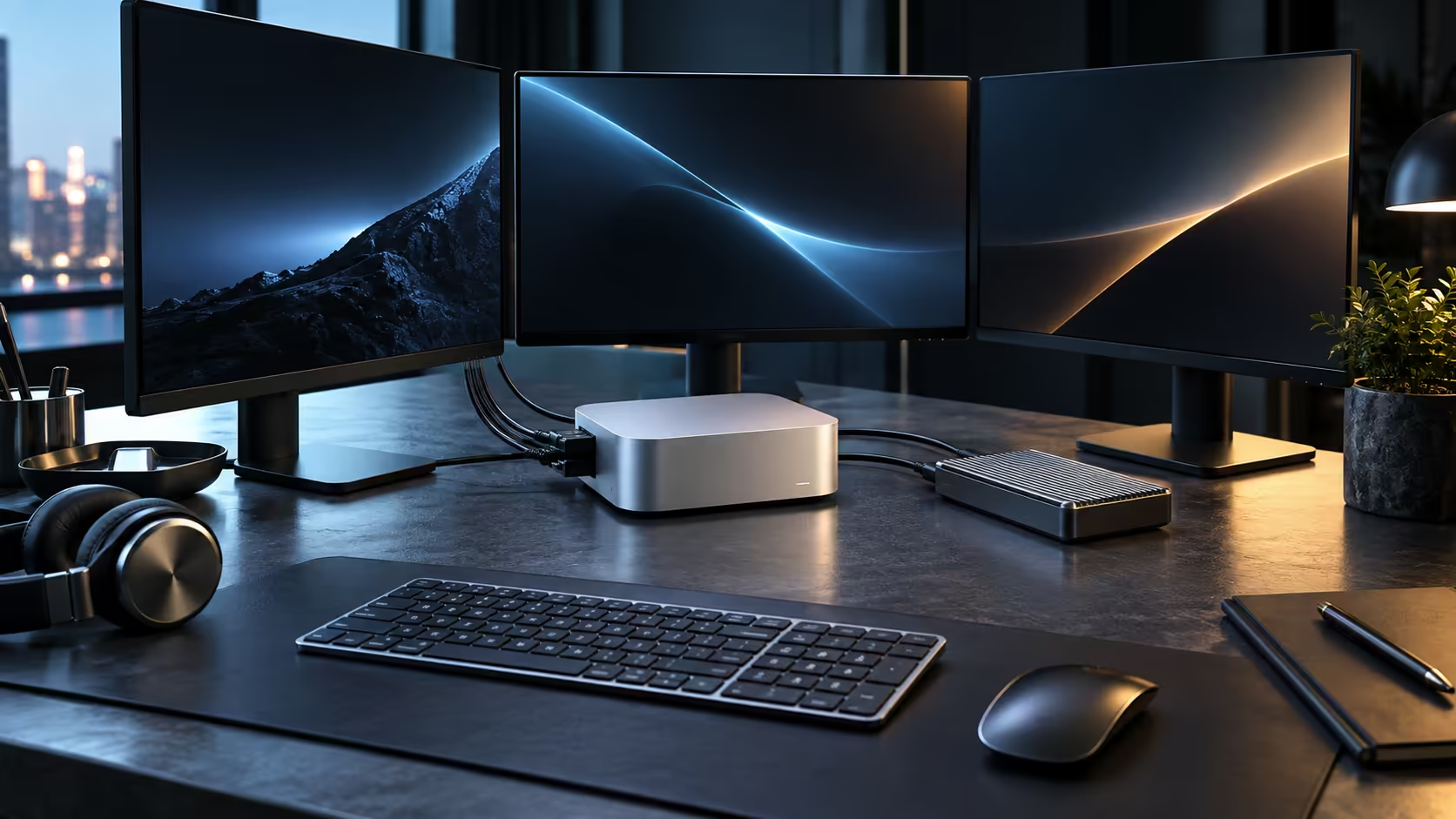
Getting three screens working cleanly on a Mac Mini M5 Pro is mostly a matter of order: connect one at a time, confirm each before adding the next, and check the chip's own display limit before you buy the third stand.
Quick Answer
Plug in the primary display first and let it settle at native resolution, then add the second, then the third, checking each one before moving on. Use the three Thunderbolt 5 ports and the HDMI output between them, and confirm the combined resolution fits within the ceiling Apple states for this R33,599 M5 Pro configuration before ordering a third panel.
1️⃣ Start with one screen and confirm it fully
Connect the primary monitor through Thunderbolt 5 first, boot the machine, and open System Settings, then Displays, to confirm it is running at its native resolution and refresh rate. Fixing any cable or input issue with one screen connected is far faster than troubleshooting it once two or three are plugged in and something is behaving oddly.
2️⃣ Add the second display and set the arrangement
Connect the second screen, on either a Thunderbolt port or the HDMI output depending on what it accepts, and return to the Displays panel. Drag the two rectangles into the same physical layout as your desk, and drag the white menu bar strip onto whichever screen should be the main display.
3️⃣ Check the ceiling before the third screen
Before buying stands and cables for a third monitor, look up the display limit Apple states for the M5 Pro chip specifically, since the number depends on the resolution and refresh rate combination across all three screens rather than being a flat count. A third panel at 1920x1080 is often the easier request for the chip to satisfy than a third matched to two 3840x2160 screens.
🧰 Cabling and mounting accessories
Once the plan is confirmed, monitor accessories such as arms, VESA mounts and the right length cable for each screen make the physical setup match the digital arrangement, which matters because a mismatched cable run behind a mount is the most common reason a screen looks connected in System Settings but displays nothing.
🎯 Setting each screen's own resolution and refresh rate
Once all three are connected, revisit each screen individually in System Settings, under Displays, rather than trusting the default macOS chose for it. A panel capable of 120Hz sometimes defaults to a conservative 60Hz on first connection, and confirming it manually per screen avoids leaving performance on the table without realising it.
🔁 Keeping the layout from resetting
Naming each display and reconnecting it to the same port every time prevents macOS from treating a sleeping monitor as disconnected and reshuffling windows onto the remaining screens. If a specific panel keeps causing this, setting it to a fixed input rather than auto-detect on the monitor's own menu usually solves it.
Mac Mini shows the other memory tiers on offer, and mini PC is there for comparing against compact machines outside Apple's own lineup.
Frequently Asked Questions
Should I connect all three screens at once from the start?
No. Adding them one at a time makes it far easier to isolate a cable or input problem before the setup gets more complicated.
What is the fastest way to check if a screen is running at native resolution?
Open System Settings, then Displays, select the screen, and confirm the resolution shown matches the panel's specification sheet.
Why do my windows move around after the machine wakes from sleep?
Usually because a monitor powered off completely rather than sleeping, so macOS treated it as disconnected; setting that panel to a fixed input rather than auto-detect normally fixes it.
Does the order I connect the screens in actually matter long term?
Only during initial setup and troubleshooting; once all three are confirmed working and named consistently, the original connection order has no lasting effect.
Can I save this display arrangement to switch between quickly?
macOS remembers the arrangement per set of connected displays automatically, so reconnecting the same screens to the same ports restores it without manual reconfiguration.
Is there a risk of damaging a port by connecting screens in the wrong order?
No, connecting or disconnecting displays in any order is electrically safe; the only downside to a wrong order is a temporary mismatch in the on-screen arrangement.
What should I do if a third screen refuses to display anything at all?
Disconnect it, confirm the same cable and screen work on a different port, then check the display limit for this chip before assuming the monitor itself is faulty.
Is there a risk in leaving three monitors on overnight?
No real risk to the hardware; it is mainly a power consideration, and most monitors sleep automatically after a period of inactivity regardless.
Ready to wire up a multi-monitor Mac Mini M5 Pro desk properly the first time?
Connect one screen at a time and confirm the display ceiling before adding a third.