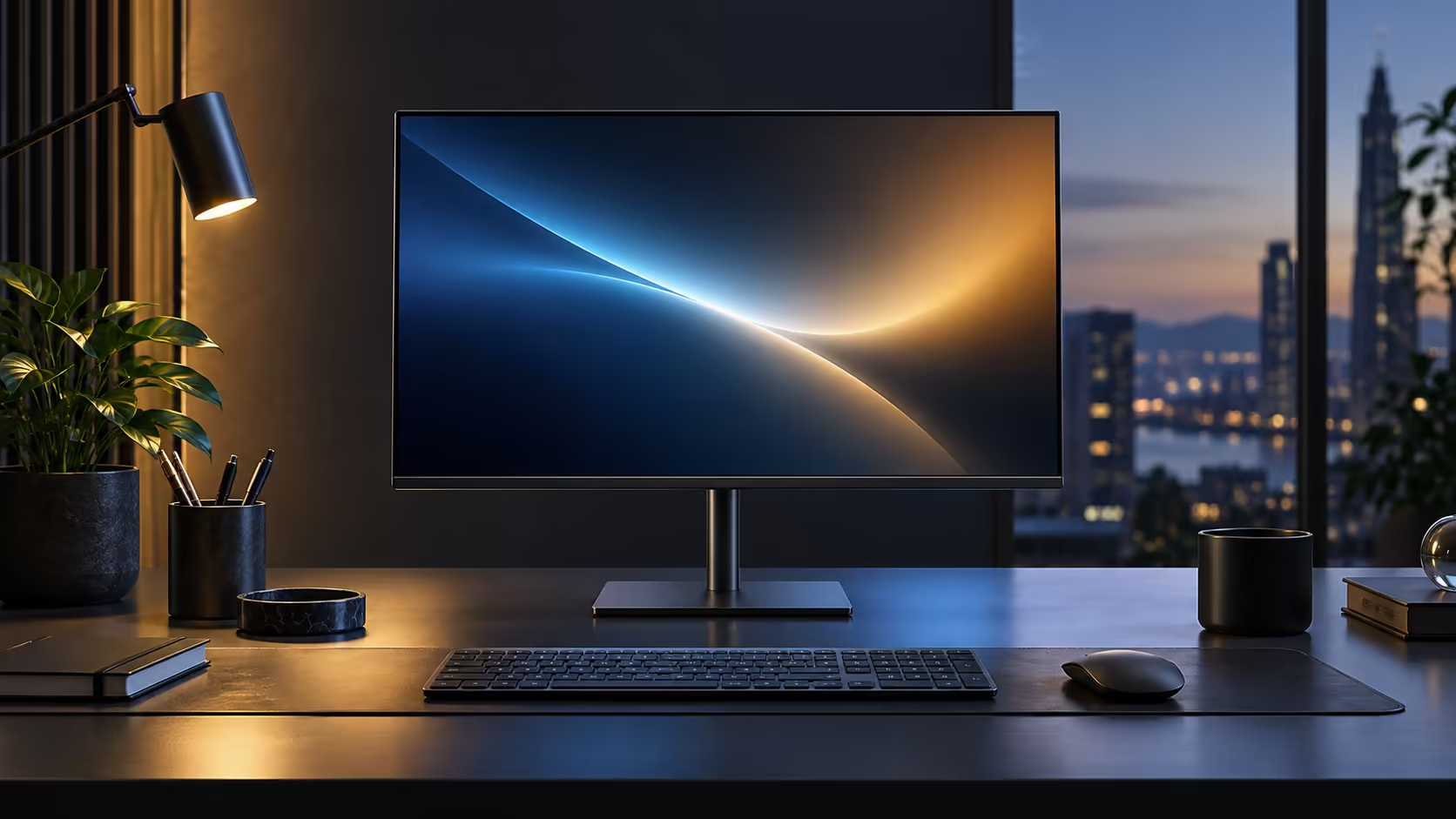
Most one-cable USB-C desks fail on the connection order, not the hardware. Plug things in the wrong sequence and you get a black screen, a laptop that trickle-charges, or a network port that never wakes up. A USB-C hub monitor fixes all three once it is wired correctly, and Dell's Pro 24 Plus P2425DE, priced at R6,099, is built to do exactly that.
Quick Answer
Connect every peripheral to the monitor first, join the network cable to its RJ45 port, then finish with a single USB-C lead from the monitor to the laptop. That order lets the screen enumerate its own ports before the laptop asks it for power and video together. The Dell Pro 24 Plus P2425DE runs the whole desk this way for R6,099.
🔌 What the single cable actually carries
One USB-C lead is doing four jobs at once, and it helps to know which before you plug it in.
The cable carries video from the laptop's GPU, USB data both ways for anything plugged into the monitor's downstream ports, a wired network link from the RJ45 socket, and up to 90W of power heading back to the laptop. That last figure covers most 13 to 15-inch business laptops that ship with a 65W charger; a 16-inch machine with a discrete GPU can still charge, just more slowly once it is under sustained load.
Because all four signals ride one lead, a cheap or damaged USB-C cable is the first thing to suspect if any one of the four stops working. A cable rated for USB-C 3.2 and 90W Power Delivery is what the connection needs, not a phone-charging lead pulled out of a drawer.
🖥️ The setup sequence that avoids a black screen
Do this in order and each step confirms the last one worked.
Plug the monitor into wall power first and let it fully boot; the screen should show a Dell splash or an input-source prompt on its own. Next, connect your keyboard, mouse and any other USB accessories into the monitor's downstream USB ports. Run the network cable into the RJ45 port if you are using wired Ethernet. Only then connect the single USB-C cable from the monitor to the laptop.
Plugging the USB-C lead in last, after every other connection is live, is what prevents the laptop from negotiating video and USB roles with an incomplete downstream chain. If the screen stays black for more than about ten seconds after that final cable goes in, unplug and reseat just that one lead before touching anything else.
⚡ Confirming the laptop is actually charging at 90W
The desk is not finished until you have checked this, because a working picture does not prove the power side is working too.
Open Settings, then System, then Power & battery on Windows, and watch the percentage while the laptop sits idle on the monitor's cable. If the number climbs steadily, the 90W link is doing its job. If it holds flat or drops slowly during light use, the laptop's own charger is rated above 90W and the monitor is only slowing the drain rather than reversing it, which still beats running on battery through a working day.
Unplugging the wall charger entirely once the monitor cable is in is the real test. If the laptop keeps charging with nothing else connected, the setup is done.
🖧 Wiring the rest of the desk in
The RJ45 port is what turns this from a video cable into a full desk replacement.
Plug your fibre router's cable straight into the monitor's Ethernet socket rather than the laptop, since the laptop has no matching port on most modern ultrabooks. Windows will list the screen as a wired network adapter once the USB-C lead is connected, and a wired link is worth having on a household fibre line shared with everyone else's video calls and downloads.
Downstream USB ports on the monitor take a keyboard, mouse, external drive or webcam permanently, so unplugging the laptop when you pack up leaves every peripheral exactly where it was for the next morning. Cable management at that point is one lead crossing the desk instead of four, which the comprehensive cable solutions range covers if you want to route it cleanly. A dedicated docking station is worth comparing if your laptop's USB-C port turns out not to carry video at all, which some cheaper business models do not. The full office monitor range and Dell's own monitor lineup are both worth a look before you settle on one screen.
Frequently Asked Questions
Why does my screen stay black when I first plug in the USB-C cable?
Usually because the cable went in before the monitor's other ports were live, or the laptop's USB-C port does not carry video at all. Confirm the port with a known-working cable and check the laptop's own spec sheet for DisplayPort Alt Mode support.
Does the order of plugging in peripherals actually matter?
Yes. Powering the monitor and connecting its downstream devices before joining the laptop avoids the negotiation failures that cause a blank screen or a USB device that is not detected.
Will any USB-C cable carry all four signals?
No. It needs to support USB-C 3.2 data and 90W Power Delivery. A basic charging cable will pass power but not video or full-speed data.
Can I still use my laptop's own charger alongside the monitor?
Yes, and doing so during heavy workloads avoids relying on the monitor's 90W ceiling if your machine draws more than that under load.
Ready to cut your desk down to one cable?
Check your laptop's USB-C port supports video before you buy, then let the monitor take over the charging and the network.