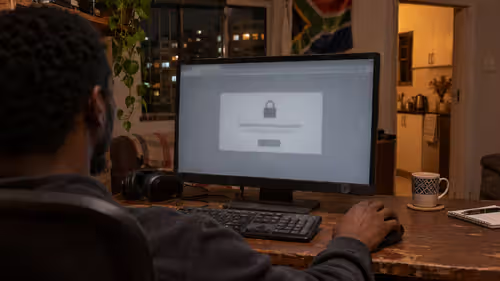
You restart after an update and the typing stops. On an hp laptop keyboard and touchpad not working after windows update, the hardware is almost never broken. Windows replaced a driver, a chipset package or a power setting, and the keyboard lost its instructions. The fix is usually a roll back or a clean driver reinstall.
Quick Answer
Restart the laptop first, then open Device Manager, expand Keyboards, and choose Driver, Roll Back Driver. If that is greyed out, uninstall the device and restart so Windows rebuilds it. Still stuck? Remove the latest update in Settings, Windows Update, Update history. Plug in a USB keyboard if you need one to get started. There is no Rand cost unless you buy a spare keyboard, typically around R150 to R400.
⌨️ Get typing again while you fix it
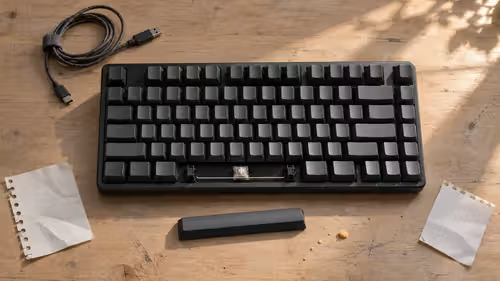
You cannot repair a keyboard with a keyboard that will not type, so set up a workaround. A USB keyboard and mouse work immediately on almost every laptop. Without one, the on-screen keyboard is in Settings, Accessibility, Keyboard, and you click keys with the touchpad if it still responds. If the touchpad is dead too, a Bluetooth mouse paired earlier may still connect.
You can also reach Device Manager without typing by right-clicking the Start button. Hold the Shift key while choosing Restart and you reach recovery options, including Startup Settings and the option to uninstall the latest update.
🔄 Roll back or reinstall the input drivers
In Device Manager, double-click Keyboards, open your keyboard entry (often "Standard PS/2 Keyboard" on laptops), choose the Driver tab and look at Roll Back Driver. If it is available, use it and restart. If it is greyed out, there is no earlier version stored, so choose Uninstall device, restart, and let Windows reinstall the keyboard on boot.
Repeat for the touchpad under Mice and other pointing devices, or Human Interface Devices. Many touchpads also depend on an Intel or AMD serial I/O or chipset driver, which is what an update most often breaks.
🧹 Undo the update that caused it
If the rollback does not help, remove the update itself. Open Settings, Windows Update, Update history, then Uninstall updates, and remove the most recent entry. Restart and test. Afterwards, use "Pause updates" for a week so Windows does not install it again before the maker releases a corrected driver.
Also consider Fast Startup. A half-loaded driver can survive a normal shutdown. Use Restart rather than Shut down, or switch Fast Startup off in Control Panel, Power Options, Choose what the power buttons do.
💾 Fetch the right drivers without wasting data
For HP and Lenovo laptops alike, the dependable source is the support page for your exact model, found with the product number on the base sticker. Download the chipset, serial I/O and touchpad packages, then install them in that order and restart. HP and Lenovo both offer a support assistant app that scans for missing drivers and does the same job.
These packages can run to several hundred megabytes, so choose a fibre connection or res Wi-Fi over a capped LTE bundle. If the laptop is old and drivers keep breaking, a newer machine may be better value. When you are ready, weigh up Intel gaming laptops against the top selling laptops.
One more safeguard is a restore point. Before you accept any large Windows update on a laptop you depend on, type Create a restore point into the search box and make one. If the next update breaks the keyboard again, System Restore can take the machine back to the earlier state in a few minutes, without touching your files. Students on varsity laptops and anyone working from home should do this, because a dead keyboard the night before an assignment is due is a miserable surprise.
Frequently Asked Questions
Why did my keyboard stop after a Windows update?
The update replaced or broke the input or chipset driver that runs the keyboard. The hardware is usually fine, and a rollback often fixes it.
How do I use the laptop without a working keyboard?
Plug in a USB keyboard and mouse, or use the on-screen keyboard from Settings, Accessibility. That lets you reach Device Manager.
How do I roll back the keyboard driver?
Open Device Manager, double-click Keyboards, choose your keyboard, then Driver and Roll Back Driver. If greyed out, uninstall the device and restart.
Can I remove the update that caused it?
Yes. Use Settings, Windows Update, Update history, Uninstall updates. Pause updates for a week afterwards so it does not return.
Where should I download drivers from?
Use your laptop maker's support page with the exact model. The packages are large, so avoid capped LTE data.
Do HP and Lenovo laptops need different steps?
The Windows steps are the same. Each brand adds a support app that can reinstall the keyboard and touchpad package for your model.
Ready to put update headaches behind you?
Browse the Evetech laptop range for a machine with current drivers and a keyboard you can trust every day.