A laptop with a true RS-232 serial port solves a specific compatibility problem: the machine connects directly to industrial, point-of-sale, laboratory or network hardware that still speaks serial. The nine-pin socket is only the beginning. Voltage levels, connector wiring, drivers and software must match the equipment.
Quick Answer
Choose a laptop with native RS-232 when the device maker requires it, the connection is used every day or an approved USB adapter has proved unreliable. Confirm the DB9 pinout, COM-port driver, operating system and any isolation requirement. For occasional service work, a well-supported USB-to-serial adapter can be the lighter and cheaper route.
Step 1: identify the serial standard
RS-232, RS-422 and RS-485 are different electrical standards even when equipment uses a connector that looks familiar. Do not plug one into another by shape. Read the device manual and service documentation.
Record connector gender, pinout, baud rate, data bits, parity, stop bits and flow control. A DB9 cable can be straight-through or null-modem, which changes transmit and receive wiring. Keep the known working cable with the equipment.
If the port controls machinery or safety-related hardware, use the equipment supplier's approved laptop and interface guidance. A qualified technician should handle the integration.
Step 2: decide whether native serial is required
A native UART and DB9 port can give legacy software a predictable COM device. This is valuable when the application was validated on that interface, runs for long sessions or must reconnect after every boot.
USB-to-serial adapters can work well. Choose one with a documented chipset, signed drivers and the electrical standard you need. Cheap unidentified adapters can change chip revisions or disappear after an operating-system update.
Test the approved adapter with the real device before ruling it out. If it passes every function and survives sleep, restart and cable movement, a common laptop may offer better value and replacement choice.
Browse current laptop best sellers and the gaming laptop selection as general laptop references. These pages do not by themselves confirm a native RS-232 model; verify the exact port specification before ordering.
Step 3: check the operating system
Legacy control software can require an older Windows version, 32-bit component, Java runtime or vendor driver. Confirm support before choosing a new processor or Windows edition. Compatibility mode cannot repair every abandoned driver.
Ask whether the application works with current security updates and modern user permissions. Avoid running an unsupported operating system on an open network. Where old software is unavoidable, involve the organisation's IT and equipment supplier in a contained support plan.
Virtual machines can help old applications, but direct serial access and timing must be tested. Do not assume USB pass-through behaves like a native port.
Step 4: inspect the physical port
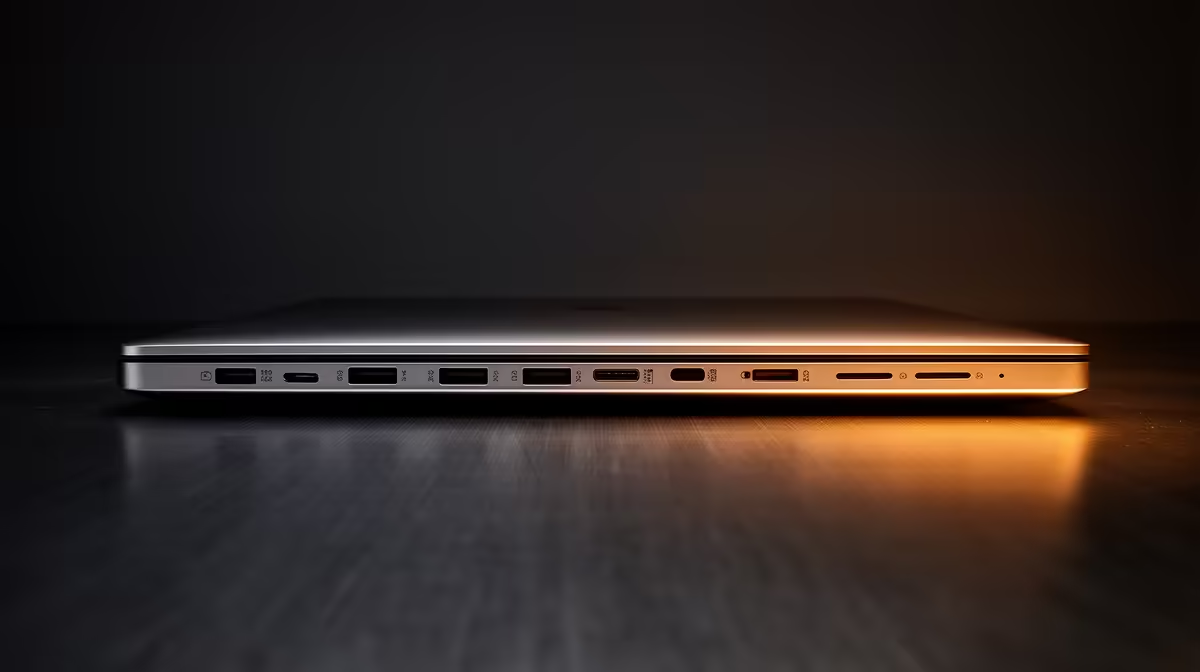
A product listing should name RS-232 or serial, not only show a small blurred photograph. Check whether the DB9 connector is built into the chassis or supplied through a proprietary cable.
On a used or rugged unit, inspect pins, screw posts and case movement. A loose port can interrupt communication when the cable shifts. Secure the cable screws without overtightening.
Right-angle adapters and long cables can change strain or signal quality. Use the device maker's length and wiring guidance.
Step 5: consider isolation and grounding
Industrial environments can have ground differences and electrical noise. An isolated serial interface can protect the laptop and improve communication, but its rating and wiring must suit the installation.
Do not improvise isolation around expensive equipment. Use approved hardware and a qualified installer. The laptop's native port alone does not make an unsafe electrical setup acceptable.
Step 6: check the rest of the laptop
Business and rugged models can prioritise serviceability, Ethernet, replaceable batteries and outdoor screens. Match processor, memory and SSD to the application. A simple terminal needs little performance; diagnostics, CAD manuals or local databases may need more.
Count USB, Ethernet and display outputs. Check keyboard layout, screen visibility and battery replacement. A serial port is not useful if the laptop cannot survive the work site or run the application.
Step 7: build a commissioning test
Connect the real device and perform every normal function: read, write, firmware update, long logging and reconnection after sleep. Restart the laptop and confirm the COM number remains stable.
Move the cable gently at both ends while monitoring. Record driver, BIOS, software and port settings. Keep a second tested cable and interface when downtime matters.
Frequently Asked Questions
Is a DB9 port always RS-232?
No. Connector shape does not prove the electrical standard or pinout. Read the equipment and laptop documentation.
Is USB-to-serial reliable?
A supported adapter can be. Test the exact chipset, driver and device through restarts and the full workload.
Do gaming laptops include serial ports?
Rarely. Native serial is more common in business, rugged and specialist models, while adapters suit many general laptops.
Verify the electrical standard, pinout, driver and application before choosing a business laptop for native RS-232 work.