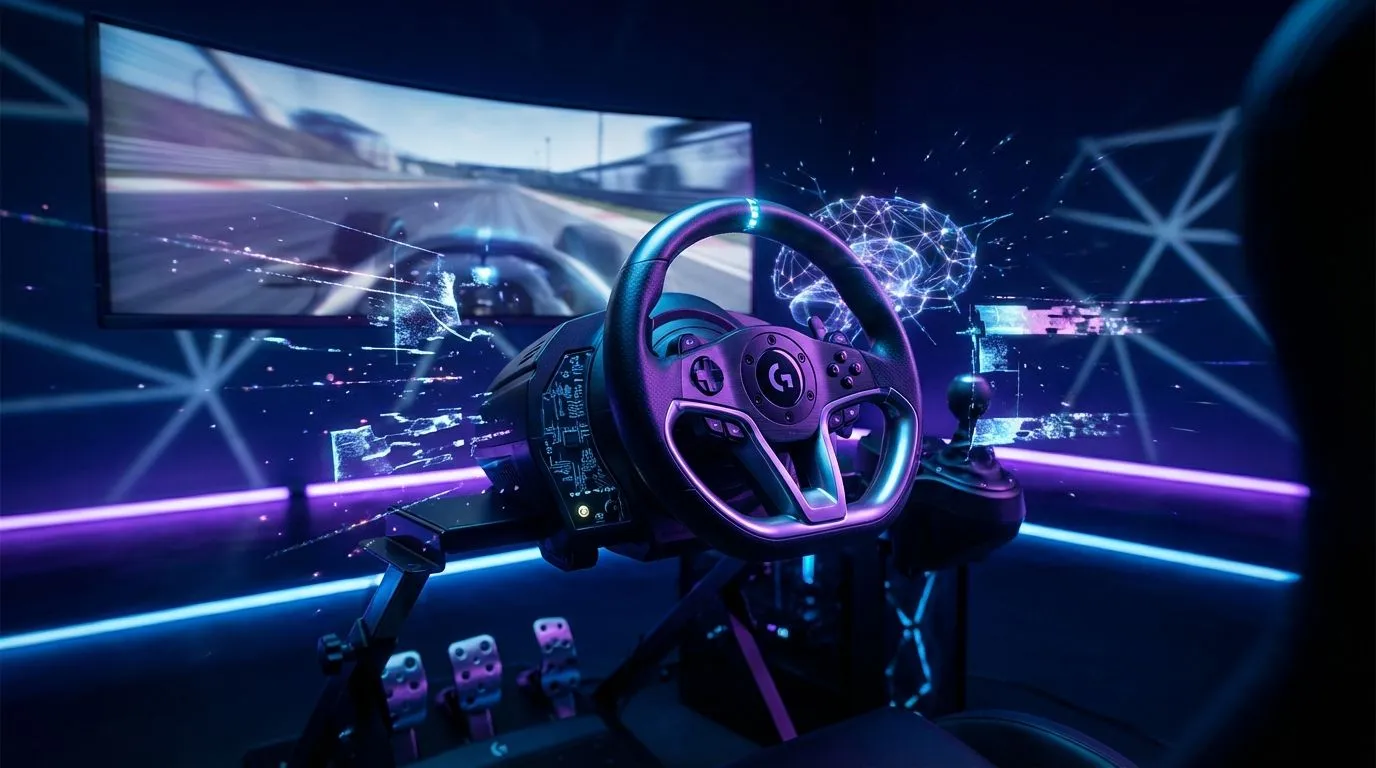
So, you've unboxed that beautiful Logitech G steering wheel. You can almost smell the burning rubber and hear the roar from Kyalami. But wait... a poor setup can turn a thrilling race into a frustrating battle with your own gear. Getting your Logitech G steering wheel setup dialled in perfectly is the secret to true immersion. This guide will take you from the box to the starting grid, ensuring every lap feels absolutely electric. 🚀
First Things First: A Rock-Solid Physical Setup
Before you even touch the software, your wheel needs a stable home. A wobbly wheel is an immersion killer. Most Logitech G wheels, like the popular G29 or G923, come with a robust clamping system that works great on a sturdy desk.
Ensure the clamps are tight and the wheel has zero play. Tidy up those cables too! Use some cable ties or sleeves to route the power, USB, and pedal cables neatly. This prevents them from getting snagged during a heated race. For sim racers seeking the ultimate locked-in experience, nothing beats a dedicated rig. Mounting your wheel and pedals to one of these ergonomic Playseat chairs eliminates all flex and puts you in a perfect driving position.
Getting the Software Dialled In 🔧
The heart of your Logitech G steering wheel setup is the software. This is where you control the core functions and ensure your PC recognises the hardware correctly.
- Download Logitech G HUB: Head straight to the official Logitech support website and download the latest version of G HUB. Avoid any third-party software.
- Connect and Update: Plug your wheel directly into a USB port on your motherboard, not a hub. Once G HUB detects it, the first thing you should do is check for a firmware update. These updates often contain crucial performance improvements and bug fixes.
- Create Game Profiles: G HUB allows you to create specific profiles for different games. Your ideal setup for F1 23 will feel very different from your settings for Assetto Corsa Competizione. Take a moment to create a new profile for the game you're about to play.
Getting this foundation right makes the next step—fine-tuning—much easier. This is where many racers get lost, but it’s also where you can gain a serious competitive edge. Many experienced drivers also look at options from specialist brands like Thrustmaster to compare the different force feedback technologies available.
Fine-Tuning Your In-Game Settings for Maximum Realism
This is where the magic happens. Every simulation game has a dizzying array of force feedback (FFB) and control settings. While the "perfect" settings are subjective, here are the key parameters in your Logitech G steering wheel setup to focus on.
Key Settings to Tweak:
- Steering Angle / Operating Range: In G HUB, set this to 900 degrees. This allows the game to take control and apply the correct rotation for the specific car you're driving, whether it's a road car or a high-downforce F1 machine.
- Force Feedback / Torque: This is the overall strength of the effects. Too high, and the details get "clipped" or lost in the noise. Too low, and the wheel feels numb. Start around 70-80% and adjust from there.
- Dampening and Spring Effects: For realism, many pros turn these effects down or off completely in G HUB, letting the game's physics engine do all the work.
Pro FFB Tip ✨
Don't crank your Force Feedback to 100% immediately. A strong FFB signal can "clip," meaning you lose subtle details about what the tyres are doing. Start at a lower value and slowly increase it until you feel the road texture and tyre slip, not just the crashes. The goal is information, not just a workout!
Mastering your setup is a journey, not a destination. As you get faster and more consistent, you'll develop a better feel for what you need from the wheel. The journey is part of what makes sim racing such a rewarding hobby for thousands of South Africans.
Ready to Hit the Apex?
A proper Logitech G steering wheel setup is your ticket to podium finishes and unparalleled immersion. Whether you're upgrading your pedals or building a full rig from scratch, we've got the gear to fuel your passion. Explore our complete Sim Racing collection and find the perfect setup for your virtual racing career.