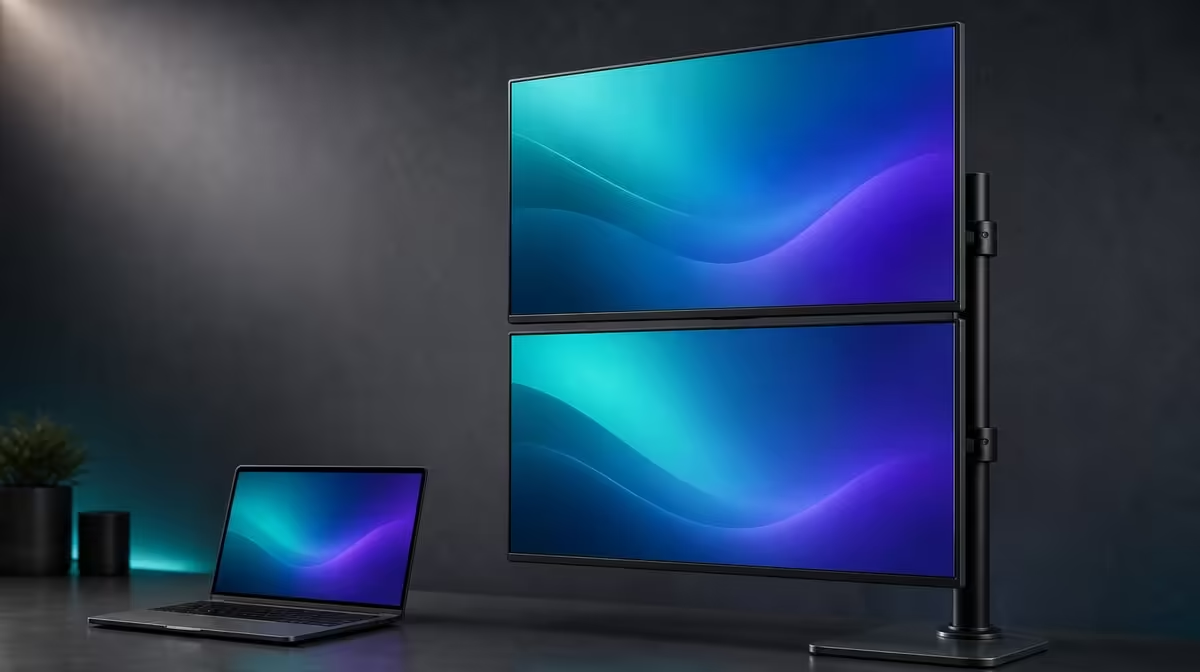
Smooth motion, readable interfaces and believable colour are separate setup goals. Optimising 100Hz, colour and scaling across two screens works best when the laptop first drives both Delta Mega panels at native Full HD, then each layer is changed and tested on its own.
Quick Answer
Optimise the R6,899 UPERFECT Delta Mega by setting both 23.8-inch IPS panels to 1920 x 1080, starting from matched scaling and neutral colour, then enabling 100Hz on the compatible Type-C or HDMI laptop path. Adjust app zoom and low blue light afterwards so clarity, motion and comfort remain distinct.
🔢 Establish matching Full HD baselines
Connect the Windows or Mac laptop and identify both panels before changing anything. Select 1920 x 1080 individually and confirm that each display uses an ordinary orientation matching the physical layout.
Begin with the same operating-system scaling. Open a document containing body text, small interface labels and images, then move it between screens.
If one panel serves an upper position or sits farther away, it may need different scaling. Change that single screen and repeat the same test window rather than lowering its resolution.
Check application zoom separately. A browser or creative tool can override the visual size produced by system scaling, and one app should not define the entire panel result.
Keep the laptop panel visible during the comparison if it remains part of the desk. Window movement between three screens can expose a scale or map issue not obvious when the computer display is ignored.
Evetech's portable monitor range can help compare flexible dual-screen formats through the same readability sample.
🖱️ Enable and verify 100Hz
Once both Full HD screens remain stable, open the advanced display controls on the laptop. Select 100Hz for the first Delta Mega panel where the source path exposes it, then repeat for the second.
Do not assume that choosing 100Hz on one screen applies to both. Confirm the active mode for each panel and save a screenshot or note with the display number.
Use a moving cursor, scrolling document and window drag to compare 60Hz with 100Hz. The higher rate can look smoother because the image updates more often; it does not add document detail or change 1920 x 1080.
Move the test window across the screen boundary and watch for a change in motion. A mismatch can indicate that one display stayed at another refresh mode.
The Delta Mega also lists 14ms response. That describes pixel transition behaviour and should not be treated as the same measurement as refresh rate.
Compare business displays through Evetech's PC monitor department when smooth motion is part of a permanent office setup.
🎨 Match colour without hiding differences
Return both IPS panels to neutral or matched picture settings. Display a familiar image spanning skin tones, greys, saturated objects and shadow detail.
View from the normal chair and keep the stand angle symmetrical where the workflow allows. A different reflection path can make one screen look brighter or flatter even when its controls match.
Adjust one setting only when a repeatable difference affects the work. Keep the original value so the baseline can be restored.
Do not use low blue light during the colour reference. The comfort mode may warm the image by design, so enable it only after the neutral comparison is complete.
Check built-in speaker playback separately from picture. Select the Delta Mega audio route on the laptop and play a familiar sample without treating sound configuration as part of the colour pass.
📝 Save profiles for the real workflow
Create a neutral work profile with native resolution, scaling, 100Hz, colour baseline and panel order. Add a comfort profile only if low blue light and adjusted brightness help longer text sessions.
Test both in a horizontal arrangement and after a vertical fold if those layouts will be used. The physical distance may justify another scaling choice, while colour and refresh settings should remain understandable.
Restart the laptop and confirm both panels return at the saved resolution and refresh. Reopen the test document to ensure app zoom did not reset unpredictably.
Ask another user to follow the profile note. They should be able to identify both screens, restore 100Hz and know when low blue light is active.
At R6,899, the setup is optimised when each control has one purpose: Full HD for native detail, scaling for size, 100Hz for motion and neutral colour for comparison.
Review Evetech's monitor best sellers with those four separate tests in hand.
Add a boundary test using one wide spreadsheet or timeline window. Move it from the laptop to each Delta Mega panel, then span only if the application benefits. The exercise shows whether mismatched scaling creates a jump in text or controls.
Create a refresh recovery step after reconnecting. If one screen returns at another rate, the user should know which numbered panel to select without changing the other.
Record room light with the colour baseline. Matched controls can look different when one panel faces a window, so correct the reflection path before fine tuning.
Review the two saved profiles monthly and remove a comfort or application override that no longer serves the workflow.
Frequently Asked Questions
Which setting should be established first?
Set native 1920 x 1080 on both panels before changing scaling, refresh or colour.
How should scaling be chosen?
Start matched, then adjust a panel only when its distance or role makes text uncomfortable.
What does 100Hz improve visually?
It can make compatible scrolling, cursor motion and animation appear smoother.
Does 100Hz change colour coverage?
No. Refresh rate and colour behaviour are separate display properties.
Why begin from matched panel settings?
They create a baseline that makes a real difference easier to isolate.
What role does low blue light play?
It is a comfort mode that can warm the picture and should be evaluated separately from colour.
Can both screens always expose 100Hz?
The available modes depend on the complete laptop, connection and dual-display path, so confirm each panel.
Ready to give every display control one clear job? Explore Evetech's dual monitors and tune the Delta Mega from matched 1080p through scaling, 100Hz and a saved neutral profile.