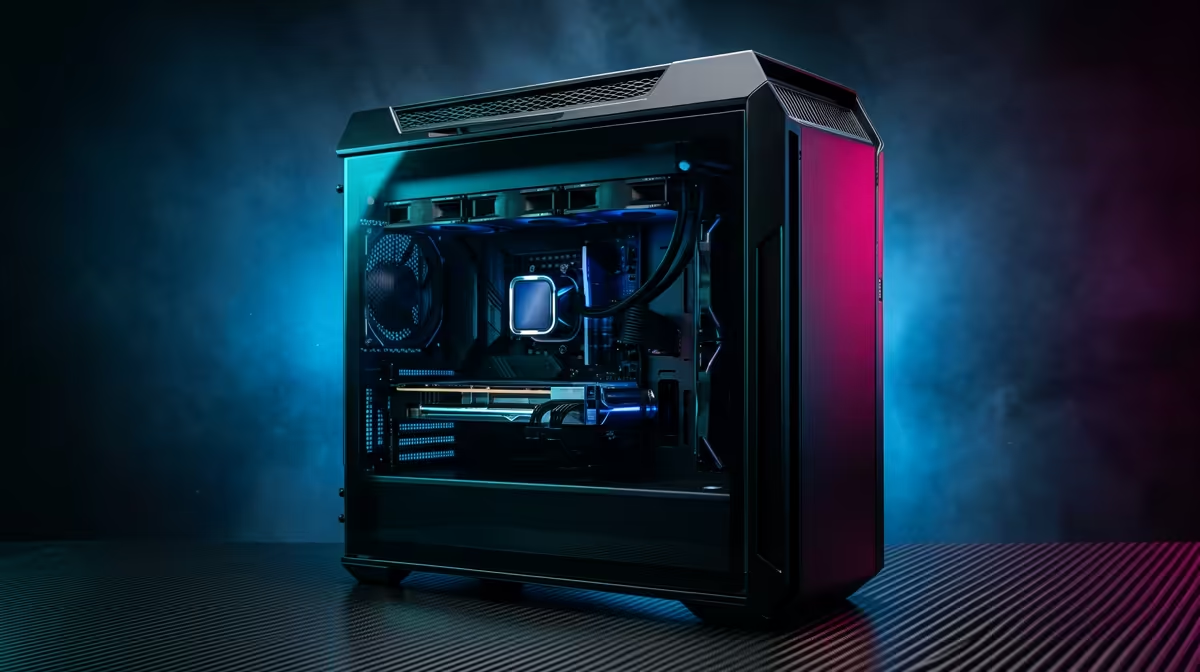
Is your gaming rig feeling the heat this summer? We've all been there. You're deep in a final-circle showdown, and suddenly your frames drop. Your PC, which usually runs like a dream, is starting to sound like a jet engine. More often than not, the culprit isn't your GPU or CPU... it's thermal throttling caused by poor airflow. Learning how to optimize case airflow for maximum cooling efficiency is the key to unlocking consistent performance. 🚀
Understanding the Fundamentals of PC Airflow
Before you start adding fans, it's crucial to understand the goal: create a consistent, unobstructed path for air to travel through your PC case. Think of it as a wind tunnel. Cool air enters from the front, flows over your hottest components like the CPU and GPU, absorbs their heat, and is then expelled out the back and top.
A well-planned setup prevents pockets of hot, stagnant air from building up and cooking your hardware. This simple principle is the foundation for achieving maximum cooling efficiency. The better your components can breathe, the better they perform, especially when paired with effective CPU coolers that integrate seamlessly into this airflow path.
Achieving Efficient Case Airflow with Smart Fan Placement
The most common and effective fan configuration is beautifully simple:
- Intake Fans: Positioned at the front of the case, pulling cool, ambient air in.
- Exhaust Fans: Placed at the rear and top of the case, pushing the collected hot air out.
This creates that crucial front-to-back, bottom-to-top airflow current. But how many fans do you need? This leads to the concept of air pressure.
Positive vs. Negative Air Pressure
- Positive Pressure: More air is being pushed into the case by intake fans than is being pulled out by exhaust fans. This helps reduce dust buildup, as air is forced out of every unfiltered crack and crevice.
- Negative Pressure: More air is being exhausted than taken in. This can be great for raw cooling power but tends to suck dust in through unfiltered panel gaps.
For most South African builds, a slight positive pressure (e.g., three intake fans, two exhaust) offers the best balance of cooling and cleanliness. Using high-quality fans from brands like Corsair ensures you get great static pressure and airflow where you need it most.
Cable Management Matters! 🔧
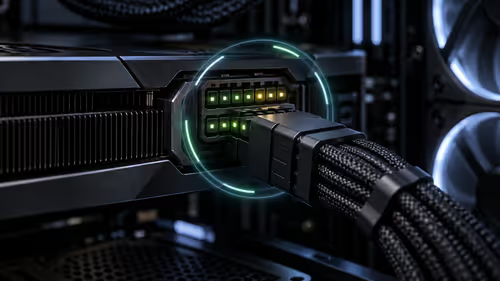
It's not just about aesthetics. Messy cables behind your motherboard or in the main chamber can severely obstruct airflow. Take 30 minutes to route your cables cleanly. Use zip ties and your case's built-in channels. This simple step can lower your component temperatures by several degrees by clearing the path for cool air to travel.
How Your CPU Cooler Impacts Overall Airflow
Your CPU cooler is a major player in your system's thermal dynamics. An air cooler with a large heatsink and fan should be oriented to push air towards the rear exhaust fan, working with your case's natural airflow.
All-in-One (AIO) liquid coolers offer more flexibility. You can mount the radiator at the front as an intake, bringing cool air directly across the fins, or at the top as an exhaust. Both methods are valid, but mounting it as a top exhaust is often preferred as it prevents the GPU from being fed pre-warmed air from the CPU radiator. Brands like GAMDIAS offer a fantastic range of both air and liquid cooling solutions to fit any build. For those looking for a clean and powerful setup, a GAMDIAS AIO liquid cooler can be a brilliant choice. ✨
Final Tweaks to Optimise Your PC's Cooling
Once your fans and CPU cooler are in place, a few final touches can perfect your setup. Don't neglect your fan curves in your motherboard's BIOS or software. Setting a custom curve that ramps up fan speed based on temperature ensures your PC stays quiet during light tasks and cools aggressively when you're gaming.
Furthermore, consider the size of your components. A massive graphics card can create an air dam, so ensuring you have a clear path underneath it is key. In many modern cases, installing a popular 240mm AIO radiator at the top of the case provides an excellent, unobstructed exhaust path for heat rising from both the CPU and GPU, completing your journey to optimize case airflow.