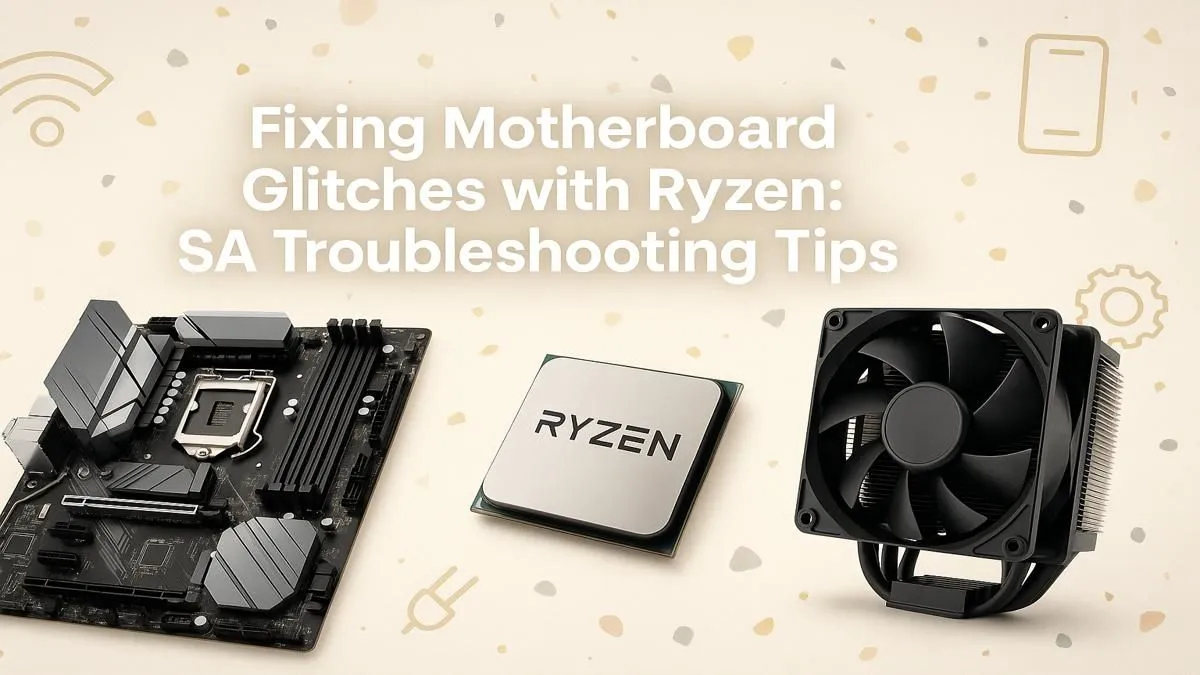
You’ve unboxed your shiny new Ryzen CPU. You’ve carefully installed it, clicked in the RAM, and wired everything up. You press the power button, the fans spin… but your screen stays black. That gut-wrenching feeling is something no PC builder in South Africa wants. Before you start panicking, know that most issues are fixable. This guide offers straightforward Ryzen motherboard troubleshooting to get you from a dead box to a gaming beast. 🚀
First Steps: Diagnosing a No-POST Problem
When your PC won't POST (Power-On Self-Test), it means a core component is failing its initial check. Effective Ryzen motherboard troubleshooting starts with the basics, not complex software fixes.
Check the Obvious Stuff First 🔧
Before you start pulling components, run through this simple checklist:
- Power Cables: Is the 24-pin motherboard connector and the 8-pin (or 4+4 pin) CPU power connector firmly seated? This is the most common culprit. A loose CPU power cable means a processor with no juice.
- RAM Seating: Did you hear two clicks when you installed your RAM? Most motherboards require a firm push. Try reseating your RAM sticks.
- Motherboard Standoffs: Ensure your motherboard is installed on standoffs in the case and not touching the metal tray directly, which can cause a short circuit.
Many modern boards, from entry-level to high-end AMD X870 motherboards, include diagnostic LEDs (often labelled CPU, DRAM, VGA, BOOT). These tiny lights are your best friend, telling you exactly which component is causing the hang-up.
Solving Common Ryzen RAM Headaches
Ryzen CPUs are famously sensitive to RAM speed and compatibility. If your diagnostic LED points to a DRAM issue, don't worry... this is a frequent and usually simple problem to solve.
The first step is to check your motherboard's Qualified Vendor List (QVL) on the manufacturer's website. This list confirms which specific RAM kits have been tested and are guaranteed to work. While many unlisted kits work fine, sticking to the QVL is the safest bet for stability.
If you're still stuck, try booting with only one RAM stick in the primary slot (usually the second slot from the CPU, but check your manual). If it boots, you may have a faulty stick or a compatibility issue when running in dual-channel mode. Ensuring you have a quality foundation from a wide selection of AMD motherboards can prevent many of these headaches from the start.
BIOS & UEFI Glitches: The Brain of the Board 💡
Sometimes, the hardware is all correct, but the software controlling it—the BIOS/UEFI—is the source of your Ryzen motherboard issues. This is especially common when pairing a brand-new Ryzen CPU with a slightly older motherboard.
For example, putting a Ryzen 5000 series CPU into some older AMD B550 motherboards required a BIOS update before the board could even recognise the processor. Without the update, it would fail to POST every time.
Use BIOS Flashback! ⚡
Many modern motherboards have a feature called BIOS Flashback (or Q-Flash Plus). This lets you update the BIOS with just a USB stick and a power supply—no CPU or RAM needs to be installed! It’s an absolute lifesaver for fixing CPU compatibility issues on a new build. Just download the latest BIOS onto a FAT32-formatted USB, plug it into the designated port, and press the button.
Clearing the CMOS is another classic fix. This resets your BIOS settings to their factory defaults, which can resolve glitches caused by an unstable overclock or incorrect setting. You can usually do this by shorting two pins on the motherboard (check your manual!) or by removing the coin-cell battery for a few minutes.
When Is It Time for an Upgrade?
You’ve tried everything, but the glitches persist. While most problems are fixable, sometimes you're dealing with faulty hardware or a board that's simply not up to the task for your new components. If your board is showing its age or lacks features like PCIe 5.0, it might be the bottleneck in your system.
Upgrading to a newer platform can provide a more stable, feature-rich experience. The latest chipsets, like the versatile AMD B850 motherboards, are designed to handle the power and connectivity needs of modern Ryzen processors, offering a smoother build process right out of the box.
Ready for a Rock-Solid Foundation?
Effective Ryzen motherboard troubleshooting can solve most issues, but starting with the right board is key to a stable, high-performance PC. If it's time for an upgrade, we've got your back. Explore our huge range of AMD motherboards and find the perfect match for your build.