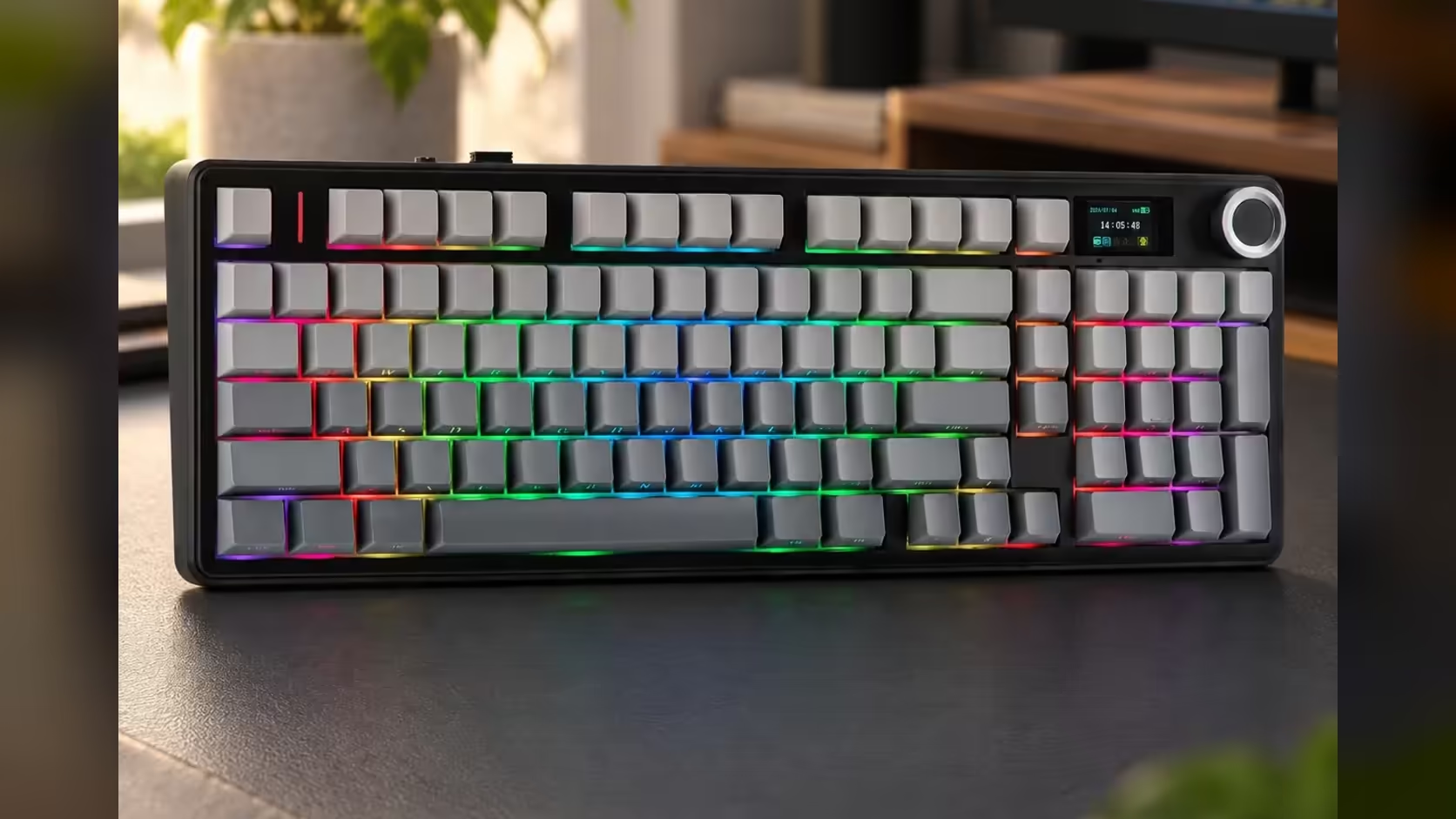
Reaching for a volume slider in the middle of a call or a match is a small annoyance that happens dozens of times a day. A physical knob fixes it, and on the F99 Max the same knob can also look after the lighting. The nice part is that neither job needs software. Here is how to get the rotary knob for volume and lighting working the way you want, including on a locked-down work computer.
Quick Answer
Turn the AULA F99 Max's rotary knob on its own to change volume, or hold Fn while turning it to adjust the RGB backlight. Neither function needs software, which helps on a work machine where you cannot install anything. A related shortcut, Fn + Backspace, turns the centre screen off. AULA's customisation software, which runs on Windows in wired mode, handles deeper settings, and Evetech prices the keyboard at R799.
🎛️ The two knob modes
Volume, the default
Out of the box, turning the knob raises or lowers volume on the device the keyboard is connected to. There is nothing to enable. On a desk with several machines, remember the knob talks to whichever device is currently active: the F99 Max can pair with up to five devices over 2.4GHz, Bluetooth or cable, and volume follows the connection in use.
Lighting, with Fn held
Hold Fn and turn the knob, and it adjusts the RGB backlight instead. AULA describes this simply as adjusting the backlight, without spelling out whether it changes brightness, colour or effect, so spend a minute turning it both ways to see what it does on your board. Let go of Fn and the knob goes straight back to volume.
That split is handy. Most of the day you want the knob for sound, and lighting changes are occasional, so keeping lighting behind Fn prevents accidental changes while still leaving it one move away.
🏢 Setting it up on a work machine
Many office computers block software installs. The F99 Max's knob modes work at the keyboard level, so on a managed laptop you can still:
- Connect by cable, the 2.4GHz receiver or Bluetooth.
- Use the knob for volume straight away.
- Hold Fn and turn the knob to tone the lighting down for an office environment.
- Press Fn + Backspace to switch off the screen if a clock or GIF on your desk feels out of place in meetings.
No admin rights, no driver, no support ticket. That is a real advantage over keyboards whose basic controls live in software.
🧩 Going further with software, Fn keys and the screen
The customisation software
For anything beyond the knob, AULA provides customisation software. AULA's page is specific about its limits: it is a Windows program, and the keyboard has to be on its cable while you use it. So for setup sessions, plug the cable in and use a Windows PC; afterwards the board can go back to cordless use.
Lighting effects
The F99 Max's south-facing RGB offers 16.8 million colours, and among its effects are presets and a music-sync mode. AULA says these are set with Fn keys or the software. If you want lighting that pulses with your music, look for the music-sync effect there, then use Fn + knob for quick adjustments during the day.
Screen and battery
The centre TFT display, which can carry a clock, a charge reading or your own GIF, shares the knob's neighbourhood in the middle of the board. The 8000mAh battery powers the cordless modes, and AULA's advice is that a dark screen and dimmer lighting make each charge last longer. Using Fn + knob to dim the lighting and Fn + Backspace to blank the screen is the quickest way to save charge on a long day away from a cable.
🛠️ If the knob seems to do nothing
A few checks usually solve it:
- Make sure you are not holding Fn if you expect volume.
- Check which device is active. With several paired machines, the knob may be changing volume on a computer you are not looking at.
- On Bluetooth, confirm the pairing is live by typing a few characters.
- Look at the system's own volume indicator to confirm whether the change is registering.
The keyboard itself is listed as working with both Windows and macOS. The page does not describe the knob on macOS in detail, so if you use a Mac, give the knob a quick test when you set up.
Evetech places the F99 Max with its gaming boards, yet its number pad and knob make it just as comfortable next to the office keyboards at Evetech. Cover comes as a 1 Year Local Warranty through Evetech, and the product page shows the price.
Frequently Asked Questions
Do I need software for the knob?
No. Volume works by default and Fn + knob adjusts the backlight, with no installation needed.
What exactly does Fn + knob change?
AULA says it adjusts the RGB backlight. Turn it both ways on your board to see how it behaves.
Why use a knob instead of media keys?
A knob gives quick, fine control you can find by feel, without looking down or pressing a combination.
Is there a shortcut for the screen too?
Yes. Fn + Backspace turns the screen off to save battery.
Where do I set music-sync lighting?
AULA lists music-sync among the effects set through Fn keys or its Windows software.
Can Mac owners use the knob?
The keyboard supports macOS, but AULA's page does not detail the knob there, so test it on your Mac.
Want sound and lighting control under one finger?
Explore Evetech's gaming keyboard range and see the F99 Max with its centre knob and screen.