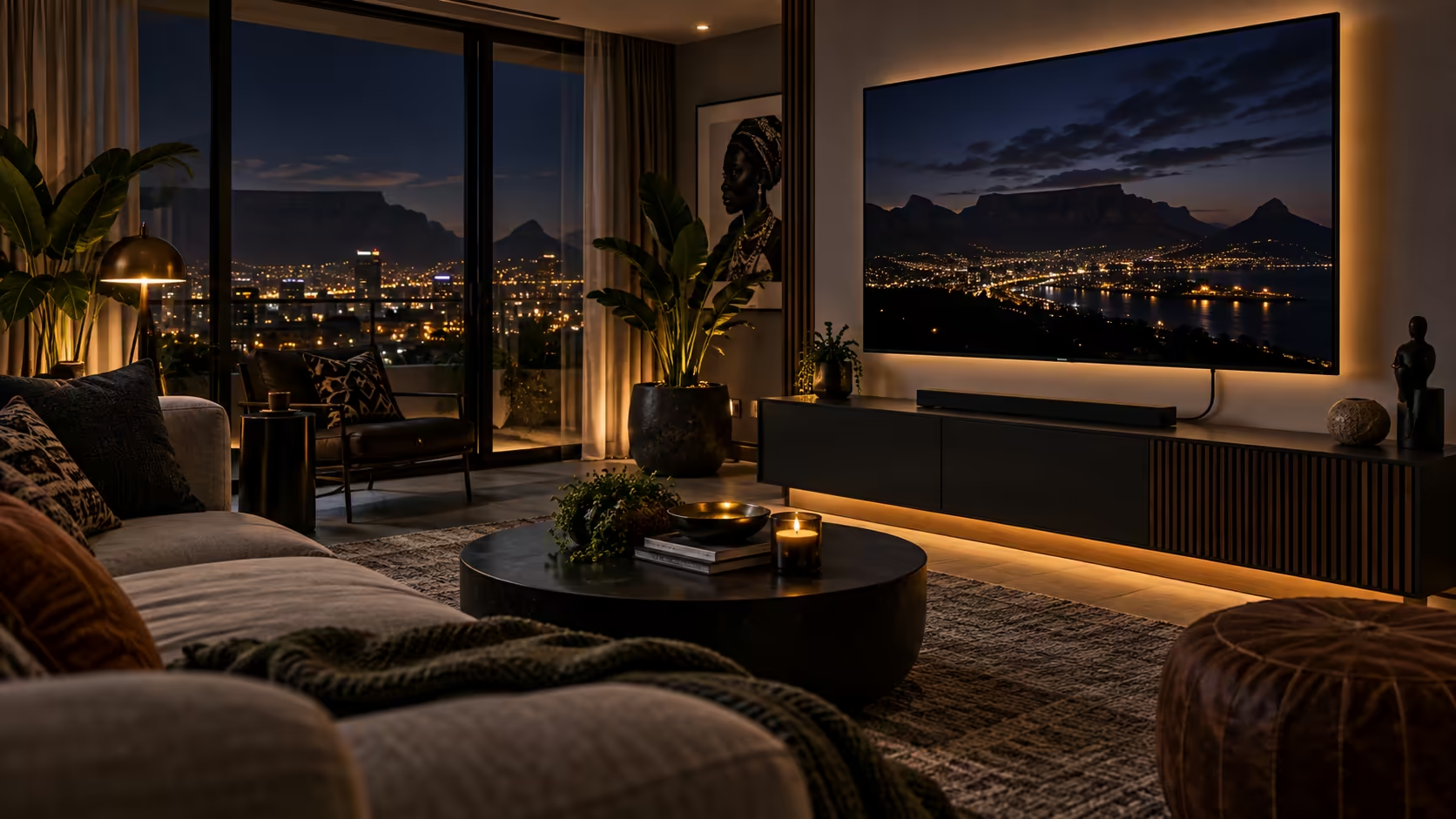
A typical South African living room asks more of one television than most setup guides assume: several boxes competing for the same handful of HDMI inputs, only one of which usually cares about 4K at 120Hz. Getting the setup right means working out which device actually needs the bandwidth, rather than treating every cable in the unit as equally important.
Quick Answer
Run a short lead from the console to the input your screen marks for high bandwidth. Switch that input into its enhanced mode, then turn on 120Hz in the console's own menu. A 1.8m Anker at R299 covers the gap in a typical lounge unit and carries a warranty you can claim without shipping anything overseas.
🛋️ One screen, three devices, only one that needs the upgrade
A decoder feeding a satellite or streaming service rarely outputs past 1080p or a fixed 4K at 60Hz, so it has no use for a 48Gbps cable at all; whatever lead it shipped with usually still does the job. A console capable of 4K at 120Hz is the device in this chain that actually benefits from the upgrade, and a PC sharing the same screen sits somewhere in between depending on its own graphics card and monitor settings.
Knowing this matters because it stops you from buying three expensive cables when one is enough. Identify which device in your own lounge is the one actually asking for 120Hz, and put the rated cable there first.
📺 What mid-range TVs sold here actually accept
A television advertised as 4K and even labelled HDMI 2.1 on the box does not automatically hand every one of its ports the full spec. It is common for a mid-range set to reserve its best socket for one specific input, so the port your console lands in matters as much as the console itself. Rather than plugging in wherever is convenient, open the manual once and note down which numbered input is the one built for the higher figure, then treat that socket as reserved for whichever device in the lounge actually needs it.
That socket also often needs waking up on its own, since the setting that unlocks its full bandwidth ships switched off. Where it lives in the picture menu and what it is called varies by brand, so open that specific input's own settings rather than a general picture menu, and expect to hunt for a phrase that never actually mentions bandwidth by name.
🧱 Wall-mount runs need measuring properly
A television mounted on a wall, common in newer builds and renovated lounges alike, often hides a longer cable run than it looks: the lead has to travel from the equipment shelf up behind the bracket and back down to the console, not in a straight line from one point to the other. Measure that actual path before ordering a cable, since a run that turns out 1 to 2 metres longer than expected is the most common reason a wall-mounted setup ends up bridging two cables with a coupler, which is exactly the kind of joint that starts dropping a high-bandwidth signal first.
🔌 What finishes the job
For a single console feeding a wall-mounted or unit-mounted television at typical lounge distances, one 1.8m Anker lead from the cable range at R299 covers it, rated for the full 48Gbps that 4K at 120Hz needs. If the setup includes a PC alongside the console, check its own monitor or TV input separately, since a graphics card's HDMI output follows the same rules as a console's. Where responsiveness matters more than picture smoothness, a wired controller takes a wireless connection out of the equation during competitive play.
Frequently Asked Questions
Does a decoder need a 48Gbps HDMI cable too?
Almost never. Most decoders output well below what an old cable can already carry, so the existing lead is usually fine, and the upgrade budget is better spent on the console's own cable.
Why does my console work fine at 60Hz but not 120Hz on the same TV?
The TV likely has the high-bandwidth mode switched off for that specific input, or the console is plugged into a socket that never carried the full bandwidth in the first place.
Is a wall-mounted TV harder to wire for 120Hz than a shelf unit?
Not harder, but the cable run is often longer than it appears, since it has to travel behind the mount and back down to the equipment shelf rather than in a straight line.
Can I use one HDMI cable for both a decoder and a console by switching it between them?
You can, but it is more practical to leave each device on its own dedicated input and switch between them using the TV's remote, rather than physically unplugging and replugging a cable each time.
Ready to get 120Hz working in your own lounge setup?
Find the console's cable first, then check the TV input and settings before assuming anything needs replacing.