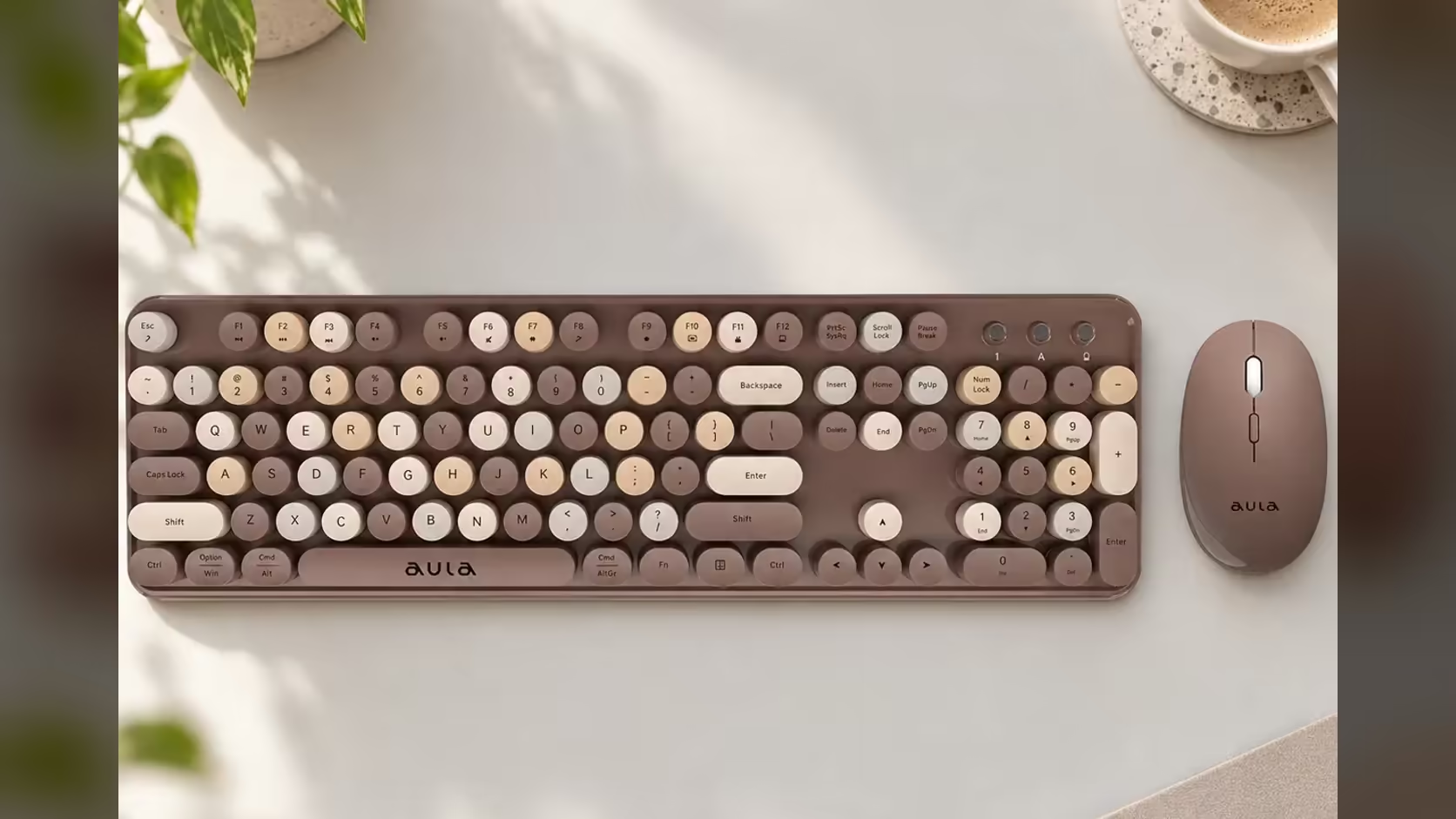
Setting up a wireless keyboard is second nature to some people and a small mystery to others. A parent moving off an old wired set, a grandparent getting their own computer, or a colleague who has only ever used a laptop's built-in keys can all find the jump confusing. The AULA AC306 is a kind set to start with, because it skips Bluetooth altogether. This walkthrough takes a newcomer through a complete wireless keyboard setup, from batteries to the Mac-mode keys.
Quick Answer
Fit an AA battery in each AULA AC306 device, take the USB receiver out of its slot under the mouse, plug it into the computer and switch both devices on. There is no Bluetooth pairing to learn. If the computer is a Mac, press Fn + E to set Mac mode; Fn + W sets Windows mode. That is all it takes to be typing on the R239 set from Evetech.
🔋 Step one: batteries and switches
Everything starts with power. Each device takes one AA cell.
- Find the keyboard's battery slot and fit one AA the right way round, matching the plus and minus marks.
- Do the same with the mouse.
- Leave both switched off for now.
Check the box to see whether cells came with the set. If not, a pack of AAs from the shop down the road is all you need. Keep two spares in the desk drawer, so a flat cell is never a crisis.
🔌 Step two: the receiver
The AC306 uses one small USB receiver for both the keyboard and the mouse. It is stored in a slot on the underside of the mouse, which is the part newcomers most often miss.
- Turn the mouse over and slide the receiver out of its slot.
- Plug it into a USB port on the computer. On a desktop, a port on the front is easiest to reach; on a laptop, any free USB port will do.
- Leave the receiver in place from now on, unless you are packing the set away.
Why nothing responds straight away
Once the receiver is in, switch the keyboard and mouse on with their on/off switches. If the pointer does not move, give the computer a few seconds to recognise the new device. If it still does nothing, check three things in order: that both switches are on, that the batteries face the right way, and that the receiver is fully pushed into the port. Also note that the mouse goes to sleep after about 8 seconds without use. A click or a scroll wakes it, which can look like a fault to someone who does not expect it.
🍎 Step three: Windows or Mac
AULA lists the AC306 as working with Windows and Mac. The keyboard has a mode for each:
- Fn + W sets Windows mode.
- Fn + E sets Mac mode.
On a Mac, press Fn + E once after setup so the keys behave the way macOS expects. Most newcomers never need to touch this again.
🧑🏫 Step four: showing a newcomer around
A few keys are worth pointing out on day one:
- Caps Lock and Num Lock lights. The indicators show when capitals or the number pad are switched on, which answers the classic "why is everything in capitals?" question.
- The number pad. It is a full-size, 104-key board, so the numbers on the right work like a calculator when Num Lock is on.
- Fn with the top row. Holding Fn and pressing the F-keys gives play and pause, volume up and down, mute, a browser shortcut, search, email and lock screen. Volume and mute are the ones people use most.
- The low-power light. When it comes on, it is time for a fresh AA in the keyboard.
Should the mouse DPI be changed?
The mouse has a DPI button behind the scroll wheel, stepping through 800, 1000 and 1600. For a beginner, a lower setting is usually easier because the pointer moves more slowly and predictably. Start at the slowest step and only speed up if reaching the corners of the screen feels like too much hand movement.
The keys themselves are quiet, sitting on AULA's upgraded membrane under round, retro-style floating caps, so a newcomer practising their typing will not disturb anyone nearby.
Whichever colour you pick for the newcomer, from pink or purple to blue or brown, Evetech backs the set with a 1 Year Local Warranty. You will find it in the keyboard and mouse combo section, while anyone wanting a standalone board for a work desk can browse the office keyboards.
Frequently Asked Questions
What needs to go in before anything else?
Power. Each device runs on a single AA cell, so fit those before touching the switches.
Which USB port should I use for the receiver?
Any free USB port. On a desktop, the front is easiest to reach.
Why did nothing happen when I switched it on?
Give the computer a few seconds, then check the switches, the battery direction and that the receiver is fully inserted.
What changes on a Mac?
Press Fn + E to put the keyboard into Mac mode. Fn + W returns it to Windows mode.
Which keys should a newcomer learn?
Caps Lock, Num Lock, the number pad, and Fn with the top row for volume and media.
Should a beginner change the mouse speed?
Start on the slowest DPI step, 800, and only raise it if the pointer feels too slow.
Setting up a computer for someone new to it?
Evetech's combo range has sets that plug in and simply work, so start your search there.