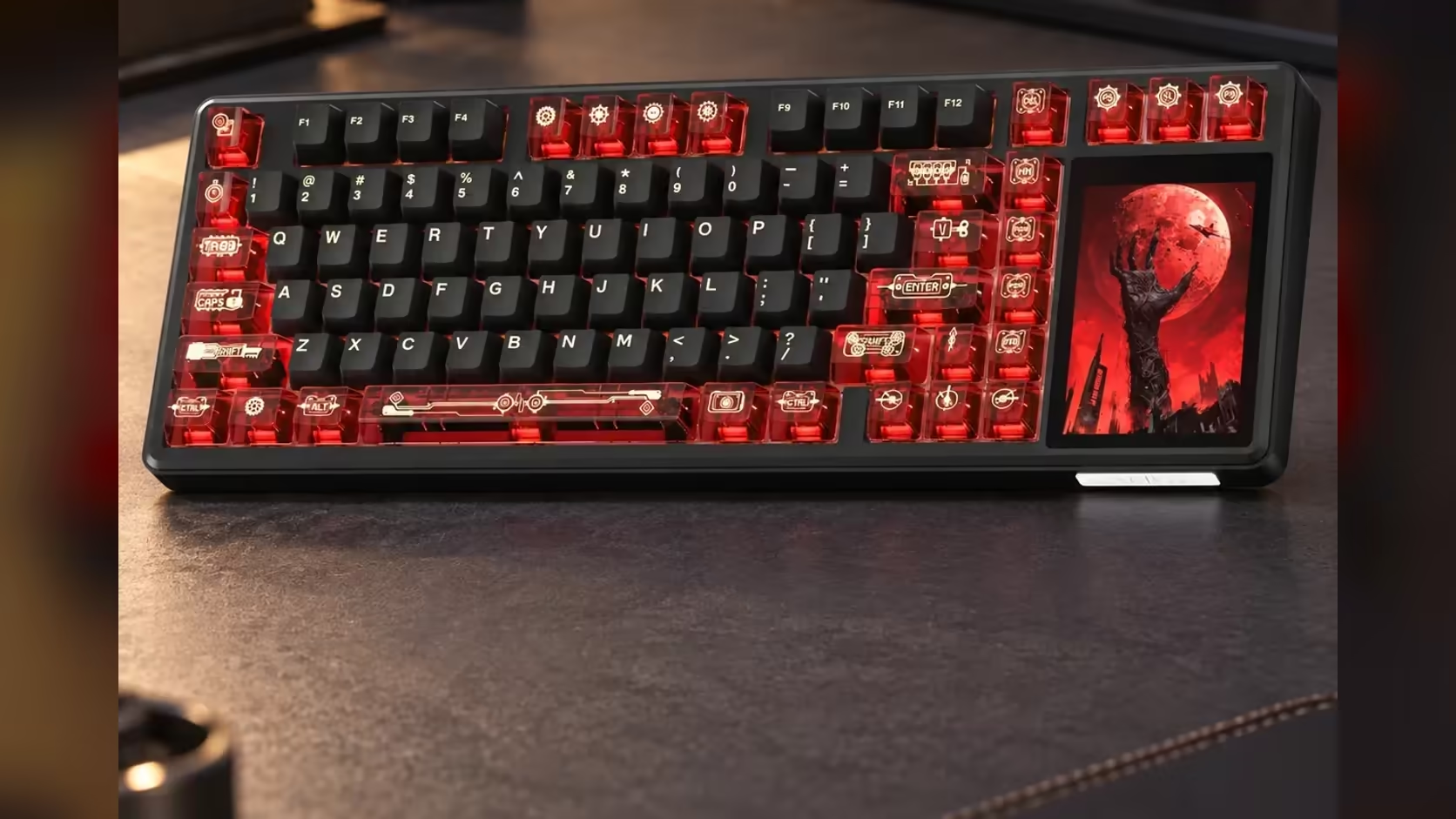
Load a random GIF onto a small display and the result is usually disappointing: stretched faces, squashed logos, or detail so tiny it turns into mush. The AULA L99's touchscreen is a 320 x 480 panel, and resizing a GIF for a keyboard screen before you upload it is the difference between a sharp little animation and a blurry one. Ten minutes of preparation makes every image you put on the board look deliberate.
Quick Answer
Resize your GIF or JPG to exactly 320 x 480 pixels before uploading it to the L99, cropping to the panel's 2:3 shape beforehand so nothing gets stretched. Use bold shapes, strong contrast and short loops, then upload one test image and check how it sits on the 3.98-inch screen before preparing a whole set. Both L99 colourways cost R1,099 from Evetech and come under a 1 Year Local Warranty.
📐 Know your canvas
The L99's display is 320 x 480 pixels on a 3.98-inch diagonal, which works out to a 2:3 shape. That is the single most important number for this job: an image already cropped to 2:3 fills the panel cleanly, while a wide 16:9 clip either gets squeezed or cut.
AULA's listing gives the resolution but not which way round the panel is mounted in the board. So before you crop a folder of artwork, make one simple test file, such as an arrow pointing up with the word TOP, upload it, and see how it displays. That tells you whether to prepare your images tall (320 wide by 480 high) or turned on their side, and saves you redoing the whole batch.
✂️ Cropping and resizing step by step
1. Crop to the shape
Open the image in any editor and crop it to a 2:3 ratio around the part you care about, such as a character's face, a logo or an icon. Crop before you shrink, so you choose what stays rather than letting the software decide.
2. Resize to 320 x 480
Now scale the cropped image to exactly 320 x 480 (or 480 x 320 if your test showed the panel sideways). Make sure the "keep proportions" option is on; because you cropped to 2:3 already, the numbers will line up.
3. For GIFs, resize every frame
Most image editors and many free online GIF tools can resize an animation while keeping all its frames. Check the result plays through properly before uploading.
4. Export as GIF or JPG
The L99 accepts GIF animations and JPG images. Use JPG for a still picture and GIF for anything that moves.
🎨 Designing for a 3.98-inch panel
Bold beats detailed
At this size, thin lines, small text and busy backgrounds disappear. Pick artwork with large shapes, clear outlines and strong colour contrast. A simple logo or a character on a plain background reads far better than a detailed game screenshot.
Keep loops short
Long animations with many frames make larger files and often look choppy on small screens. A short, clean loop of a few seconds, such as a spinning emblem or a blinking eye, is more effective and easier to get right.
Match your lighting
The same panel runs the per-key RGB menu, with about 16 million colours and 20 presets. Choosing a GIF whose colours match your lighting gives the whole board one look. Because effects export too, a friend can copy your whole theme.
🔍 Test, then build a set
Upload your single test image, look at it from your normal sitting position and check three things: is it the right way up, is anything cut off, and can you still make out the details? Adjust your template and then prepare the rest.
Remember that a GIF on the panel is a display, not a mode that replaces the screen's tools. The lighting menu, settings, numpad, calculator and mouse simulation are all still there when you need them.
For more boards with screens and without, look through Evetech's gaming keyboards, while the keyboard best sellers page shows the boards buyers are picking up most.
Frequently Asked Questions
Why not upload the original image as it is?
Mismatched sizes get stretched or cut on a 320 x 480 panel. Resizing to fit keeps shapes accurate and edges sharp.
Can I use still images as well as animations?
Yes. AULA lists both GIF and JPG, so a static picture works as well as an animation.
Do I need paid software to resize?
No. Most free image editors and online GIF resizers can crop and scale while keeping animation frames.
Should I avoid fine detail?
Yes. Thin lines and small text do not survive on a 3.98-inch screen. Choose bold, simple artwork with strong contrast.
Does a GIF stop me using the lighting menu?
No. The animation is one of several things the panel shows; the lighting, settings and utility modes remain available.
Should my artwork be tall or wide?
Upload one test image with a clear "top" marker to see how the panel is oriented, then prepare the rest to match.
Ready to put your own artwork on your keyboard?
Explore Evetech's gaming keyboards and find a board with a screen that suits your style.