



Content Warning PC build under R20,000 for SA gamers
Content Warning on R20,000 needs careful part balance. This SA build guide frames CPU, GPU, RAM, SSD, cooling, and upgrade trade-offs without promising live prices, stock, or exact FPS.
Read moreThe Waveform bufferbloat test loads your connection under real traffic and grades how much your ping spikes under that load, a clearer picture than a plain speed test gives. A poor grade usually fixes with smart queue management on your router.
Blaming the server is easy when an idle speed test looks perfect. A proper bufferbloat test loads the connection while watching latency, revealing whether downloads and streams are trapping your game traffic in a queue.
Test bufferbloat on Ethernet with the household quiet. The Waveform test is one useful option because it measures latency while loading both directions and gives a grade. Record idle, download-loaded and upload-loaded delay. A poor result does not guarantee the router is the only cause, and a grade is not the fix. Repeat the test, identify the bad direction and configure smart queue management from measured line rates.
Connect one computer to the main router by Ethernet. Pause cloud sync, console updates, video calls and other tests. Disable a VPN.
Restart the router only when that is part of your normal troubleshooting and give the connection time to settle. Record the ISP package and a recent real wired speed without publishing account details.
Use a modern browser and close heavy tabs. The test machine should not be CPU-bound while measuring the line.
Start the test and let it complete without opening other traffic. Save idle latency, loaded download latency, loaded upload latency, throughput and grade.
Wait a few minutes and repeat. A single run can catch a transient route or server condition. Two similar results build confidence.
Run one evening test too. Fixed wireless, LTE and busy fibre segments can behave differently during peak hours.
Idle latency describes the route without a full queue. Download-loaded latency shows what happens when receiving traffic saturates the line. Upload-loaded latency tests the outbound queue.
A large upload increase explains why a cloud backup ruins a game. A large download increase can explain trouble during game updates or video streaming.
The letter grade compresses these details. Keep the milliseconds because they show which control needs work.
Run a continuous ping to an approved stable destination. Start one normal cloud upload from another device, then stop it. Repeat with a download.
Watch the rise and recovery. This makes the synthetic result visible in the traffic that causes your gaming complaint.
Do not saturate a work or shared network without permission. Keep the test short and tell household users.
Look for SQM, smart queue, adaptive QoS or a similar control in the router's current documentation. The names and algorithms differ.
Set shaped download and upload rates slightly below measured stable throughput according to the manufacturer guidance. Apply the control to the WAN path, not only one Wi-Fi device.
Retest Waveform. Adjust in small steps. The goal is much lower loaded latency with acceptable throughput, not the highest speed-test number.
Prioritise latency-sensitive traffic or the gaming device without starving calls and work. Device priority can help but may not control the queue at the ISP boundary.
Enter real bandwidth values. A router told the line is faster than it is cannot shape before the bottleneck.
Check whether hardware acceleration disables QoS or reduces router throughput. The exact model documentation should explain the trade.
If loaded latency stays poor with a capable router configured correctly, connect as close to the ISP device as the supported setup permits. Repeat with another Ethernet cable and computer.
On fixed wireless or LTE, radio scheduling and tower load can add variation beyond your router. Compare quiet and peak hours.
Give the ISP the wired dates, speeds and loaded-latency results. Do not promise that a router purchase will solve provider congestion.
The replacement router must handle the line speed with its queue controls active. Enough Ethernet ports, current firmware and CPU capacity matter.
Browse routers and networking gear for supported traffic management. The accessories best sellers can help complete the wired test with compatible items.
Save both test dates, router setting, shaped rates, loaded latency and throughput. Add one game session during household traffic.
Roll back a change that makes no improvement. A neat record prevents random QoS toggles and gives the ISP useful evidence.
Retest after changing package speed or ISP equipment. Old shaping limits can become the new bottleneck.
Name each saved result by date and direction. That small habit makes it easy to see whether upload control, download control or peak-hour conditions changed the outcome.
Add the active firmware version so a later router update can be tested against the same record.
No. Router queues, ISP equipment, access technology and congestion can contribute. Use controlled comparisons.
The increase from idle to loaded latency shows the bloat. Split upload and download to identify the direction.
It shapes below the bottleneck and can lower peak throughput. The trade buys much steadier latency under load.
Save two wired bufferbloat tests, tune one queue setting from measured speeds and prove the result with the same household load.
No. Router queues, ISP equipment, access technology and congestion can contribute. Use controlled comparisons.
The increase from idle to loaded latency shows the bloat. Split upload and download to identify the direction.
It shapes below the bottleneck and can lower peak throughput. The trade buys much steadier latency under load.
Content Warning on R20,000 needs careful part balance. This SA build guide frames CPU, GPU, RAM, SSD, cooling, and upgrade trade-offs without promising live prices, stock, or exact FPS.
Read more
Atomic Heart at R50,000 needs a balanced CPU, GPU, memory, SSD, and cooling plan. This SA build guide frames the budget without exact FPS, stock, or live price promises so you can match parts to your monitor.
Read more
Sea of Thieves at R60,000 gives SA buyers a high-end desktop tier for 1440p luxury and sensible 4K headroom. Balance a high-end GPU with a fast CPU, 32GB RAM, quality power and SSD storage instead of chasing vanity spend.
Read more
Openserve Durban packet loss should be checked step by step before replacing gear. Test Ethernet, Wi-Fi signal, router logs, device drivers and time-of-day patterns, then escalate with evidence.
Read more
Minimum 1440p gaming PC for MMO and live-service games should balance GPU, CPU, RAM, storage and cooling around real workloads. SA buyers can use this guide to avoid overbuying and plan a sensible upgrade path.
Read more
Cheapest 1440p ultrawide gaming PC at R80,000 should be shortlisted around the job it must do. South African buyers should compare panel type, resolution, refresh rate, and ports, warranty path, and upgrade room before treating any pick as best.
Read more
Yes, if you split your time between a phone and a PlayStation, because the GameBuds use two links. Evetech sells them at R3,999 with IP55 protection and a Qi charging case. Dongle for console, Bluetooth for phone.

Skip the RTX 5060 Ti for podcast recording when quiet operation, display support, and simple PC fit matter more. SA creators should compare thermals, port layout, local warranty, and editing needs before picking a GPU.

80+ Gold vs 80+ Platinum for video editing in 4k is about PSU efficiency, heat, fan behaviour, quality, and wattage headroom, not direct FPS. SA buyers should compare the whole build.
A recommended build for Marvel Rivals at R25 000 should feel clearly stronger than budget tiers while staying balanced. In SA, use the extra room for GPU power, CPU support, SSD capacity, case airflow, and upgrade flexibility.

File Explorer preview pane can be toggled with Alt+P. A downloaded file may still have its preview blocked by Windows security; that warning is different from a hidden panel or a broken drive.

File Explorer opens Home by default on current Windows 11 layouts. Set Open File Explorer to This PC if you prefer drives first; the change does not move documents or remove their Quick access pins.

Windows show hidden files is a File Explorer visibility option, not a recovery tool. Enable Hidden items to inspect a known folder, keep protected system files separate and avoid deleting unfamiliar entries.

Windows Snap layout popup appears when you hover over a window maximise button. Its dedicated Multitasking option can turn that flyout off; a popup missing in only one app may instead be an app-window issue.
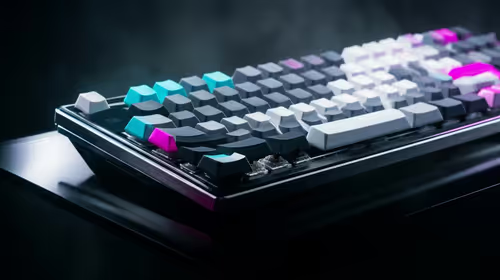
Magnetic switches are taking over SA gaming keyboards because adjustable actuation gives players faster control. For Mbombela gamers, the appeal is rapid reset, smoother key feel, and tuning per title without changing boards.

Where Cape Town gamers buy a Steam Deck should be shortlisted around the job it must do. South African buyers should compare fit, performance, compatibility, and upgrade room, warranty path, and upgrade room before treating any pick as best.
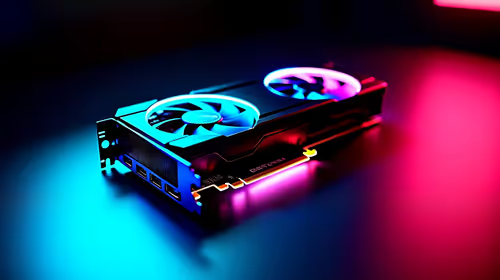
RTX 5090 1440p Horizon Forbidden West should be checked through settings, CPU balance, drivers, and monitor goals. SA gamers can use this quick checklist before choosing visuals, refresh targets, upgrade timing, or a monitor pairing.
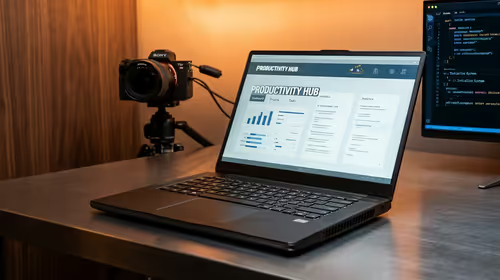
What laptop do Mechatronics students at should be shortlisted around the job it must do. South African buyers should compare CPU, GPU, RAM, and screen quality, warranty path, and upgrade room before treating any pick as best.