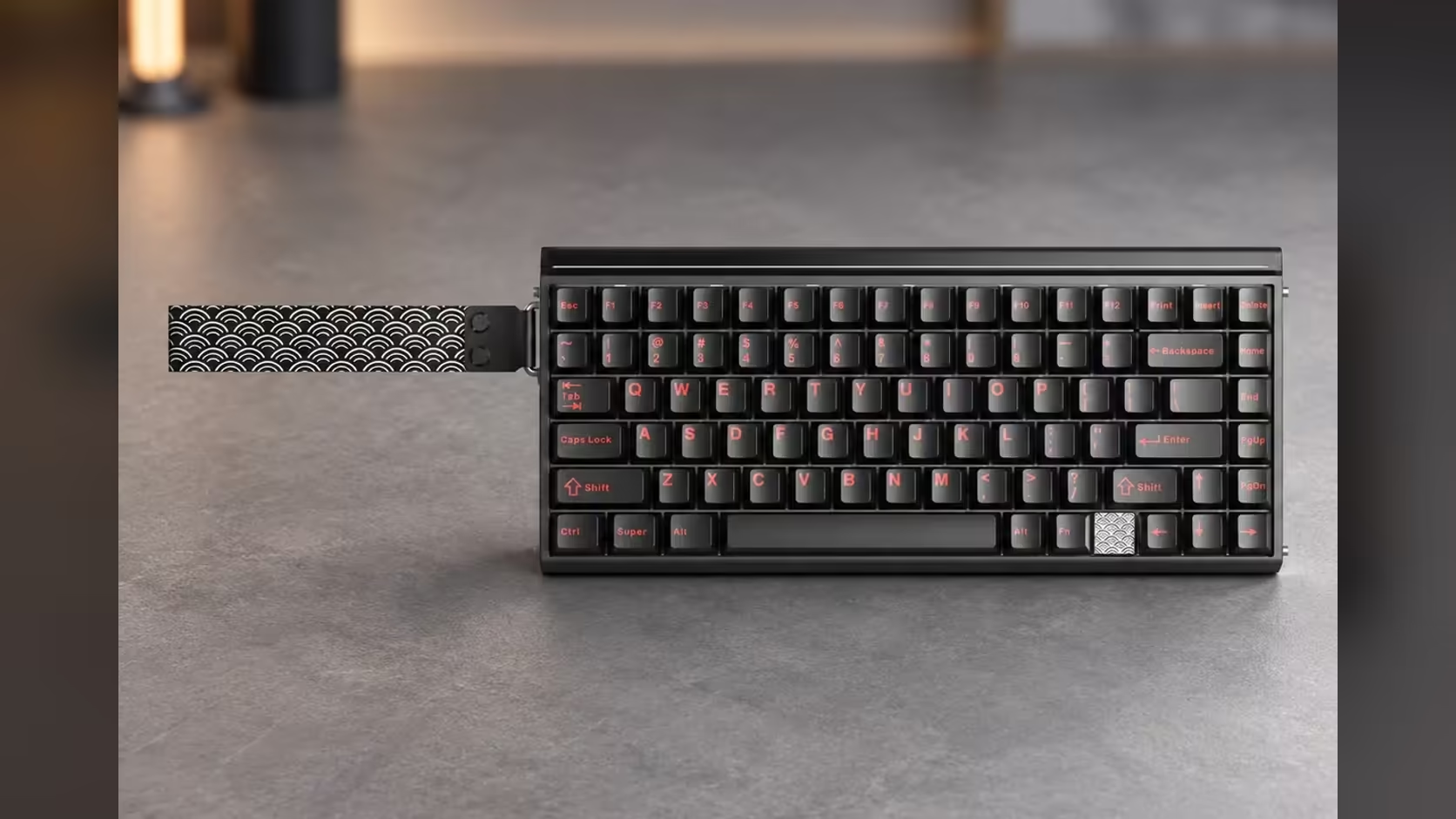
Every magnetic keyboard hides a small buffer at the edges of each key's travel, a band where movement is quietly ignored. The AULA HERO 75 HE lets you shrink that buffer to nothing. Switching on zero dead zone makes keys react from the very top of the stroke, which is brilliant for some players and a nuisance for others. This guide covers how to approach the setting on the HERO and when leaving it off is the smarter call.
Quick Answer
Turn zero dead zone on in the AULA HERO 75 HE's driver when you want keys to respond instantly from the top of their travel; leave it off if resting fingers cause stray inputs. Because the HERO moves its trigger point in 0.005mm increments (anywhere from 0.1mm down to 3.4mm) and runs Rapid Trigger on top, every tweak is small and simple to undo. Evetech sells the HERO 75 HE for R899 in every colour.
🧭 What the dead zone does, and what zero means
A Hall Effect switch reports its position constantly. Near the top of the stroke, tiny wobbles from a finger resting on a key, or slight variation in the magnet reading, can look like movement. Keyboards usually ignore a small band there so those wobbles never become input. That band is the dead zone.
Setting it to zero removes the buffer. The board treats every bit of travel as meaningful, so a key set to trigger at 0.1mm will do so with nothing held in reserve above it, and Rapid Trigger can reset keys the instant they rise, right up at the top.
🛠️ Setting it up, step by step
Configuration happens in the AULA HUB web driver, opened in a browser and treated by AULA as a Windows utility. The product page confirms a zero dead zone option, calibration and a real-time key travel display, but not the menu names, so the steps below focus on method.
Step 1: calibrate before touching the dead zone
Calibrating the magnetic switches gives the board an accurate map of each key's resting and bottomed-out positions. A dead zone change on an uncalibrated key is guesswork. Recalibrate after any switch swap too.
Step 2: watch the live travel view
Press a key slowly while watching the real-time travel display. Then rest your finger on it as you would in a game, without pressing. If the reading twitches while you rest, that key is a poor candidate for zero dead zone.
Step 3: apply zero only where it pays off
Start with movement keys, usually W, A, S and D, where instant response has the clearest benefit. Letters you write with and keys bound to big, irreversible actions can stay on the default.
Step 4: pair it with a sensible actuation point
With no dead zone, a very shallow actuation point becomes extremely sensitive. Begin a little deeper than you think you need, then step it up towards the top in 0.005mm increments until it feels right.
Step 5: test in a familiar game
Play a few rounds of something you know well. Stray movement while you are standing still means the setting is too aggressive for your hands; back it off.
⚖️ Who should switch it on, and who should not
Good candidates: players in fast shooters who counter-strafe constantly, anyone who already types with a light touch, and people who hover rather than rest on keys.
Better off without it: heavy-handed typists, players who rest fingers firmly on movement keys between fights, and anyone who uses the same board for long writing sessions without switching profiles.
If you both game and write on the HERO, consider applying zero dead zone only to the gaming keys and leaving the rest alone. Because settings are per key, there is no need to choose one approach for the whole board.
🔩 The rest of the HERO's tuning toolkit
Zero dead zone is one of several magnetic tools on the HERO. SOCD resolves opposite directions held together, DKS assigns actions to different depths of one press, and Mod-Tap, Toggle, END and Multi-Point Trigger round out the list. All of it works over the cable and the 2.4GHz receiver at 8000Hz; Bluetooth runs at 125Hz and is better kept for typing.
The HERO 75 HE is a 75% board with 84 keys and an 8000mAh battery, in black with Stormrise switches or orange and green with Spiritcloud. Evetech backs it with a 2 Years Local Warranty. Compare it in the gaming keyboards line-up, or see which boards lead Evetech's keyboard best sellers.
Frequently Asked Questions
Where is the dead zone setting found?
In the AULA HUB web driver, alongside calibration and the real-time key travel display.
Should a heavy-handed typist keep it off?
Usually, yes. Resting or heavy fingers can trigger keys when there is no dead zone to absorb small movements.
Is it worth switching on for ranked shooters?
Often. Movement keys benefit most, especially for counter-strafing, as long as your fingers hover rather than rest.
Does calibration come before the dead zone change?
It is the best place to start, so the board knows each key's true top and bottom.
How fine are the adjustment steps?
Actuation moves in 0.005mm steps between 0.1mm and 3.4mm, so changes can be very small.
What about writing essays between games?
Keep zero dead zone to your gaming keys, or leave it off on typing keys, so writing stays free of stray letters.
Want keys that respond the instant you touch them?
Explore tunable magnetic boards like the HERO 75 HE in Evetech's gaming keyboard range and set them up your way.