



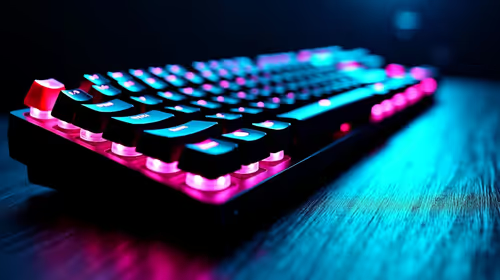
How to Fix Lag Spikes on a Mechanical Keyboard
Lag spikes on a mechanical keyboard often have a fixable cause. Separate accessory latency from network, driver, display, and system causes before blaming the device or buying a replacement.
Read morewireless mouse won't boot after a BIOS update should start with repeatable checks, not guesswork. Test settings, drivers, thermals, power behaviour, and recent changes so SA readers can isolate the cause before buying parts.
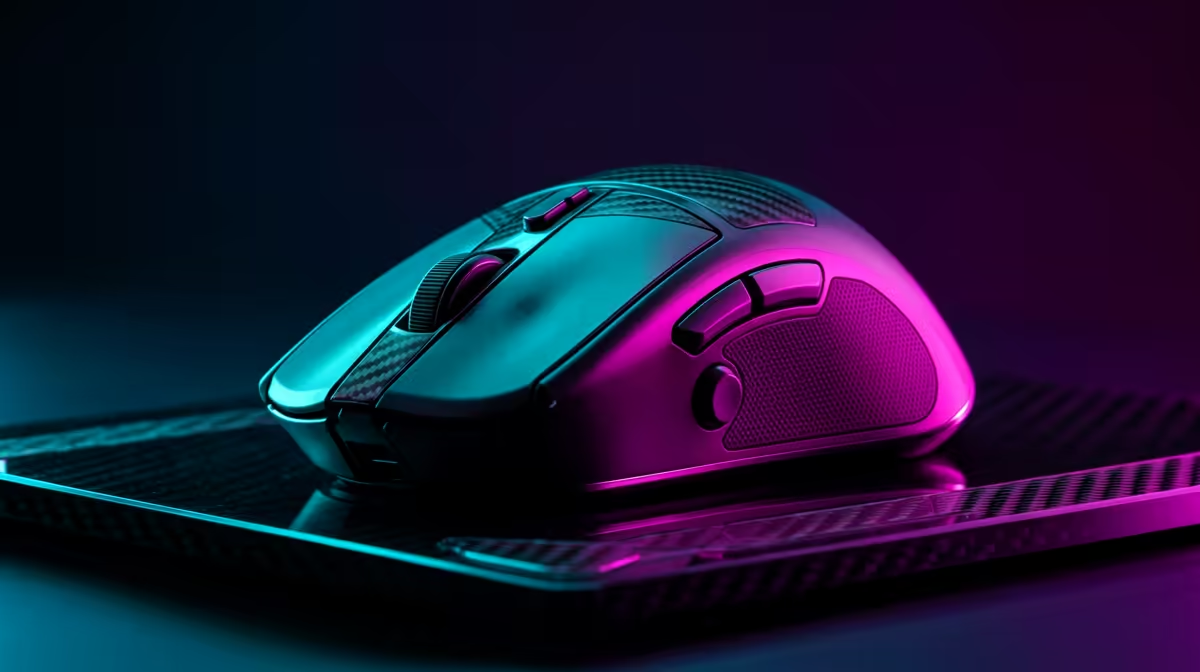
A wireless mouse cannot directly cause a blue-screen or stop a PC from booting after a BIOS update; the platform change is the real suspect. Put the motherboard back on safe defaults first, then test the mouse receiver on a rear USB port before buying a replacement. A sensible SA replacement budget is about R450-R1,800 for a Logitech G305-class, Razer Basilisk X-class or similar 2.4GHz mouse.
If the crash appeared right after enabling XMP, EXPO or a firmware flash, the memory controller, USB controller or chipset driver is more likely than the mouse itself. Clear the profile, boot at JEDEC memory speed, and confirm Windows stays stable for 20-30 minutes with only keyboard, display and one mouse receiver attached. On a Ryzen 5 7600 or Core i5-14600K system, unstable RAM training can show up as input dropouts even when the peripheral is healthy.
Use the receiver directly in a rear motherboard USB-A port and avoid front-panel hubs while testing. If the board has USB 2.0 and USB 3.x ports, try both because some receivers behave better away from high-speed USB noise. Replace the AA battery or charge the mouse fully, then test at 1,000Hz polling and a normal desktop workload before launching a game at 120Hz or 144Hz.
Replace the mouse only if it fails on another stable PC, loses pairing at safe BIOS defaults, or keeps disconnecting with a fresh battery and direct USB connection. For competitive shooters, a 1,000Hz wireless model is enough; 4,000Hz or 8,000Hz polling is a luxury unless the rest of the setup already reaches high frame rates. Spend more on the mouse only after the motherboard, RAM profile and chipset drivers are stable.
No. XMP can expose memory or controller instability, and that instability may appear while the mouse receiver is connected. The fix is to stabilise the platform first, not to blame the mouse first.
No. Test safe BIOS defaults, a rear USB port and another PC before spending. If the receiver or mouse fails across systems, then a R450-R1,800 wireless mouse shortlist is reasonable.
A 1,000Hz wireless mouse is enough for most 144Hz setups. Higher polling can feel sharper, but it also adds battery drain and will not fix a platform crash.
Before replacing the mouse, save a stable BIOS profile with memory defaults and test the receiver directly on the motherboard rear I O for one full gaming session.
Lag spikes on a mechanical keyboard often have a fixable cause. Separate accessory latency from network, driver, display, and system causes before blaming the device or buying a replacement.
Read more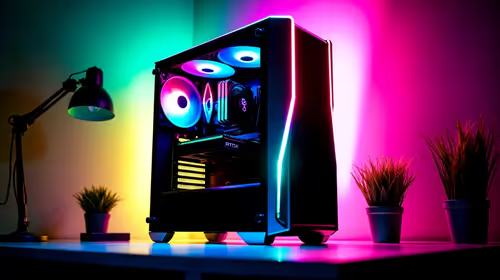
Oblivion Remastered at R25,000 lets SA buyers move from entry value to a stronger midrange PC. Aim for a better GPU, CPU headroom, 32GB-ready memory, and fast storage while keeping the build easy to cool and upgrade.
Read more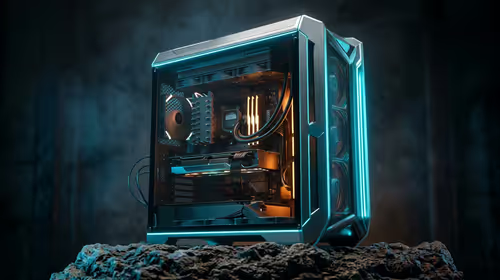
Fallout 76 R20,000 PC build planning starts with balanced parts. For SA gamers, compare CPU and GPU fit, RAM needs, SSD space, PSU headroom and cooling before buying.
Read more
Gauteng Smart Buying R40 000 Setup needs a balanced check of fit, comfort, compatibility, warranty, and real setup needs. Use this cautious guide to compare options before buying in South Africa.
Read more
Brits running local LLMs build under R20,000 needs a balanced parts plan, not a random basket. Map the CPU, GPU, RAM, SSD, cooling, and monitor target to the budget so SA builders know where to spend first.
Read more
Ermelo-based gamers: what strategy and sim should be shortlisted around the job it must do. South African buyers should compare fit, performance, compatibility, and upgrade room, warranty path, and upgrade room before treating any pick as best.
Read more
Steam game recording black screen needs a fresh capture and export test before a hardware upgrade. Check the recording mode, free space and whether another game records correctly. Community reports suggest testing broadcasting settings, but that is not a universal fix.
MSI Stealth 16 RTX 5070 specs need an exact SKU check because current listings disagree on GPU memory. One UK listing says 12GB while MSI's family table says 8GB. Confirm the supplied configuration rather than assuming either describes every machine.
SHIELD TV Pro price increase means a higher US price for the existing streaming box. NVIDIA confirmed the change starts on 2 October and cited component costs. Compare playback needs, regional service access and the full local quote before buying.

Is a transparent phone mount the key to clearer windshield views? 🚗 We analyze if these see-through accessories actually reduce obstruction while driving or if they’re just a clever marketing gimmick. Find out which mount keeps your dash clean. 📱
Steam game recording black screen needs a fresh capture and export test before a hardware upgrade. Check the recording mode, free space and whether another game records correctly. Community reports suggest testing broadcasting settings, but that is not a universal fix.

Windows 11 two finger scroll not working needs a gesture and driver check first. Test pointer movement and scrolling in more than one app, inspect Touchpad settings and use Windows Update or the laptop maker's driver. A new mouse is only a workaround.
Windows 11 Insider 26220.9587 is a Beta preview released on 2 October. Microsoft lists Unicode text support, Settings performance work and a Cloud Rebuild entry point. These are preview changes, not a reason to move your only working PC onto a test build.
MSI Stealth 16 RTX 5070 specs need an exact SKU check because current listings disagree on GPU memory. One UK listing says 12GB while MSI's family table says 8GB. Confirm the supplied configuration rather than assuming either describes every machine.
Steam game recording black screen needs a fresh capture and export test before a hardware upgrade. Check the recording mode, free space and whether another game records correctly. Community reports suggest testing broadcasting settings, but that is not a universal fix.
Windows 11 two finger scroll not working needs a gesture and driver check first. Test pointer movement and scrolling in more than one app, inspect Touchpad settings and use Windows Update or the laptop maker's driver. A new mouse is only a workaround.
MSI Stealth 16 RTX 5070 specs need an exact SKU check because current listings disagree on GPU memory. One UK listing says 12GB while MSI's family table says 8GB. Confirm the supplied configuration rather than assuming either describes every machine.
Windows 11 Insider 26220.9587 is a Beta preview released on 2 October. Microsoft lists Unicode text support, Settings performance work and a Cloud Rebuild entry point. These are preview changes, not a reason to move your only working PC onto a test build.